If you’ve ever run llama.cpp on a Mac and then tried to do the same thing on Windows with an NVIDIA GPU, you already know the truth: it’s doable, but it’s not plug-and-play.
This post documents a real, end-to-end setup on Windows 11 + RTX 4070 (8GB VRAM), including the gotchas, missing DLLs, wrong CUDA versions, and, most importantly, which models actually make sense on this hardware.
TL;DR (if you just want it to work)
Use a CUDA-enabled llama.cpp build (not winget)
Install CUDA 12.x runtime (not 13.x)
If PATH fails (it often does): copy CUDA DLLs next to the exe
Don’t run 32B models on 8GB VRAM unless you enjoy pain
Qwen2.5-14B Q4_K_M fits perfectly and runs fully on GPU
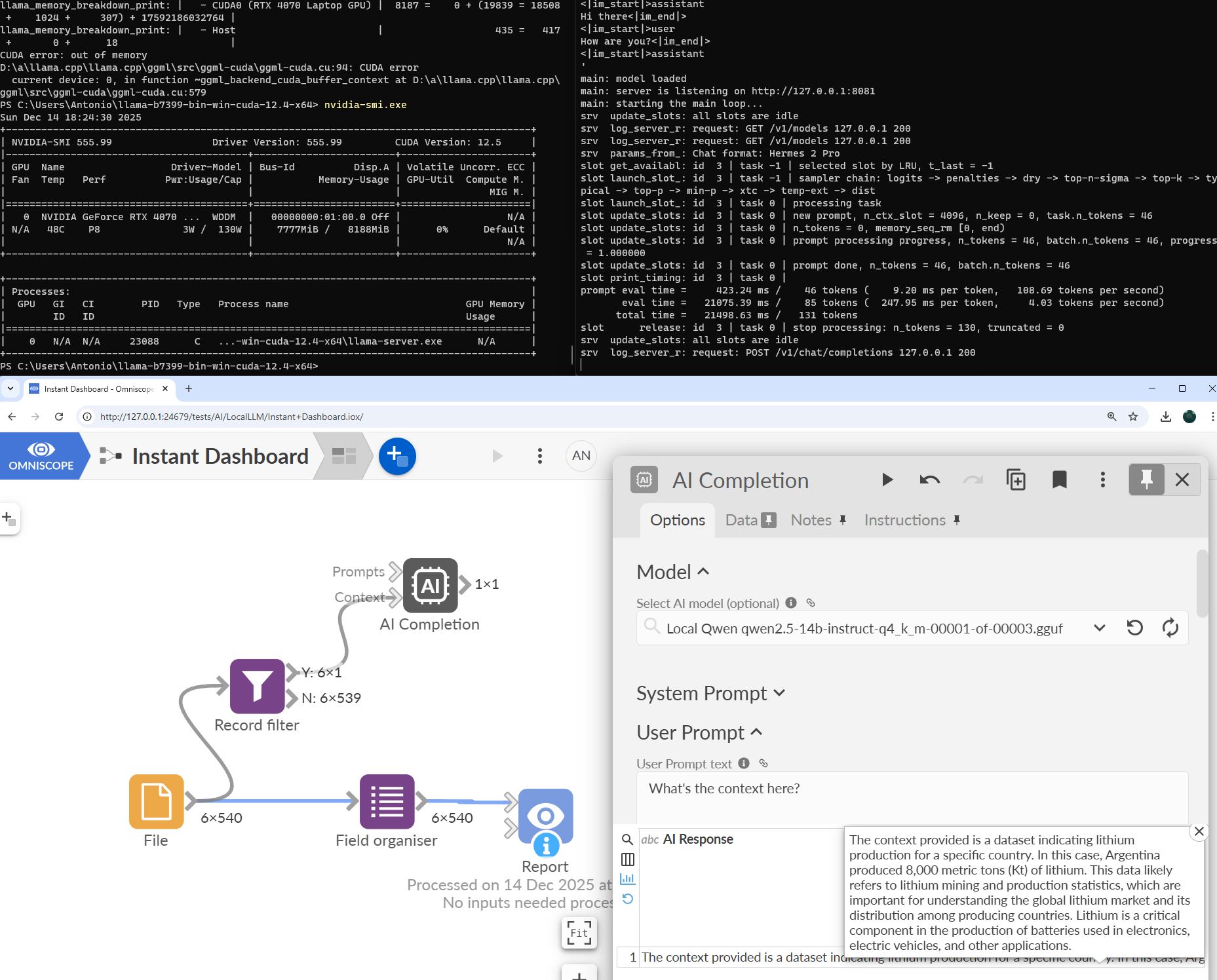
1. Hardware reality check (important)
This guide is based on this setup:
Windows 11
NVIDIA GPU (RTX 4070 Laptop / NUC class, 8GB VRAM)
32GB system RAM
You cannot run 32B models fully on GPU with 8GB VRAM. They will spill into RAM and performance will suffer. The sweet spot is 14B models.
2. Get the right llama.cpp build (do NOT use winget)
❌ winget install llama.cpp
This often installs a CPU or Vulkan-only build.
✅ Instead:
Go to the official llama.cpp GitHub Releases
Download the Windows CUDA build
Example name:Extract it somewhere simple, e.g.:
You should see:
llama-server.exellama-cli.exeggml-cuda.dll
3. Install CUDA (this is where most people break things)
❌ Don’t do this
Installing only CUDA 13.x
Assuming “latest = best”
If your llama.cpp build is compiled for CUDA 12.x, CUDA 13 will not work.
✅ Do this instead
Install CUDA 12.x runtime (12.4 / 12.6 / 12.8 all work)
You do not need the full developer toolkit
After installation, you should have these DLLs:
cudart64_12.dllcublas64_12.dllcublasLt64_12.dll
4. Windows PATH will betray you (here’s the fix)
Even after installing CUDA, Windows often fails to expose the DLLs properly.
The reliable solution (just do this)
Copy these three files:
cudart64_12.dllcublas64_12.dllcublasLt64_12.dll
From:
Into the same folder as:
Yes, it’s ugly.
Yes, it works.
5. Verify CUDA is actually working
From the llama folder, run:
✅ You want to see something like:
If you only see CPU or Vulkan devices, CUDA is not loaded.
6. Pick the right model (this matters more than flags)
❌ What not to run on 8GB VRAM
32B models (QwQ-32B, Qwen-32B, DeepSeek-32B)
You’ll get CPU/RAM spill and poor performance
✅ The sweet spot
Qwen2.5-14B-Instruct (Q4_K_M, GGUF)
Why:
Fits fully in ~8.1GB VRAM
All layers offload to GPU
No RAM thrash
Fast and stable
The model comes split into files like:
? Only point llama.cpp at 00001.
It will load the rest automatically.
7. Run the server (recommended command)
What this does:
-ngl 999→ offload everything that fits to GPU-c 4096→ safe context size for 8GB VRAM
What success looks like
You’ll see logs like:
This means the model is fully GPU-resident.
8. Sanity check performance
While generating text, run:
You should see:
VRAM ~8GB used
GPU utilization > 0%
CPU usage relatively low
If CPU is pegged and GPU is idle, something’s wrong.
Final thoughts (hard truth)
NVIDIA laptops are VRAM-limited, not compute-limited
For local LLMs, memory architecture > raw GPU power
Macs feel “better” for big models because of unified memory
On Windows + NVIDIA, model choice is everything
Once you pick the right model size, llama.cpp with CUDA is fast, stable, and absolutely usable; but getting there requires jumping through a few very Windows-specific hoops.
Hopefully this saves someone else a weekend :)
Was this article helpful?
That’s Great!
Thank you for your feedback
Sorry! We couldn't be helpful
Thank you for your feedback
Feedback sent
We appreciate your effort and will try to fix the article