What is the AI Insights block?
The AI Insights block lets you ask questions about your data and get clear, written answers back inside your Omniscope workflow.
You can use it in a few different ways:
- To generate a plain-English summary of a dataset
- To answer multiple questions at once, one per row
- To add commentary to a report or dashboard
- To explore data during analysis, without writing formulas
In this article, we'll walk through a practical example and use it to explore how the block behaves in different configurations.
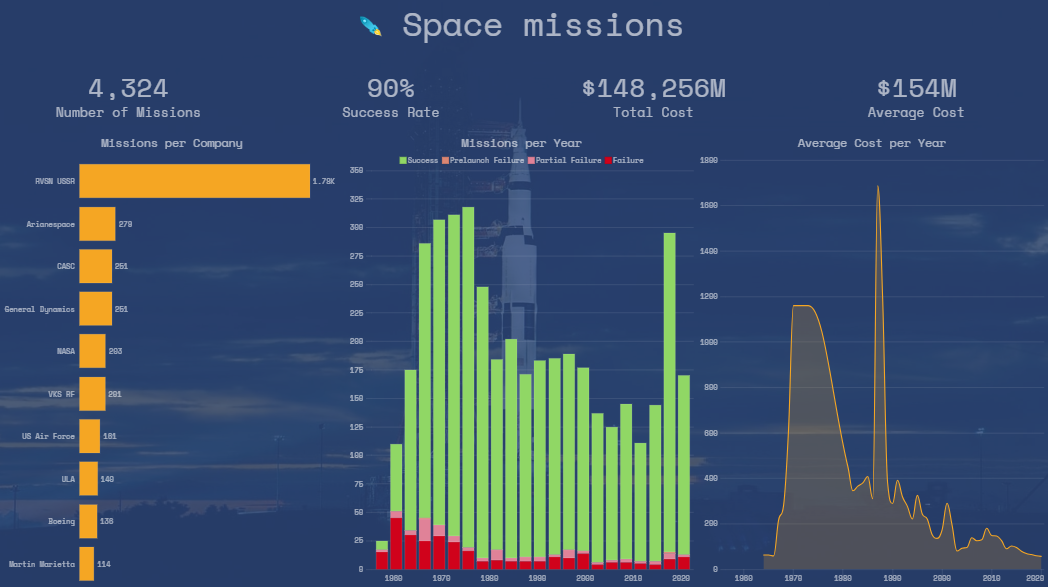
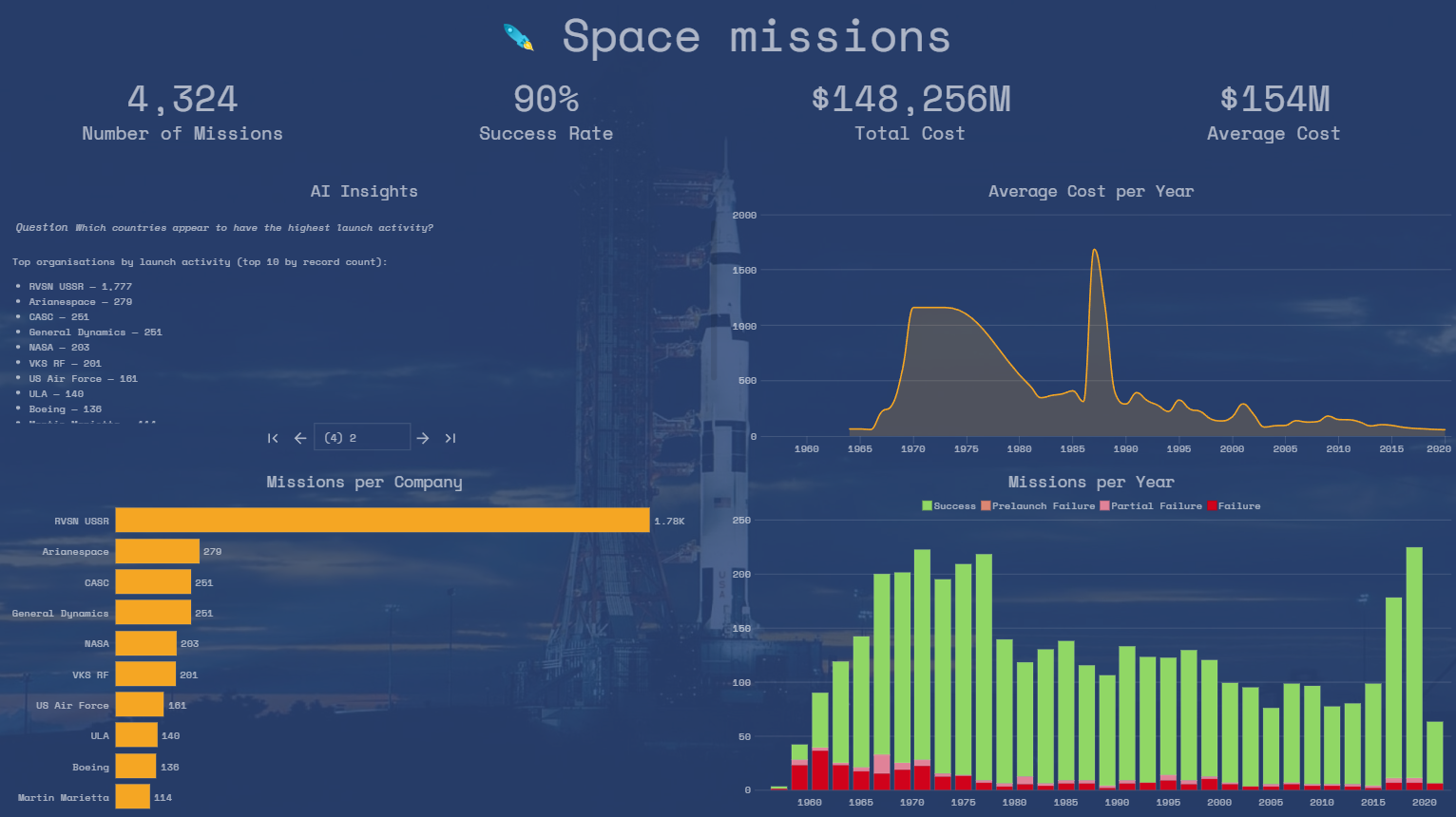
At the end of this article we'll add the AI insights into a dashboard:
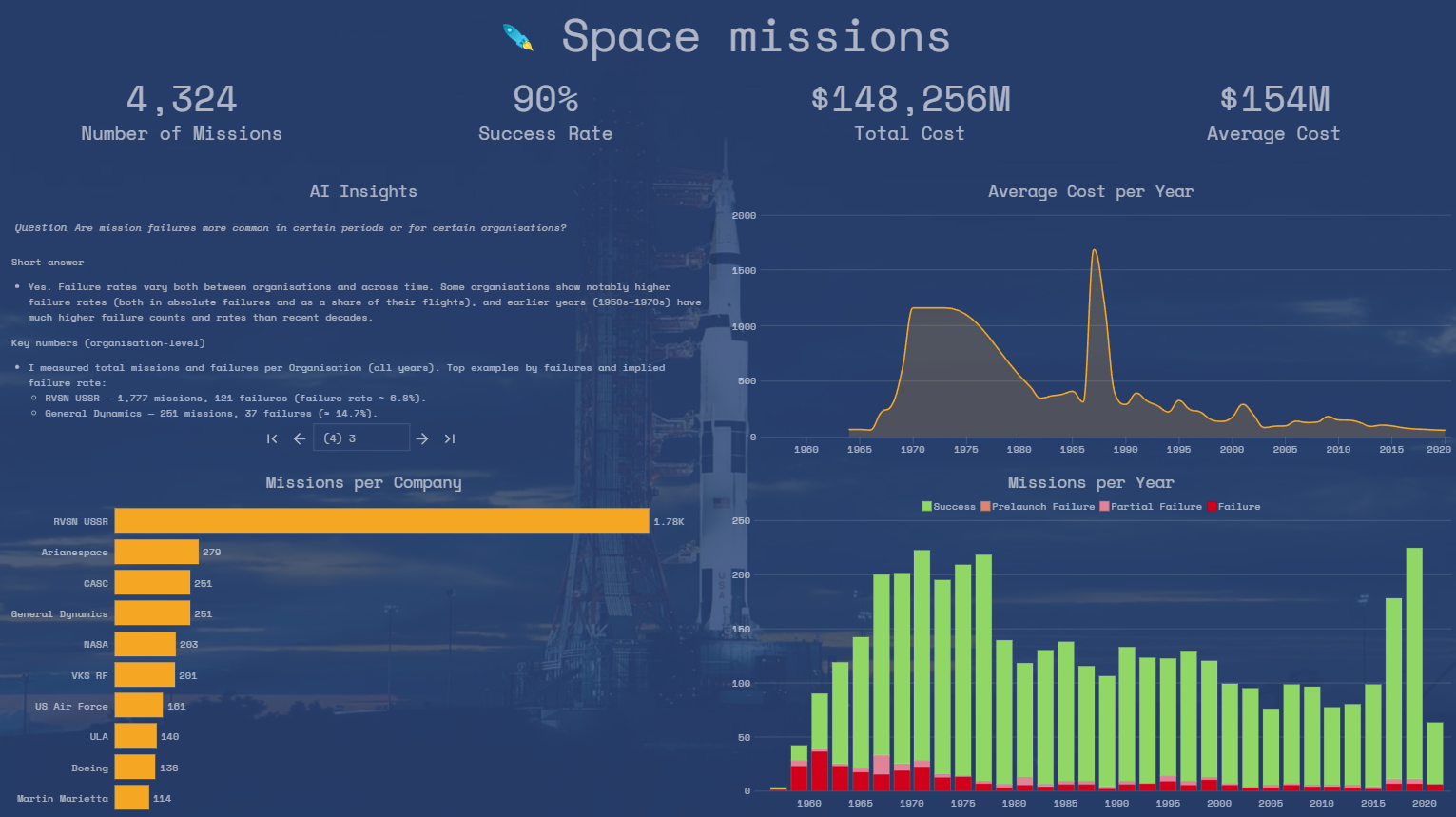
Scenario: analysing space mission launches
Instead of using a typical business dataset, we'll use something a bit more fun: historical space mission launches. At the time of writing this article (January 2026), the Artemis mission was preparing for launch, which makes space exploration a particularly timely topic.
The data comes from a public Kaggle dataset of space missions, covering launches from the start of the space race through to recent years. It includes fields such as:
- Launch date
- Organisation
- Mission status (success/failure)
- Location
- Estimated launch cost
You can view and download the dataset here: https://www.kaggle.com/datasets/sefercanapaydn/mission-launches
Project setup
Before you can use the AI Insights block you need to enable and configure AI in Omniscope. Full instructions can be found here.
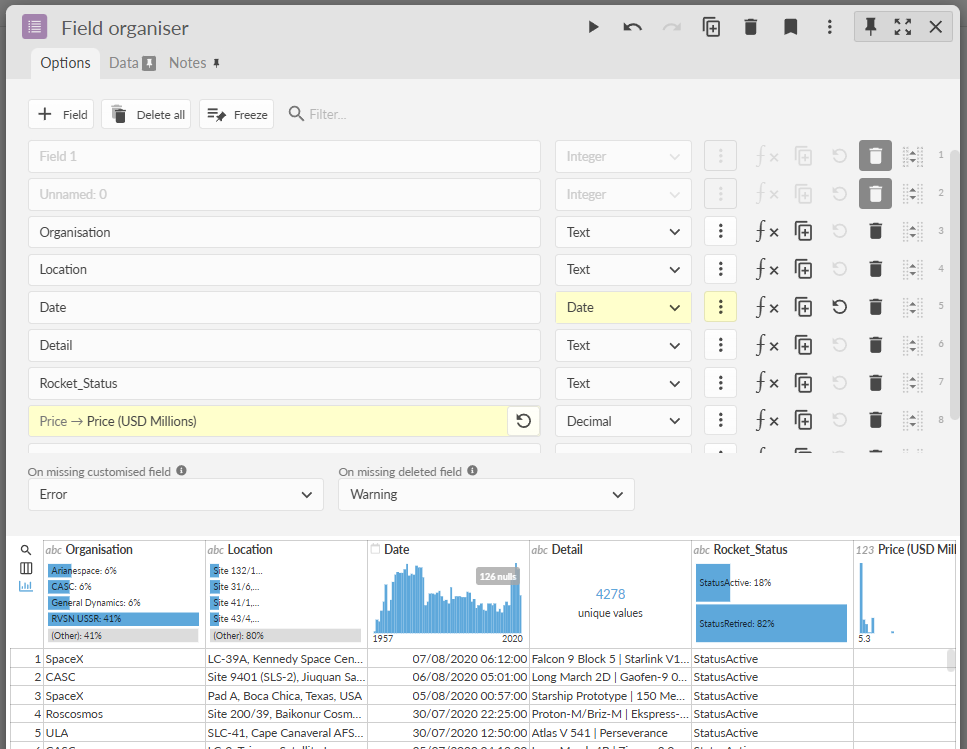
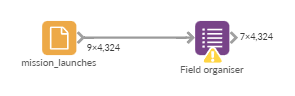
Create a new Omniscope project. Drop the CSV file containing the space mission data onto the workflow to create a File source block. Add a Field organiser and do the following clean-up:
- Convert the Date field from text to date.
- Rename the Price field to Price (USD Millions) so it's meaning is clear.
Asking our first question
Now we'll add our first AI Insights block.
Open the Add block menu, switch to the Code & AI section and click AI Insights. Connect the Field Organiser output to the Data input. Leave the Requests input unconnected.
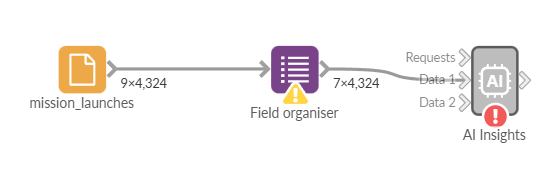
Click on the AI Insights block, then:
- Open the Request tab. In the Insight request text (prompt) and enter an initial prompt, for example I'm using:
How has space mission launch activity changed over time, and what might explain those changes
- Tick Require the AI to use the data inputs.
- Click on the Options tab. Select an AI model (e.g. gpt-5.2).
Now execute the block and wait for the response.
When the block finishes executing we get a dataset with a single output back from the AI insights block. Click the Response tab to inspect the data.
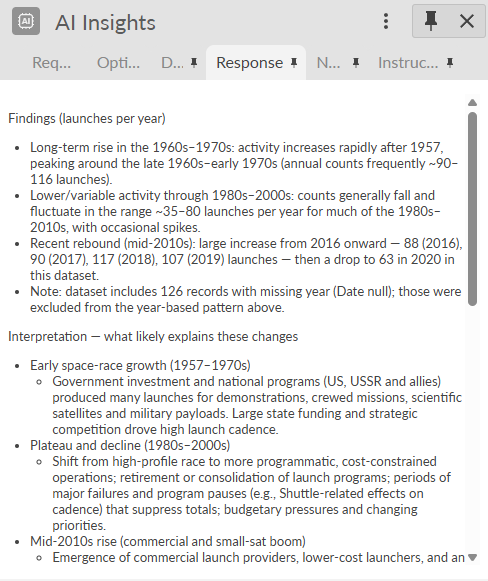
The response contains a structured, readable explanation about how launch activity has changed over time. It talks about specific periods (early space race, decline in the 1980s, recent growth) and references actual launch counts. It even flags data quality issues, for example, it calls out records with missing dates and suggests addressing those before drawing hard conclusions.
You could use this data:
- To connect to a report block, and display inside a Content view as a narrative alongside other views.
- Write it out to a file, for example as part of an automated analysis export
- Send as an email as briefing notes or internal update.
Now let's run exactly that same question again, but this time change just one thing. Duplicate the block, and this time:
- UntickRequire the AI to use the data inputs
Click execute again then switch to the Response tab.
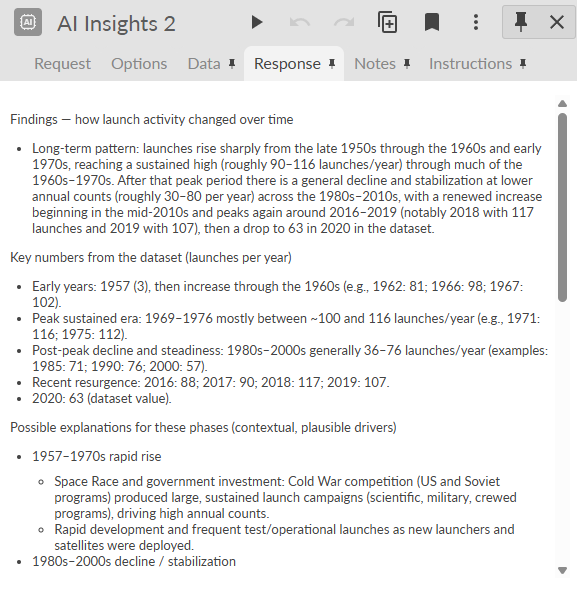
At first glance, the output looks similar. It still talks about launch counts over time, highlights the space-race era and calls out the surge in the late 2010s. That's expected - the data is stil useful, so the AI still uses it.
The tone and scope of the answer have clearly changed. With the data constraint removed, the AI is much more willing to join the dots. We can see this in a few ways:
- The explanation of recent grown now leans heavily into external context. Cold War competition, commercial launch providers, reusable rockets, small-satellite constellations and new national actors are all mentioned explicitly.
- It still respects the data, but it's comfortable bringing in background knowledge to explain why patterns exist.
In practice, you would typically tick require the AI to use the data inputs when producing commentary for dashboards, writing summaries that need to be defensible or sharing outputs to a wider audience.
You might leave it unticked when exploring a dataset, brainstorming explanations or looking for context or ideas to investigate further.
Asking multiple questions with a Requests input
So far we've asked one question at a time and let the AI Insights block return a single written response. That's useful, however one of the strengths of the block is that it can answer many different questions in one go as part of the same workflow.
To do that, we just need to connect a Requests input.
In this example, we'll use a Text Input block. Each record in the Text Input represents one question we want the AI to answer.
- Add a new Text Input block to the workflow.
- Rename the field to Question and in each record, enter a different question. For example:
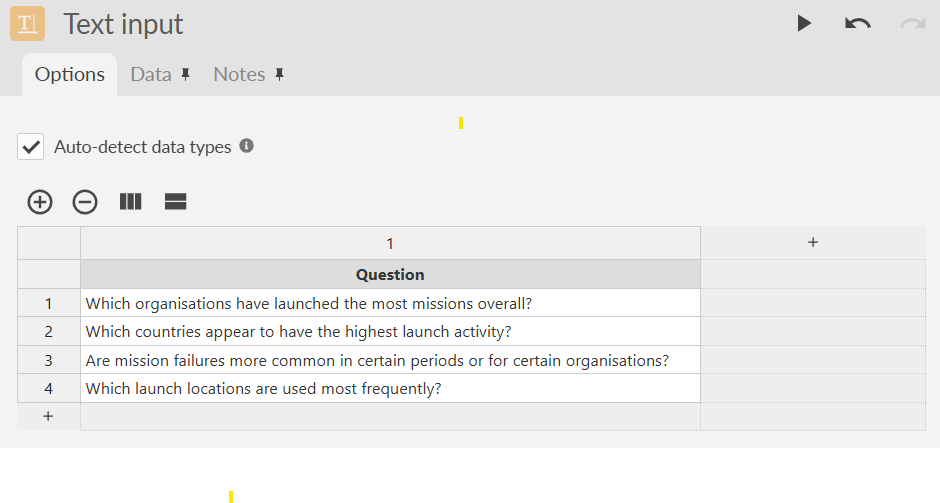
Now:
- Add an AI Insights block to the workflow.
- Connect the Text Input block to the Requests input of the AI Insights block.
- Connect the Space missions data to the Data input of the AI Insights block.
- Configure the model as before.
- In Add fields to this request in the Request options select Question.
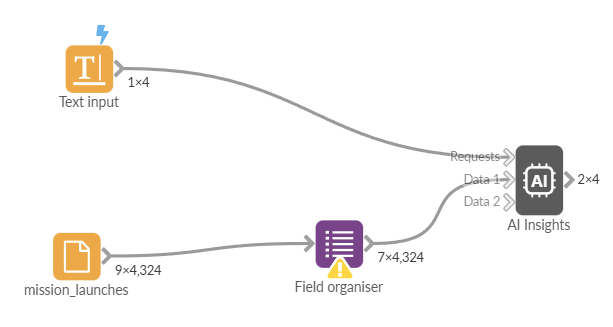
Now execute the AI Insights block. Switch to the Response tab.
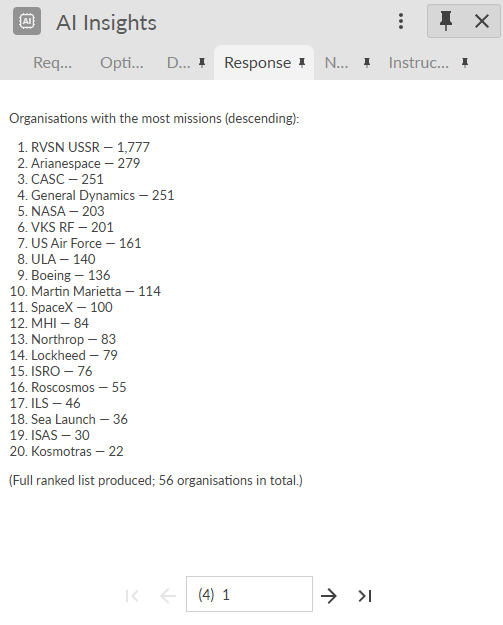
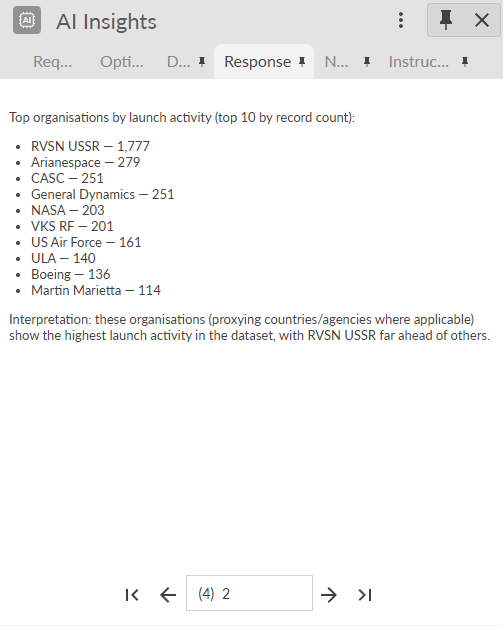
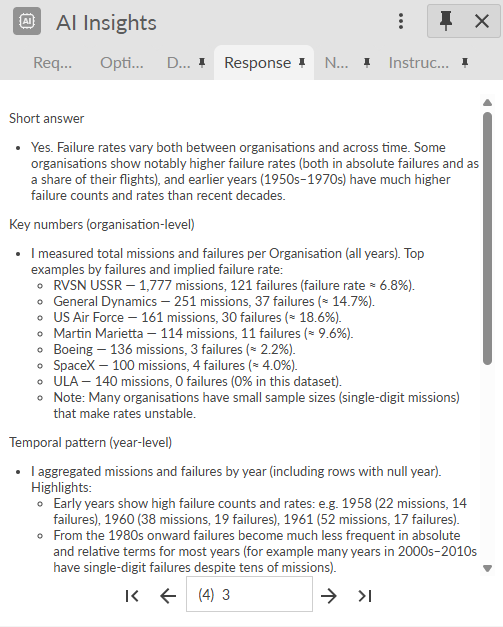
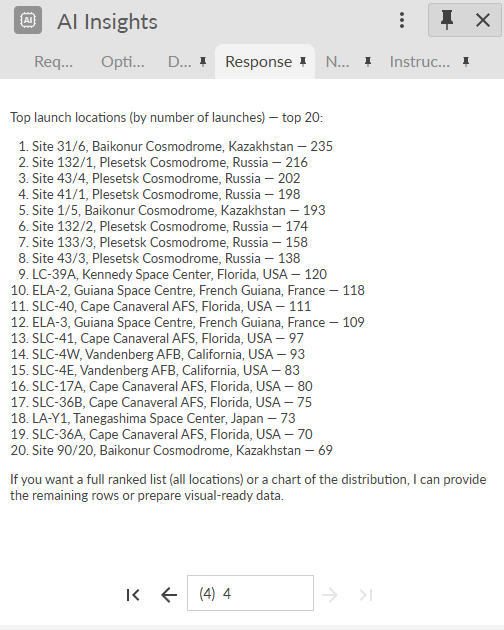
Instead of a single record, the AI Insights now produces one record per question; 4 records in total. Use the navigator at the bottom to cycle through the answers.
 |  |  |  |
In practice this works well for:
- Generating commentary for multiple report sections
- Capturing common stakeholder questions
For example, using a small list of questions about the space-mission the AI Insights block surfaces things like:
- Failure rates have improved over time.
- RVSN USSR accounts for a huge proportion of all recorded launches.
- Launch activity is concentrated in a small number of sites - particularly Baikonour and Plesetsk.
Adding insights to a dashboard
You can display the response output inside a dashboard.
In this example we have a simple report connected to the space missions dataset, with some KPIs and charts to visualise the data.
First we need to connect the output from the AI Insights block to the report, to make the data available inside the report.
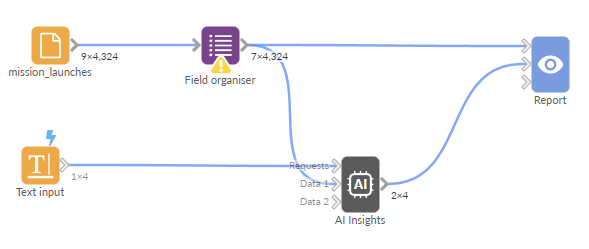
Now we can use a Content view or a Details view to display the data. Since we want to show the responses to the 4 questions we defined previously, a Details view makes the most sense - we can use the Details view navigator to cycle through the questions/answers.
Inside the report:
- Add a new Details view.
- Select the data source for the view, in the example above we want to select AI Insights.
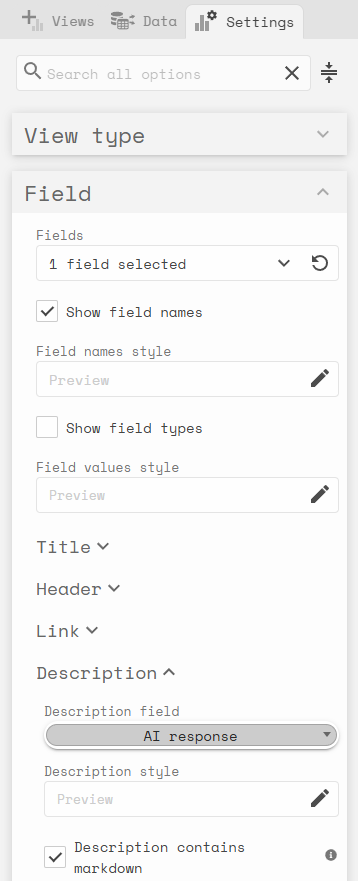
- Switch to the view settings. Select the Question field in the Fields dropdown.
- Open the Description section and select AI Response as the Description field, then tick Description contains markdown.
You should now see the insights inside the details view. The navigator can be used to switch between the different questions/responses.
Summary
The examples in this article show the AI Insights block can be used to:
- Answer clear, natural language questions directly from data.
- Produce readable explanations that update automatically as the data changes.
- Work with a single question or multiple questions at once.
- Fit cleanly into an Omniscope workflow and feed into reports, exports or further processing.
The block is useful whenever you want to add written explanation to a data flow, without manually writing and maintaining commentary. This could be for dashboards, analysis, internal reporting, or simply exploring a dataset more quickly.
By treating questions as data - either a single instruction or a list of requests - the AI Insights block makes it easy to scale, from one-off insights to repeatable, structured analysis.
Was this article helpful?
That’s Great!
Thank you for your feedback
Sorry! We couldn't be helpful
Thank you for your feedback
Feedback sent
We appreciate your effort and will try to fix the article