Here is a scenario that some users might recognise.
You have a dataset that contains a list of items, comma-separated. You want to filter and analyse which items are frequently purchased, or determine how often products A and B appear together, but without another product X.
| Id number | Basket items |
| 1 | 0074,0079,0190,0201,0206,1233,1987 |
| 2 | 0033,0075,0222,0231,0206,1234 |
| 3 | 0201,1966 |
This dataset requires very little preparation. You could simply import it into an Omniscope report and use the Filter device in Text search mode. In this mode, you can specify whether tokens must all match (AND logic) or whether any can match (OR logic).
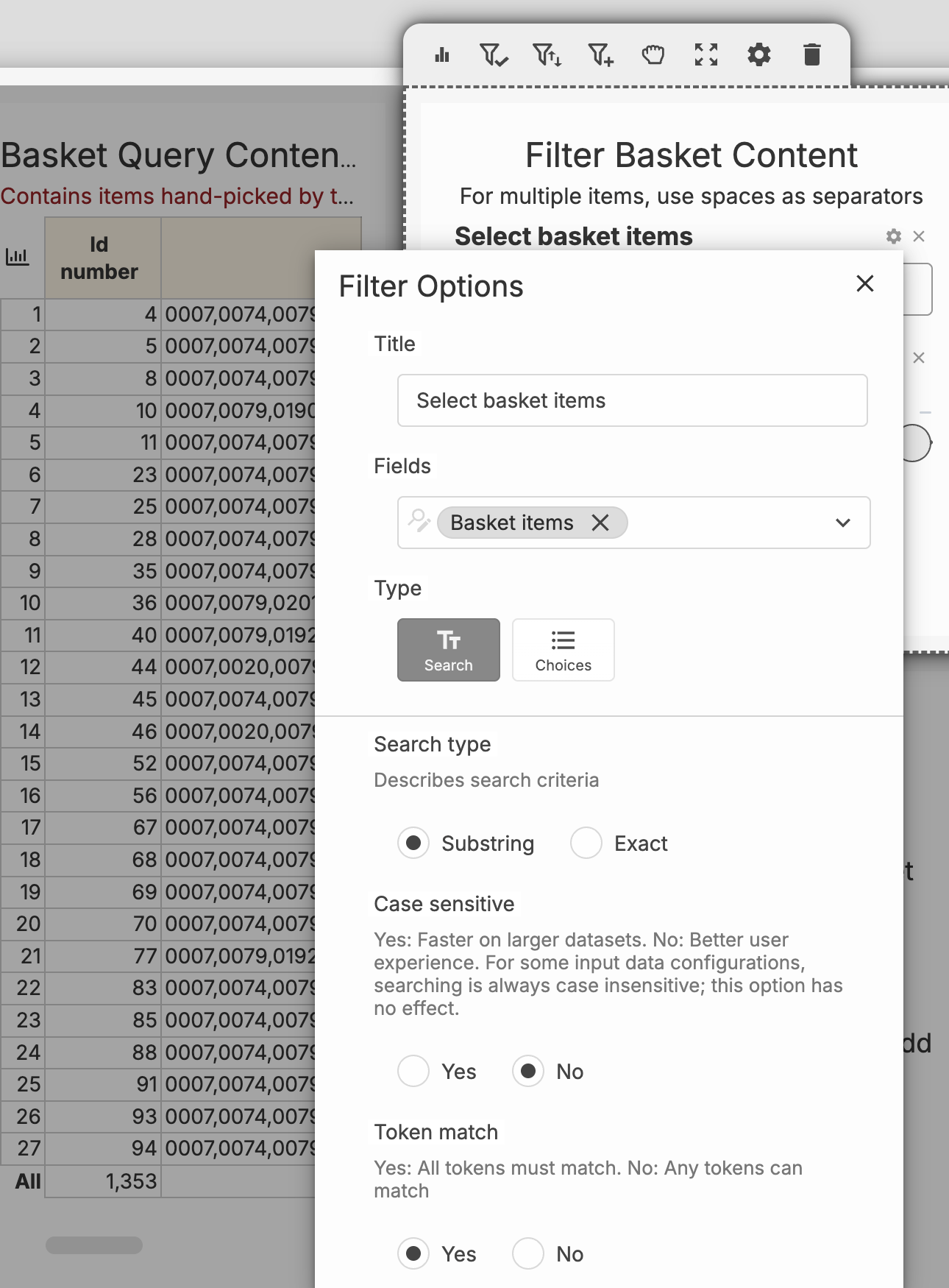
However, this approach has limitations. For example, it is easy to require that a basket contains apple and lemon (AND apple lemon), but it is not straightforward to exclude banana at the same time. Even if you use the De-tokenise block to split the basket contents and list each item as a separate record with a shared basket ID, applying this kind of inclusion and exclusion logic remains challenging.
Basket Query
In this case, we can use Basket Query. This feature allows both the analyst and the report viewer to manage and refine the contents of the query they want to explore.
Add a Basket Query from the report’s Settings menu (three-dot menu). Click Add Basket, provide a name for the query, and confirm. (Each report can contain multiple Basket Queries)
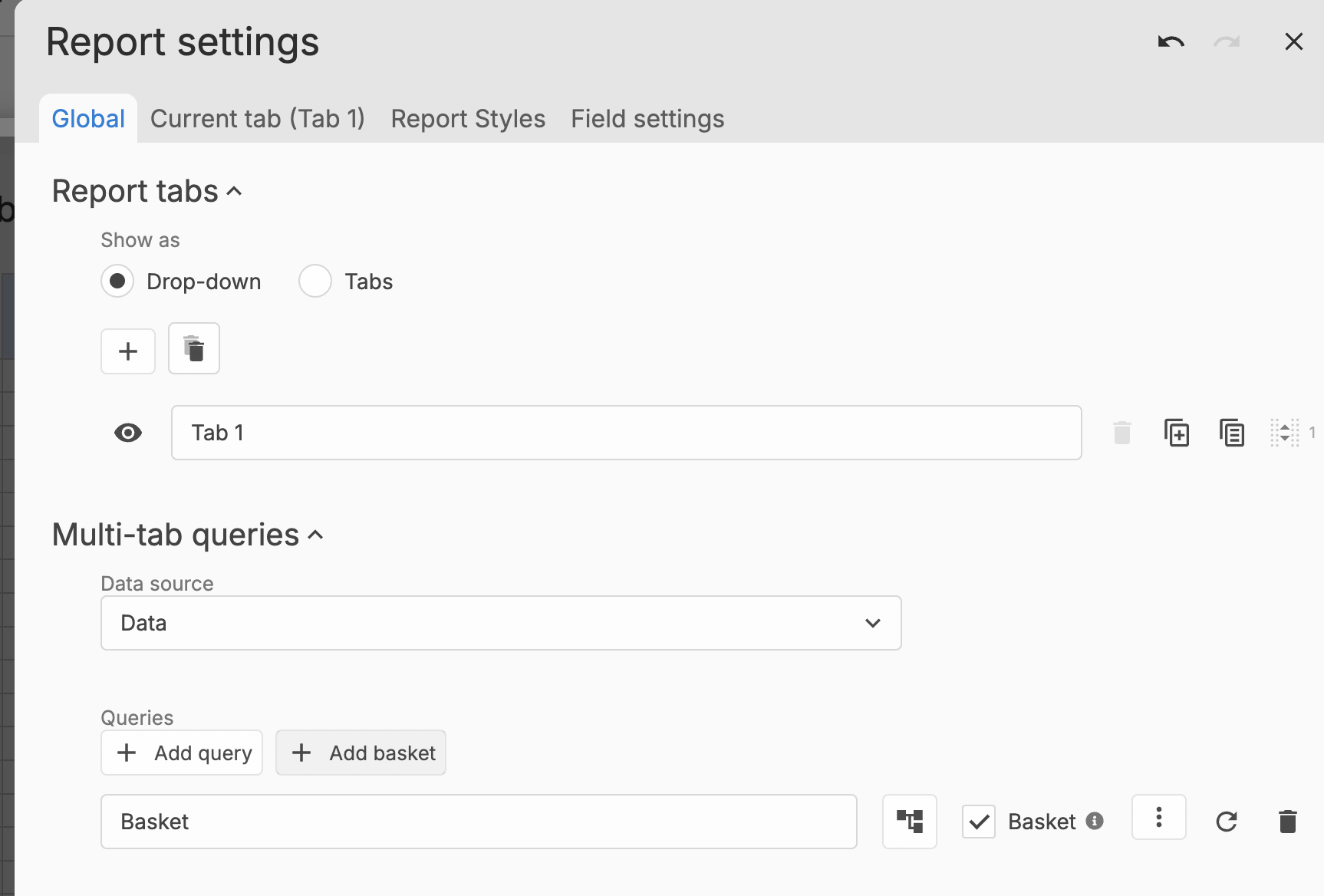
A new Baskets button will appear at the top of the screen, in the toolbar, next to the barometer.
Each time a filter or selection is created, the Basket Query provides the option to add or remove those records from the basket. The Dequery button (see image below) acts as a reminder at any time of the rules that define the current basket.
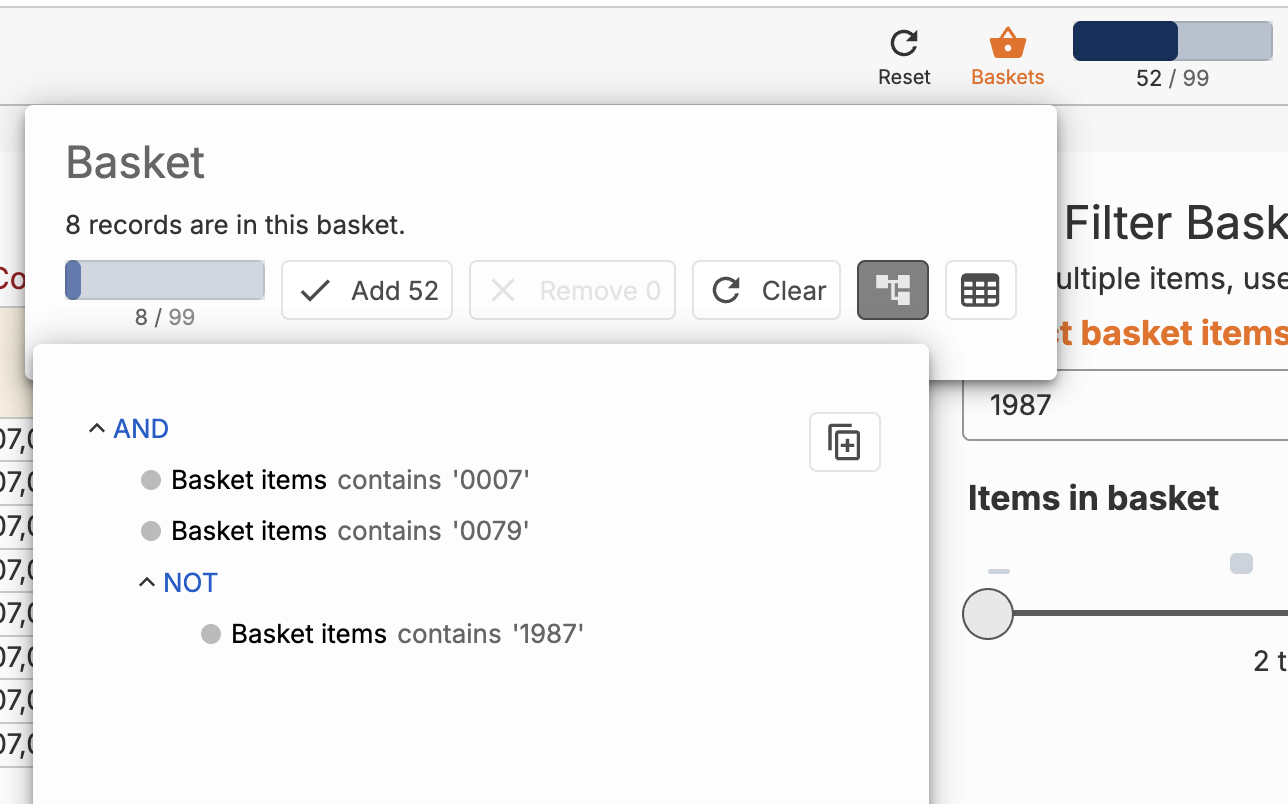
The report creator can pre-populate the basket while in Edit mode, so it is not empty when a viewer first opens the report. The viewer can then add more items or empty the basket and start fresh with their own exploration.
To allow the viewer to visualise the records in their basket, it is necessary to build one or more visuals that connect the chart’s query to the Basket Query. This ensures that any changes to the basket contents are immediately reflected in the visuals, allowing users to see results instantly.
Note: the Invert query setting also provides the option to visualise the universe outside the basket, making it easy to compare the basket contents with the full dataset. In some cases the user may wish to see side-by-side what's in and what's outside of the basket query.
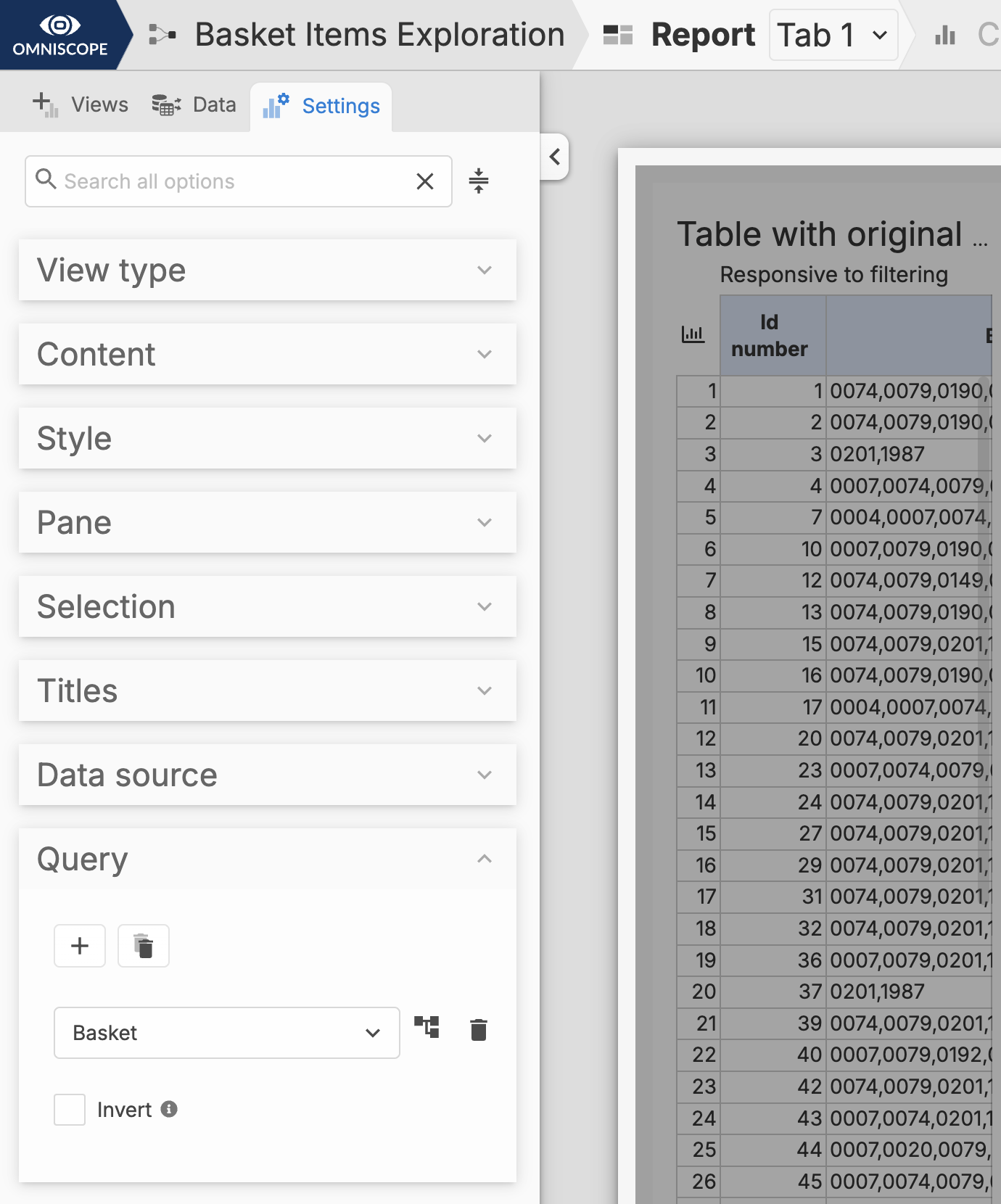
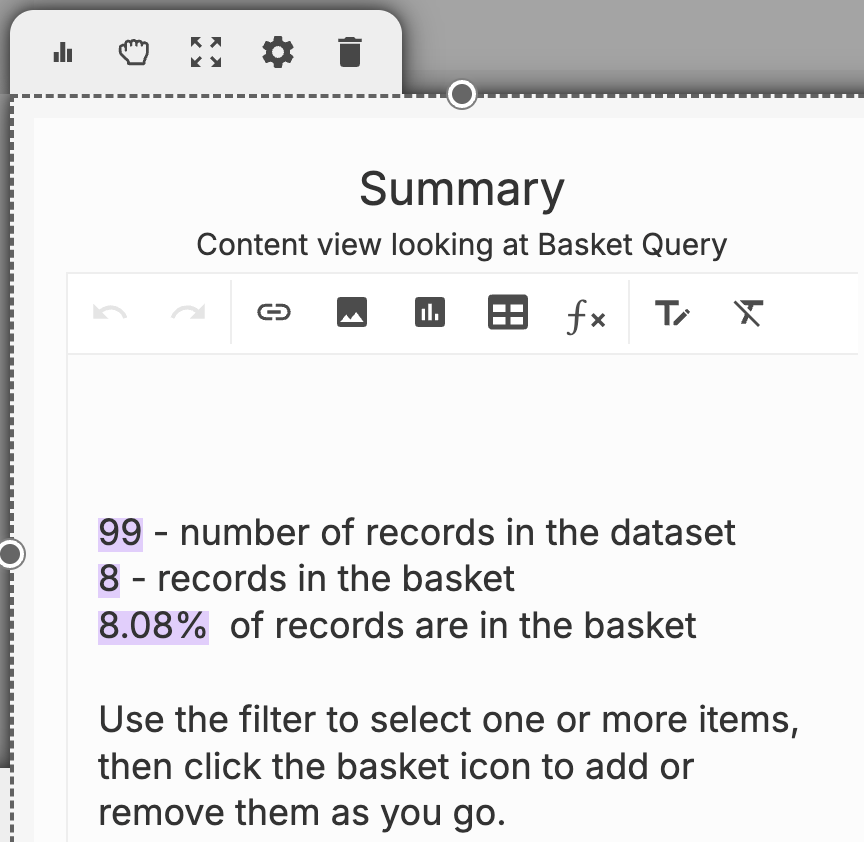
In this demo, a Content View is connected to the Basket Query and performs formula calculations that instantly show how many records are in the basket and what percentage of the dataset they represent.
This mechanism allows users to create product combinations dynamically and answer, on the fly, how many baskets contain a given product combination.
Note - here is a useful formula in the Field Organiser block (in the workflow) that performs a quick basket item count:
NUM_OF_TOKENS([Basket items],",")
You can find this demo and test the query experience on our sandbox.
If you wish to try it on your Omniscope installation and see all the details - download ioz file from the project's 3-dot menu.
Was this article helpful?
That’s Great!
Thank you for your feedback
Sorry! We couldn't be helpful
Thank you for your feedback
Feedback sent
We appreciate your effort and will try to fix the article