Omniscope integrations allow external applications such as Zapier or custom backend services to call the Omniscope Workflow API and Project API on behalf of individual users.
Using these APIs, external applications can execute workflows, run isolated per-request workflow executions, read and update project parameters, and create new projects from templates, as part of a broader automated pipeline.
This guide explains how to configure OAuth 2.0 authorization for those integrations. From the third-party application's point of view, Omniscope acts as the OAuth authorization server, while user login is delegated to your existing OpenID Connect provider, such as Keycloak, Auth0, or a custom provider.
Each user authorises the connection once from their Profile settings using the standard OAuth 2.0 authorization code flow. When a user connects an integration, Omniscope redirects them to the configured OIDC provider for login, receives tokens from that provider, and then issues tokens that the third-party application can use to call Omniscope APIs.
TABLE OF CONTENTS
Prerequisites
Before configuring integrations you will need:
- An OpenID Connect provider already configured in Omniscope's Edit permissions dialog. See OpenID Connect settings for guidance.
- A dedicated OAuth 2.0 client registered on your OIDC provider for Omniscope to use as a resource server. This is separate from the client used for user login. The steps below cover how to create this for each supported provider.
- An External URL configured in Omniscope's Network settings, using HTTPS and a domain name. IP addresses are not permitted. This URL is used as the base for Omniscope's OAuth callback endpoints.
N.B. This feature requires the Automation add-on or Enterprise licence.
Step 1: Configure your identity provider
Omniscope needs a dedicated OAuth 2.0 client on your identity provider to exchange authorization codes and refresh access tokens on behalf of users. This is separate from the client you created when setting up OpenID Connect user login.
Follow the steps for your provider below.
1.1 Keycloak
These steps assume you already have a Keycloak realm and a login client configured for Omniscope. If not, see Authenticate users with Keycloak first.
Note: The resource server client must be created in the same Keycloak realm as your existing login client. Both clients share the same issuer and user base. Do not create a separate realm for the resource server.
Note: Unlike Auth0 and Azure AD, Keycloak 26 does not include standard claims in access tokens by default. Every claim (aud, sub, roles) must be explicitly configured via protocol mappers on each client. Missing any of these will cause Omniscope to reject the token. The steps below cover all required mappers.
Create the resource server client
In the Keycloak admin console, select your realm, then:
Click Clients, then click Create client.
Set Client type to OpenID Connect and enter a Client ID (for example omniscope-api). Click Next.
On the Capability config screen:
- Enable Client authentication (this makes the client confidential so it has a secret)
- Enable Standard flow
- Disable Direct access grants
Click Next, then Save.
On the client's Settings tab, add the following to Valid redirect URIs:
[EXTERNAL URL]/oidc-icb
Click Save.
Go to the Credentials tab and copy the Client secret.
Add required protocol mappers
The resource server client needs three protocol mappers. Without all three, Omniscope will reject the tokens it receives.
When Keycloak creates a client it automatically generates a dedicated client scope named {clientId}-dedicated - for example, if your Client ID is omniscope-api, the scope will be named omniscope-api-dedicated. You do not need to create this scope manually.
Go to the Client scopes tab, open the dedicated scope (named {clientId}-dedicated), and click Add mapper > By configuration for each of the following:
Audience mapper (aud claim)
Select Audience. Set the Included Custom Audience to your audience identifier (for example https://myserver.com/api). Enable Add to access token. Save. Without this, Omniscope returns: Access token missing audience.
Subject mapper (sub claim)
Select User Property. Set Property to id, Token Claim Name to sub, and enable Add to access token. Save.
Without this, Omniscope returns: Access token missing subject claim.
Roles mapper (roles claim)
Select User Realm Role. Set Token Claim Name to roles, enable Multivalued and Add to access token. Save.
Without this, role-based permissions in Omniscope will not work. Note that Keycloak's built-in role mapper uses a nested format (realm_access.roles) which Omniscope does not evaluate. This custom mapper produces a flat top-level roles array which Omniscope does evaluate.
Add client scopes
On the Client scopes tab, ensure the following are listed under Default client scopes:
openidprofileemailroles
Add offline_access and projectapi:execute / workflowapi:execute as Optional client scopes if you want to support refresh tokens and API scope restrictions.
Register oidc-icb on your login client
Important: The integration broker callback URL (/oidc-icb) must also be registered on your existing login client (omniscope-editor or equivalent), not only on the resource server client. Without this, the authorization request succeeds but the token exchange returns invalid_redirect_uri and the flow fails.
In the Keycloak admin console, open your existing login client and add the following to Valid redirect URIs:
[EXTERNAL URL]/oidc-icb
Click Save.
Grant offline_access to users
Omniscope requests the offline_access scope to obtain refresh tokens. In Keycloak, this requires each user to have the offline_access realm role assigned - client-level scope configuration alone is not sufficient.
For each user who will connect an integration, go to Users, open the user, click the Role mapping tab, and assign the offline_access realm role.
Note: If users connect the integration but API calls later fail with Token exchange failed, the most common cause is the offline_access realm role not being assigned to that user.
Make a note of the following:
- Client ID - The ID you entered (for example omniscope-api)
- Client secret - Credentials tab
- Audience - The value you entered in the audience mapper (for example https://myserver.com/api)
1.2 Auth0
These steps assume you already have an Auth0 tenant and a login application configured for Omniscope. If not, see Authenticate users with Auth0 first.
Create an API to define the audience and permissions
In the Auth0 dashboard, go to Applications > APIs and click + Create API.
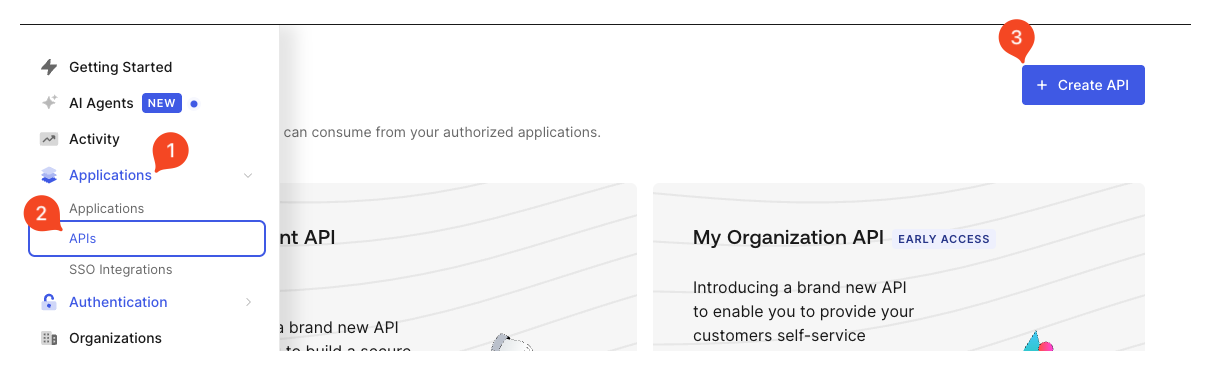
Enter a Name (for example Omniscope API) and an Identifier. The identifier becomes the audience value in access tokens, for example https://myserver.com/api. Click Create.
On the API's Settings tab, scroll down to Access Settings and ensure Allow Offline Access is toggled on. This allows Omniscope to obtain refresh tokens on behalf of users.
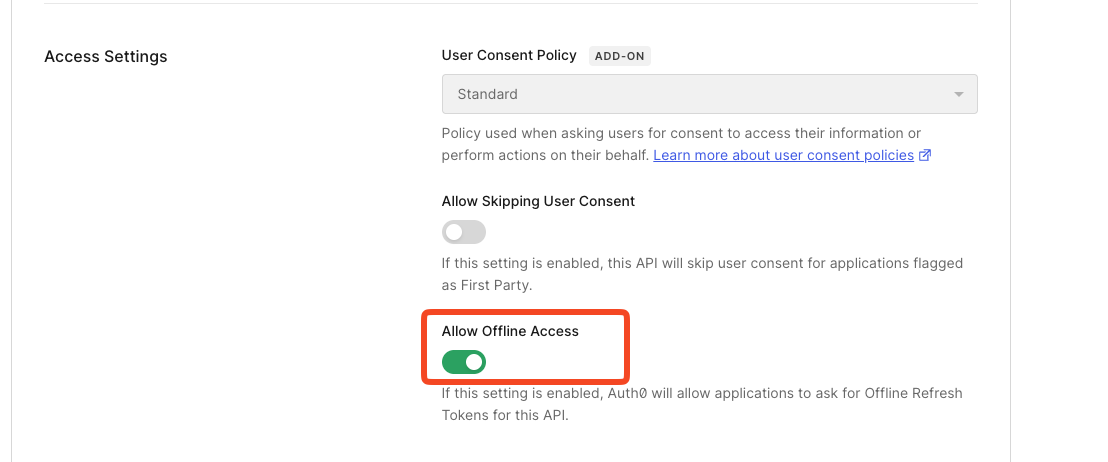
Click Save.
Go to the Permissions tab and add the following scopes:
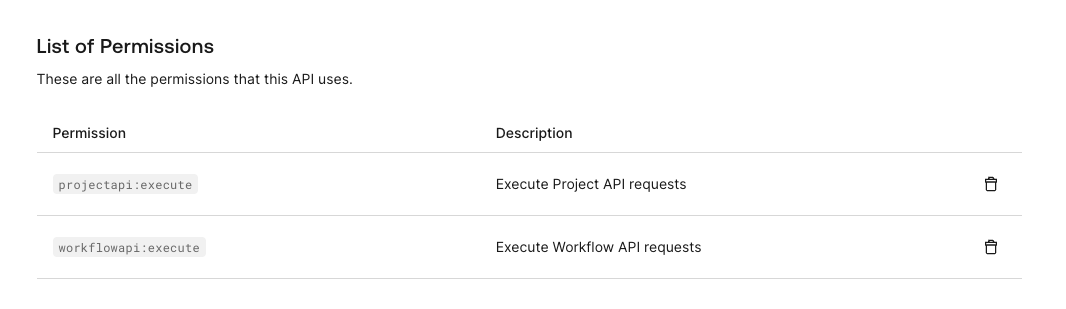
projectapi:execute = Execute Project API requests
workflowapi:execute = Execute Workflow API requests
Click Add after each one.
Create a resource server application
Go to Applications > Applications and click Create Application.
Enter a name (for example Omniscope API Connect) and select Regular Web Applications. Click Create.
On the application's Settings tab:
- Add your Omniscope callback URL to Allowed Callback URLs:
[External URL]/oidc-icb - Add your Omniscope logout URL to Allowed Logout URLs:
[External URL]/oidc-locb
Click Save Changes.
Make a note of the Client ID and Client Secret shown in the Settings tab.
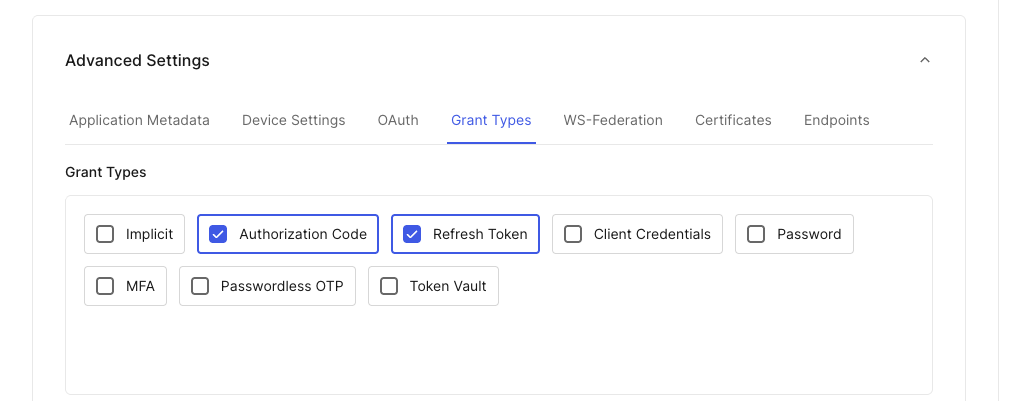
Scroll down to Advanced Settings and open the Grant Types tab. Ensure Authorization Code and Refresh Token are both checked.
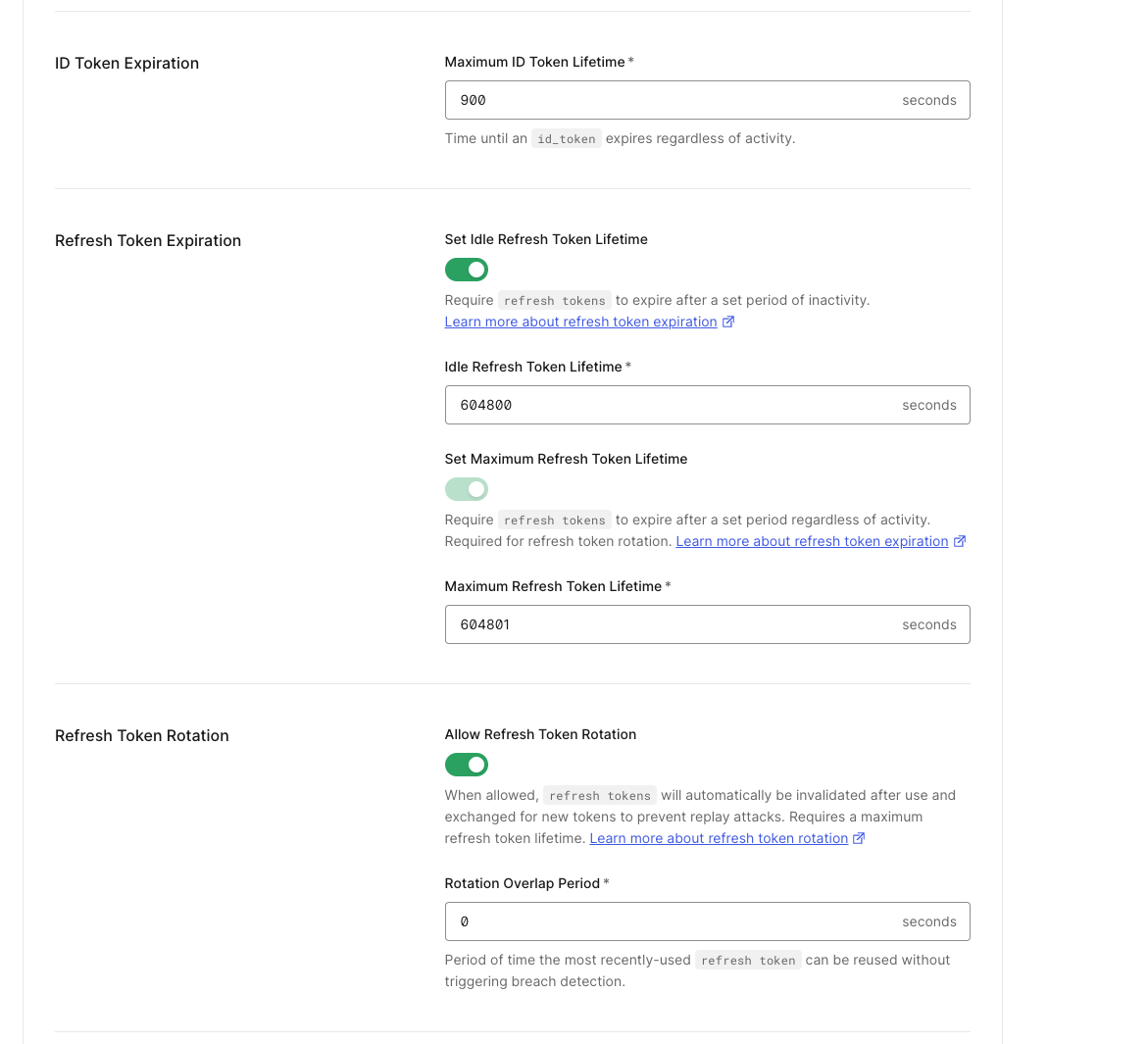
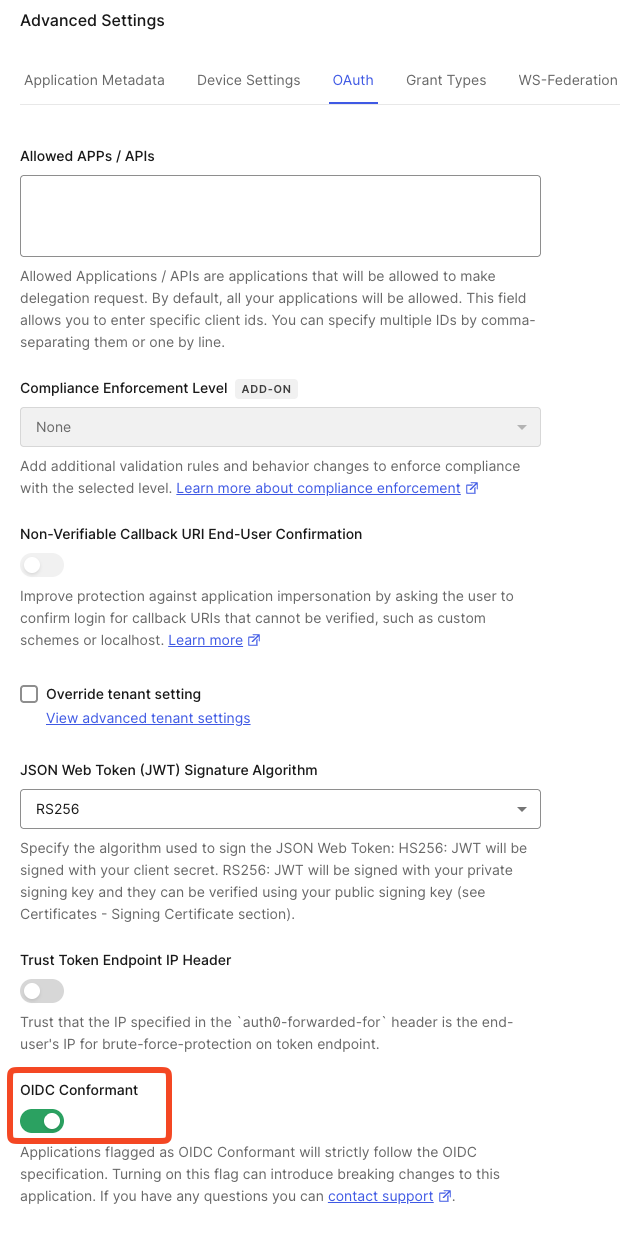
Open the OAuth tab and ensure OIDC Conformant is toggled on.
Authorise the application to access the API
Go to Applications > APIs and open the Application Access tab on the Omniscope API you created.
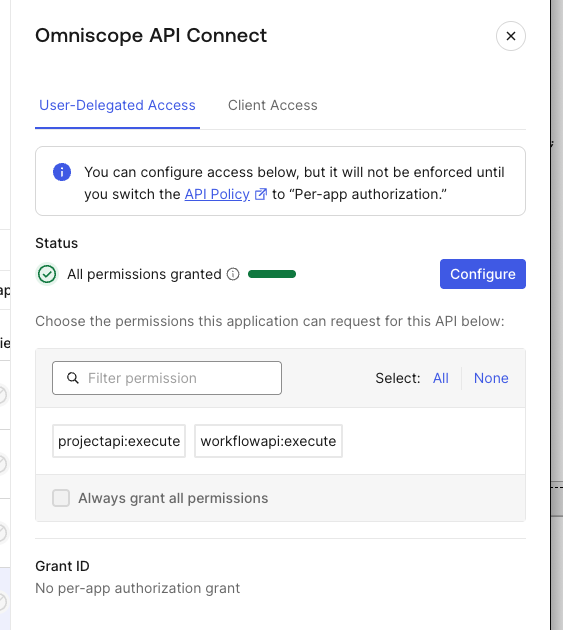
Find your application in the list and click Edit. On the Client Access tab, set Authorization to Authorized and select the permissions to grant:
Select both projectapi:execute and workflowapi:execute, then click Update.
1.3 Custom provider
Register a confidential OAuth 2.0 client with your provider that supports the Authorization Code flow. Add [External URL]/oidc-icb as an allowed redirect URI. Obtain the Client ID, Client secret, and the audience value your provider will include in issued access tokens. Consult your provider's documentation for the specific steps.
Step 2: Enable the Resource Server in Omniscope
Open the Edit permissions dialog on the folder where your OIDC authentication is configured. This is typically the root folder. Click on your OIDC provider to open its settings and scroll down to the Resource server section at the bottom of the provider settings panel.
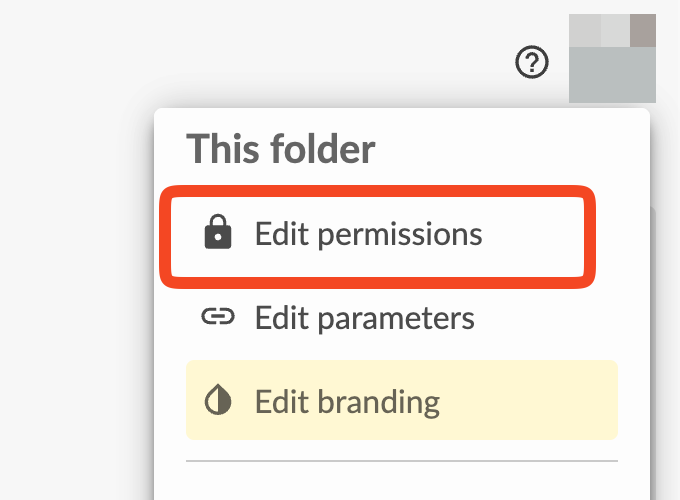
Toggle Enable resource server on, then fill in the following fields:
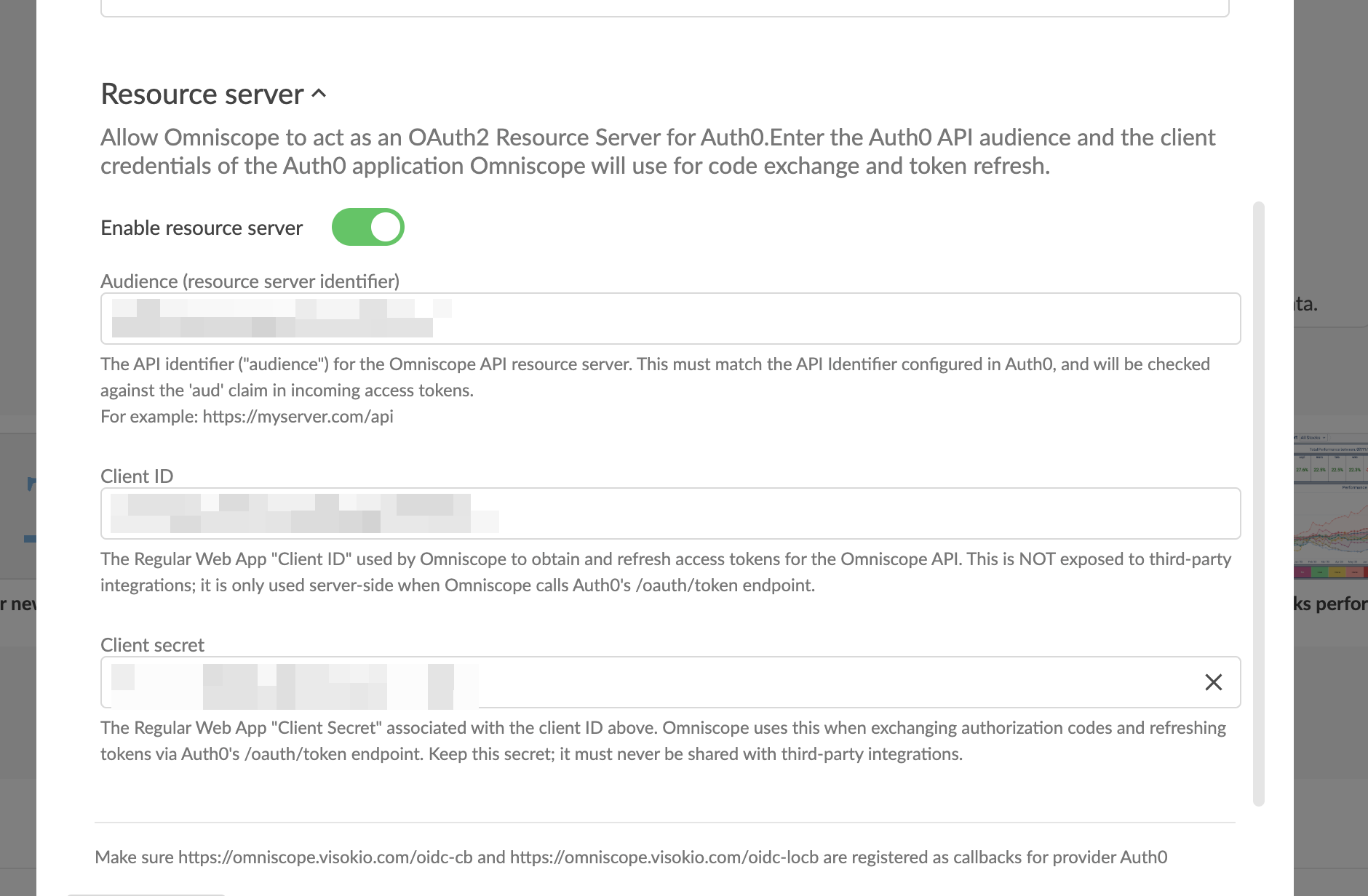
Audience (resource server identifier)
The audience value configured in your identity provider. This is checked against the aud claim in incoming access tokens. For example: https://myserver.com/api.
Client ID
The Client ID of the resource server client you created in Step 1. This is distinct from the Client ID used for user login, and from the Client ID you register for each third-party integration below.
Client secret
The Client secret of the resource server client you created in Step 1. This is used only by Omniscope internally and must not be shared with third-party applications.
Click Back then Save.
Step 3: Configure Integrations in Admin
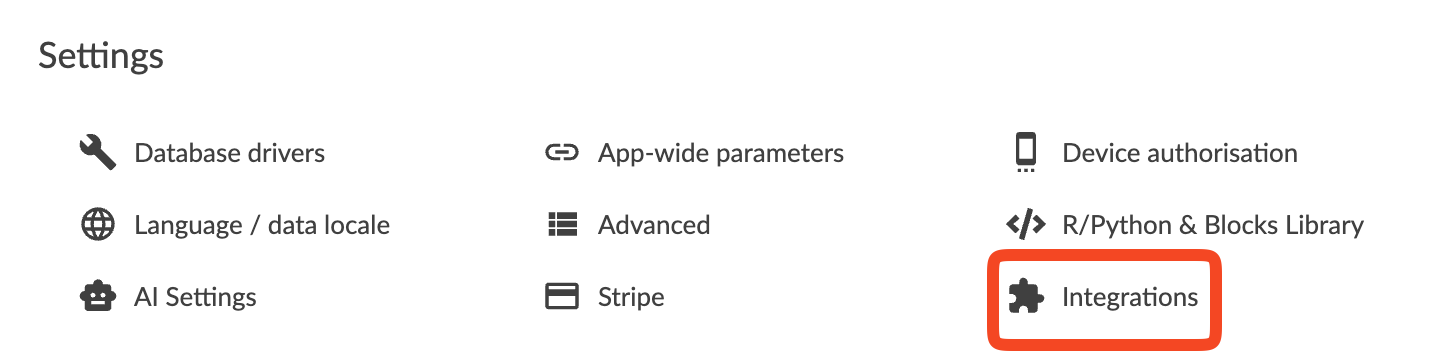
Go to Admin > Integrations.
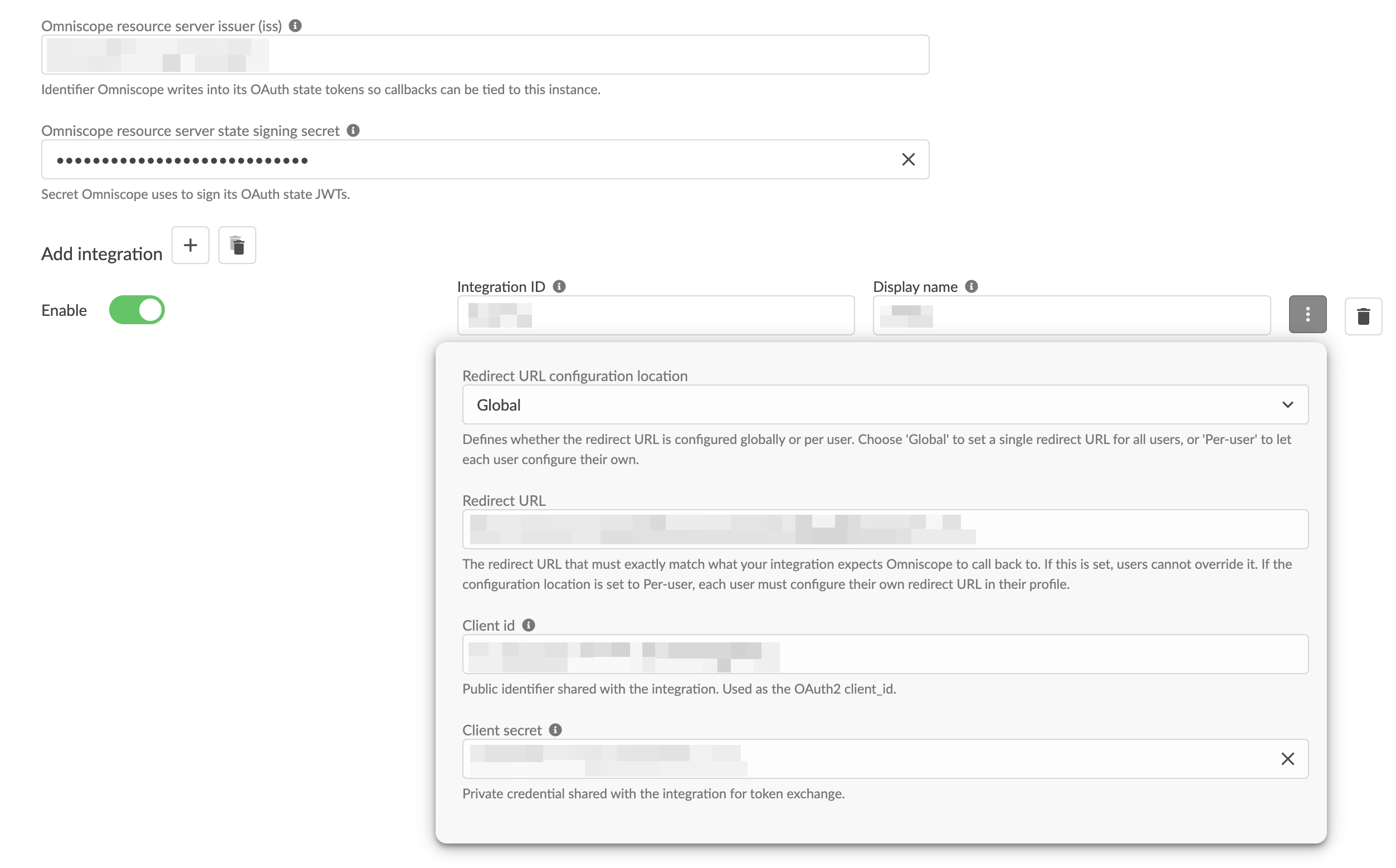
At the top of the page, fill in the two server-level settings that apply across all integrations:
Omniscope resource server issuer (iss)
A unique identifier that Omniscope writes into its OAuth state tokens so that callbacks can be tied to this specific Omniscope instance. This can be any stable, unique URI, for example: https://myserver.com/omniscope-api-keycloak.
Omniscope resource server state signing secret
A secret used to sign the OAuth state JWTs that Omniscope generates during the authorization flow. Use a strong randomly generated value and store it securely. You can generate one using:
openssl rand -hex 32
Adding an integration
Click + under Add integration to register a third-party application.
Fill in the fields for the integration:
Integration ID
A short, unique identifier used in the OAuth endpoint URLs. Use lowercase with no spaces, for example: zapier.
Display name
The name shown to users in their Profile settings when they connect this integration.
Enable
Toggle this on to make the integration active. You can disable an integration at any time without deleting its configuration.
Redirect URL configuration location
Choose Global to set a single redirect URL for all users. Choose Per-user to allow each user to configure their own redirect URL in their Profile settings. For most integrations, Global is the correct choice.
Redirect URL
The exact callback URL the third-party application expects Omniscope to redirect to after authorization. This value must match exactly (including protocol, port, and path) in both the authorize request and the token exchange POST request.
Client ID
The client_id that the third-party application will include in its OAuth requests.
Client secret
The client_secret that the third-party application will include in the token exchange POST request.
OAuth endpoints
Once the integration is saved, provide the following endpoints to the third-party application. Replace {integrationId} with the Integration ID you configured above.
Authorize =[External URL]/_api_/v1/integration/authorize/{integrationId}
Token exchange = [External URL]/_api_/v1/integration/oauth/token/{integrationId}
Step 4: Users connect their accounts
Each user must individually authorise the integration before the third-party application can act on their behalf. The application obtains tokens scoped to the specific user who authorised it.
To connect, the user clicks their account name in the top-right corner and selects Profile settings.
A section appears for each enabled integration. The user clicks through the OAuth flow, is redirected to log in via the OIDC provider, and upon successful login is returned to Omniscope. The integration is automatically enabled on first connection and the section in Profile settings will show Status: Connected.
From Profile settings the user can:
- Toggle Enable integration on or off to temporarily suspend access without revoking it
- Click Revoke access (disconnect integration) to fully remove the connection
Once connected, the third-party application can use the Workflow API and Project API on behalf of that user.
Summary of values needed for Omniscope
Once the above steps are complete, you will have the following values to enter into Omniscope:
Granting folder permissions
For an integration to be useful, the folder containing the projects it will operate on must grant the connecting user's group the appropriate API permission:
Workflow Execution via APIs - required for any Workflow API call.
File Management - required for any Project API call.
Set these via the folder's Edit permissions dialog. Without them, API calls return HTTP 403 even when the OAuth flow has completed successfully.
Step 5: Configure the third-party application
This section describes what the third-party application itself needs to do to use the Workflow API and Project API. They are intended for the developer building the integration - for example a Zapier app or a custom backend service.
Before you start building, the Omniscope administrator should give you the following values from the integration registered in Admin > Integrations:
The External URL of the Omniscope server.
The Integration ID assigned to your application (for example zapier).
The Client ID and Client secret for your integration. These are distinct from the resource server credentials used internally by Omniscope and from the credentials used for OIDC user login.
The Redirect URL that Omniscope has been configured to redirect to after authorization.
You will also need to know which scopes your application requires:
workflowapi:execute - required if your application calls any Workflow API endpoint.
projectapi:execute - required if your application calls any Project API endpoint.
offline_access - required if your application needs a refresh token so it can continue acting on behalf of the user after the initial access token expires.
5.1 Authorise the user and obtain tokens
Omniscope uses the standard OAuth 2.0 Authorization Code flow (RFC 6749). Omniscope itself acts as the OAuth authorization server from your application's point of view - your application talks to Omniscope's
/integration/authorize and /integration/oauth/token endpoints, and Omniscope internally delegates the actual user login to the configured OIDC provider.
Send the user to the authorize endpoint
Begin the flow by redirecting the user's browser to:
[External URL]/_api_/v1/integration/authorize/{integrationId}
?client_id={clientId}
&redirect_uri={yourRedirectUrl}
&scope=workflowapi:execute+projectapi:execute+offline_access
&state={opaqueState}
&response_type=code
The state parameter should be an opaque, unguessable value generated per-request that your application stores against the user's session. When the flow completes, Omniscope returns this value unchanged so that your application can verify the response belongs to the request it initiated.
The user logs in via the OIDC provider, approves the requested scopes, and is redirected back to your redirect URL with two query parameters appended:
{yourRedirectUrl}?code={authCode}&state={opaqueState}
Verify that the returned state matches the one you sent. If it does not match, abort the flow.
Exchange the authorization code for tokens
Send a POST request to Omniscope's token endpoint:
POST [External URL]/_api_/v1/integration/oauth/token/{integrationId}
Content-Type: application/x-www-form-urlencoded
grant_type=authorization_code
&code={authCode}
&redirect_uri={yourRedirectUrl}
&client_id={clientId}
&client_secret={clientSecret}
The redirect_uri value sent here must match exactly the value sent in the authorize request and the value registered for the integration in Omniscope. Even a trailing slash difference will cause the token exchange to fail with redirect_uri does not match.
A successful response returns a JSON body of the form:
{
"access_token": "eyJhbGc...",
"refresh_token": "def50200...",
"token_type": "Bearer",
"expires_in": 3600
}
Store the access token, refresh token, and expiry time securely against the user's account in your application. The refresh token is only returned if the offline_access scope was requested and granted.
Refresh the access token when it expires
Access tokens typically expire after one hour, signalled by Omniscope returning a 401 response on a subsequent API call. Exchange the refresh token for a new access token by sending another POST to the same token endpoint:
POST [External URL]/_api_/v1/integration/oauth/token/{integrationId}
Content-Type: application/x-www-form-urlencoded
grant_type=refresh_token
&refresh_token={refreshToken}
&client_id={clientId}
&client_secret={clientSecret}
The response has the same shape as the original token exchange. Replace the stored access token (and the refresh token, if a new one is returned) and retry the original API call.
If the refresh request itself fails - typically with invalid_grant or a Token refresh failed error - the refresh token has expired or been revoked. The user must reconnect the integration from their Profile settings before the application can act on their behalf again.
5.2 Call the Omniscope APIs
Include the access token in the Authorization header on every API request:
Authorization: Bearer {accessToken}
All API calls must be made over HTTPS.
The Workflow API is project-scoped: every endpoint sits under the URL of a specific project, of the form [External URL]/u/{Folder}/{Project}.iox/w/{endpoint}
The Project API is folder-scoped: every endpoint sits under a folder URL, of the form
[External URL]/u/{Folder}/_api_/v1/{endpoint}
5.3 Handle asynchronous execution and errors
Workflow executions are asynchronous. The execute endpoints return immediately with a jobId:
{ "jobId": "abc-123" }
To find out when the execution finishes, poll the status endpoint:
GET [External URL]/u/{Folder}/{Project}.iox/w/status/{jobId}
Authorization: Bearer {accessToken}
The response describes the current state of the job:
{
"jobState": "RUNNING",
"executionTime": 12.5
}
jobState is one of RUNNING, COMPLETED, FAILED, or CANCELLED. RUNNING is the only non-terminal state - once any of the other three is returned, the job has finished.
A reasonable polling strategy is to poll every five seconds, with an overall timeout (for example five minutes) after which your application surfaces the long-running execution to the user rather than continuing to poll indefinitely.
For lambda executions, the status URL uses the lambda project path returned by the /w/lambdaexecute call rather than the original project path. If a poll against the lambda path returns 404 — which can happen briefly while the lambda project is being torn down — fall back to polling the status endpoint on the original project path.
Preserve auth errors through any catch-all error handling. If your platform has built-in auto-refresh (for example, Zapier's RefreshAuthError) it relies on a specific error type or status code propagating up. A generic try/catch that swallows all errors will defeat this.
URL-encode all user-supplied URL segments. Project paths and parameter names can contain spaces, ampersands, slashes, and other characters that need percent-encoding.
Validate file URLs before fetching. If your platform hands your application URLs to fetch (for example Zapier's hydrated S3 URLs), verify the URL begins with https:// before making the request.
Security considerations
- Never log access tokens or refresh tokens in full. If you need debug logging, log only the first few characters.
- Validate all URLs received from configuration or user input. Reject any scheme other than https://. In particular, never accept file://, ftp://, or javascript: URLs.
- Do not interpolate raw user input into URL paths without encoding.
- All Omniscope API traffic must be HTTPS.
- Encrypt credentials at rest. Client ID, Client Secret, access tokens, and refresh tokens must be stored in encrypted form. They must never appear in source control or in plain-text logs.
Troubleshooting
redirect_uri does not match (HTTP 400 on token exchange) The redirect_uri sent by the third-party application must exactly match the Redirect URL registered in the integration configuration, including protocol, port, and path. The same value must be sent in both the authorize request and the token exchange POST. Even a trailing slash difference will cause this error.
403 errors when calling the Workflow API or Project API The folder containing the project must have the Workflow Execution via APIs permission (for workflow execution) or File Management permission (for the Project API) granted to the user group the connecting user belongs to.
Authorize or token endpoint returns page not found Both endpoints are served by Omniscope, not by the identity provider. Ensure the URL is pointing to your Omniscope server address, not the identity provider address.
Keycloak: Token exchange failed after the user connects successfully The most common cause is that the user does not have the offline_access realm role assigned. In the Keycloak admin console, open the user, click the Role mapping tab, and assign the offline_access realm role.
Keycloak: Access token missing audience or Access token missing subject claim The Audience or Subject protocol mapper is missing on the {clientId}-dedicated client scope. See Step 1 (Keycloak) for the required mapper configuration.
Keycloak: invalid_redirect_uri on token exchange The /oidc-icb callback URL has not been registered on the existing login client (only on the resource server client). Add [External URL]/oidc-icb to the login client's Valid redirect URIs.
Role-based permissions in Omniscope are not applied Keycloak's built-in role mapper writes roles in a nested format (realm_access.roles) which Omniscope does not evaluate. Replace it with a custom User Realm Role mapper writing the roles claim at the top level of the access token (see Step 1, Keycloak).
Refresh token rejected with invalid_grant The refresh token has expired or been revoked. The user must reconnect the integration from their Profile settings before the application can resume making API calls on their behalf.
Was this article helpful?
That’s Great!
Thank you for your feedback
Sorry! We couldn't be helpful
Thank you for your feedback
Feedback sent
We appreciate your effort and will try to fix the article