The problem: schema drift in the real world
Operational and third-party data rarely stays still. Field names change casing, spaces appear or disappear and new fields can arrive in the next export.
In one month you might have Order ID, and the next it's order_id, and a few weeks later someone sends you OrderID. Quantities become qty. Dates switch format.
In a live Omniscope workflow, these changes can cause problems:
- Joins stop matching
- Formulas break
- Workflow execution fails just before a deadline
While Omniscope has always provided powerful low-level tools to fix this (e.g. Field Organiser, formulas), handling schema drift this way increases complexity and produces fragile pipelines.
To solve this more directly, Omniscope provides a number of useful blocks, such as:
- Define schema
- Format field names
These can be used to turn unpredictable inputs into a stable, report-ready dataset.
Scenario
Imagine a company producing a monthly sales report by combining data from three sources:
- An e-commerce platform export
- A finance system export
- A manually maintained spreadsheet
The data in this article is fictional, but the situation is very real.
Each source contains roughly the same information - orders, dates, quantities, values - but with different naming conventions and small structural differences. Over time those differences grow.
The goal is to append all three sources together and connect the result to a report.
The Omniscope project including the example source files is available to download at the end of this article.
Step 1: Project setup
Create a new Omniscope project and import all 3 example files.
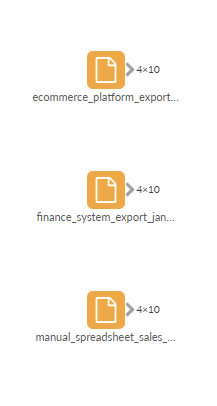
Now click on each block in turn and we can see the field name and data variations.
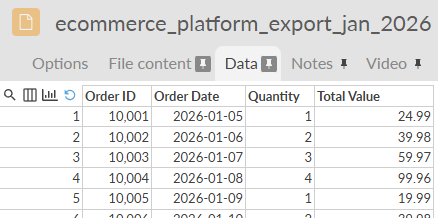 | 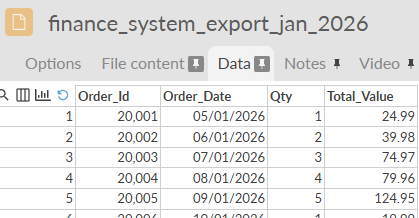 | 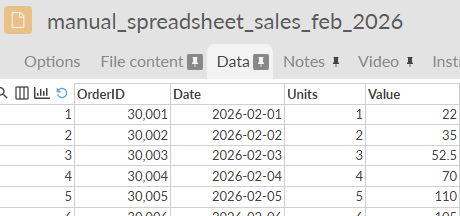 |
Although all three of these files represents sales data their schemas differ in several ways. Looking at the raw data side by side some key inconsistencies include:
- Field name formatting. Some fields use Title Case with spaces (for example, Order Date), while others use lowercase with underscores (such as order_date), or no separators at all (OrderID).
- Different names for the same concept. The same business values appear under different names across sources, such as Quantity, Qty and Units, or Total Value versus Value.
- Inconsistent date formats. Dates are represented in different formats depending on the source, for example 2026-01-06 versus 05/01/2026.
In the next sections, we'll use the Format field names and Define schema blocks to ensure each file produces a consistent, predictable structure, and add protection against further schema drift in the future.
Step 2: Making field names readable with Format field names
The first problem to solve is the inconsistent naming. At this stage, we're not enforcing strict rules, we just want clean, readable field names that will look good inside our report.
- Add a Format field names block to the workflow and connect it up to the first source block.
- Click on the block to open the options.
- Configure as follows:
- Fields to format: All fields
- Style: Title Case
- If this creates duplicate field names: Fix by adding a number
Now duplicate and connect the block to the remaining source blocks in turn.
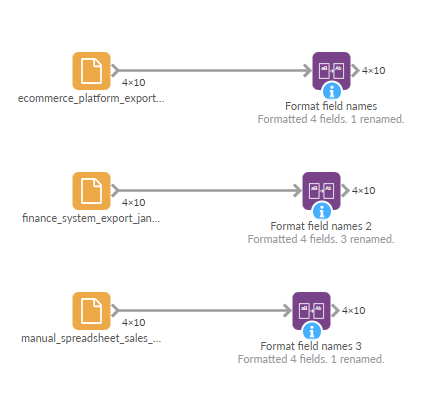
After this step:
- Casing is consistent
- Spaces and separators are standardised
Step 3: Locking down structure with Define schema
Even with clean, readable names, the data still isn't safe to append. We may still have:
- Quantity, Qty and Units as separate fields.
- Missing columns in some months.
- New fields appearing without warning.
This is where the Define schema block comes in.
- Add a Define schema block to the workflow.
- Click on the block to open the options. We will now define the fields the business expects to work with. Add each schema field in turn and enter the field name and select the data type. Click on the three-dots button to define aliases for that field:
- Order ID (Text)
Aliases: OrderID, Order Ref - Order Date (Date)
Aliases: Date - Quantity (Integer)
Aliases Qty, Units, Unit Count - Total Value (Integer)
Aliases: Value, Total, Total Amount
- Order ID (Text)
Here we're doing two things:
- Mapping different source names onto a single, canonical schema.
- Adding aliases for likely future variations, not just today's data
Recommended additional configurations:
- Missing expected fields: Error
- Unexpected input fields: Error
- Auto-match similar fields: Off
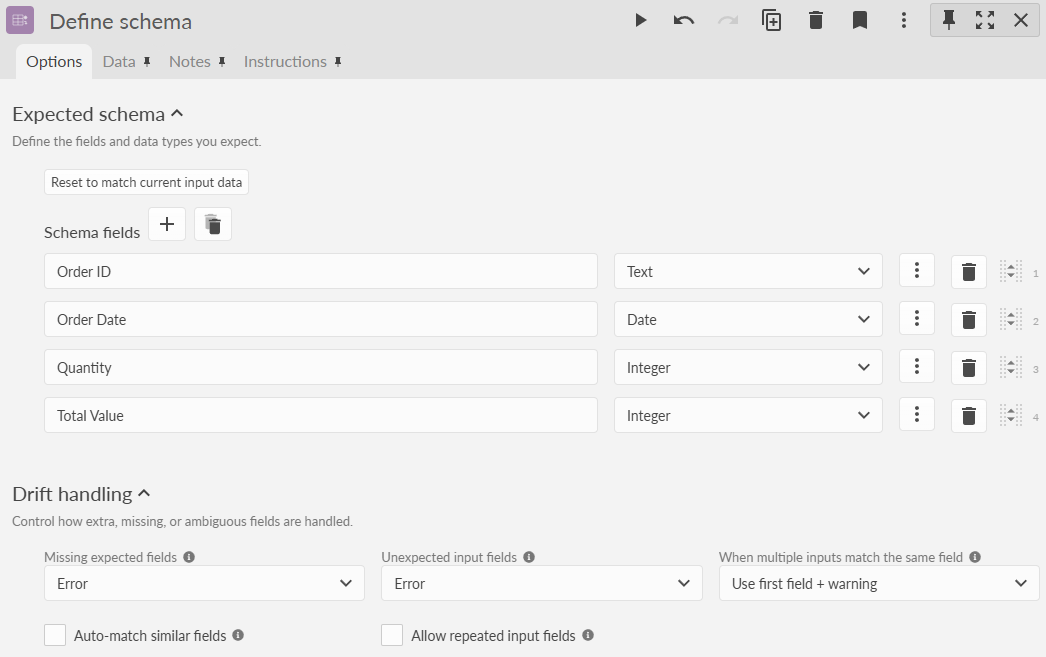
This guarantees that every source either produces the same schema, or fails clearly before we combine the data.
Now duplicate and connect the Define schema block to each of the three branches.
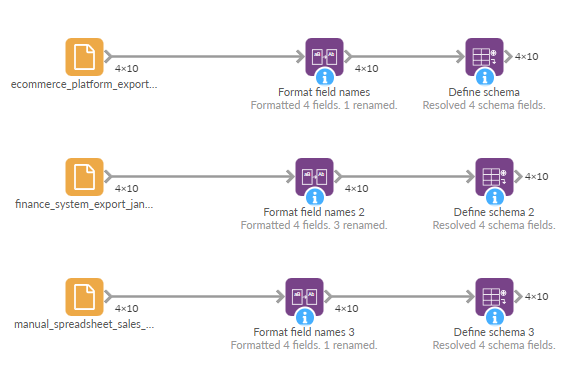
Step 4: Appending with confidence
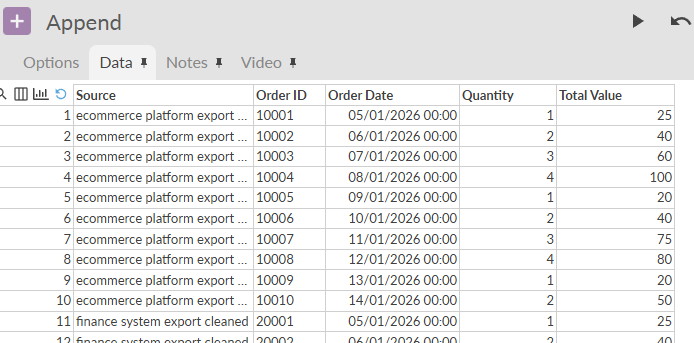
At this point, all three branches produce the same field name and data types. Now we can use the Append block to create a single dataset. Add an Append block to the workflow and connect each branch in turn.
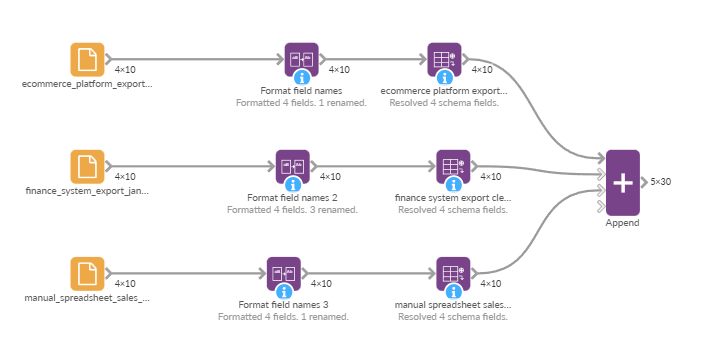
With schema drift handled we can now connect this data to our report, or perform further data processing such as adding formula fields.
Step 5: Final cleanup with Field Organiser
At this point we are confident that all three sources can be safely appended and treated as a single dataset. The schema is stable, field names are consistent and the data is ready for reporting.
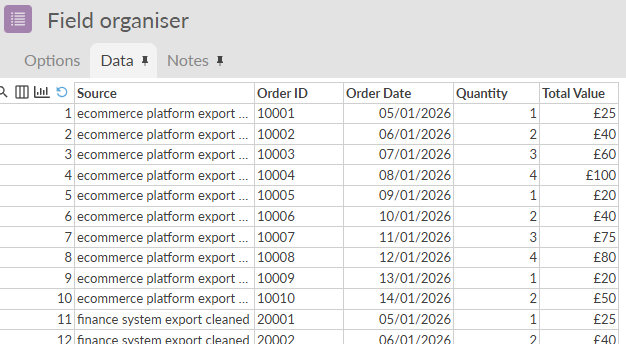
As a final step, we can use the Field organiser block to make small presentation tweaks for our dashboards.
Add a new Field organiser block and click the block to configure the options. We will be making the following changes:
- Standardising the date format. Click the three-dots button next to Order Date. In Output Pattern, choose the date pattern you want to use for display, for example dd/MM/yyyy.
- Adding a £ prefix. Click the three-dots button next to Total Value, set the Prefix option to £.
Other use cases
The scenario in this article focuses on one common way schema drift shows up. In practice, schema issues can take many different forms.
In this section, we'll look at other frequent problems and how Omniscope can handle.
Duplicate fields with overlapping data
In some datasets, the same logical field appears multiple times under different names. Sometimes the values are duplicated across fields, in other cases a value appears in only one of the fields for a given record.
This might happen because of:
- Faulty or inconsistent database joins
- Systems generating data evolving over time
- Data being appended from multiple sources
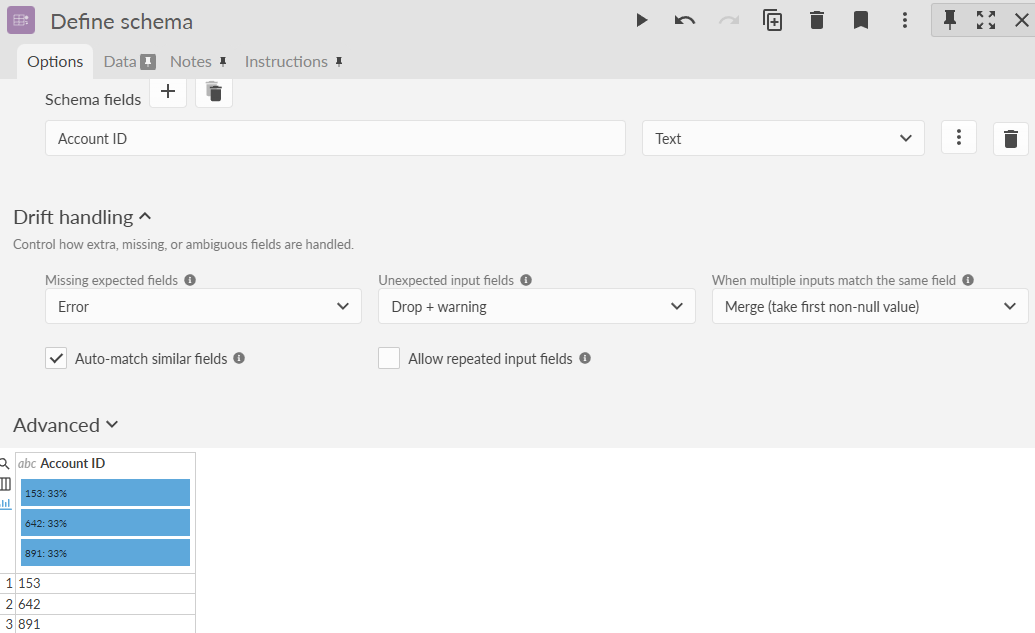
For example, imagine a dataset containing two fields: Account, Account number.
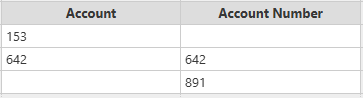
Looking at the data, you might see that some rows contain values in both fields or some rows contain a value in only one of them. Left untreated, this forces downstream logic to guess which field to use, often leading to complex formulas or conditional logic.
We can use the Define schema block to resolve this. Firstly we can add both source fields as aliases. By default the When multiple input fields match the same field option is set to Use first field + warning. With this setting only the first matching field is used and values from the second field are ignored, even when the first is blank.
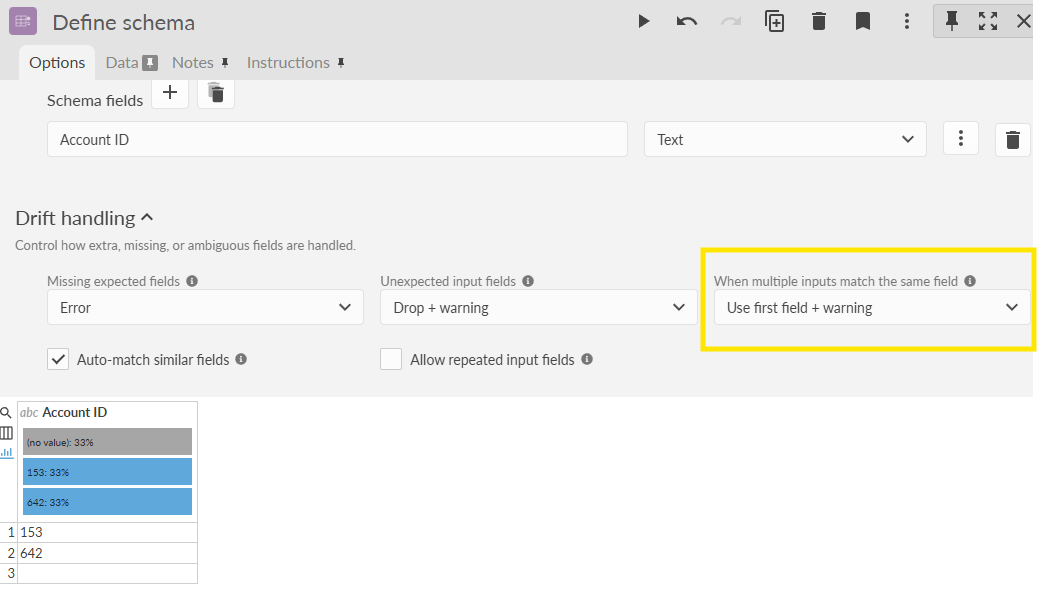
In this scenario, that default behaviour isn't ideal - we want to preserve all valid data.
We can change When multiple input fields match the same field to Merge (take first non-null value).
With this option enabled, Omniscope will check each matching field in order and take the first non-null value it finds. The end result is a fully populated Account ID field.
Mixed date formats
When a single field contains multiple date formats, it will often be treated as text rather than a date. This commonly happens when data is combined from different systems or manual exports.
The Smart date parser block solves this by examining each value in the field, and parsing it using multiple date patterns. It converts the data into a consistent ISO datetime representation, allowing the field to be used reliably for sorting, filtering and time-based analysis.
Smart schema normaliser and Canonical schema mapper
Omniscope also provides the Smart schema and Canonical schhema blocks, which are designed to normalise and stabilise schemas with minimal configuration.
For a detailed walkthrough of this approach, see:
Summary
Schema drift is inevitable when working with real data, but broken workflows don't have to be.
Omniscope provides a set of powerful, purpose built blocks for managing schema drift at different levels - from field naming and structure to value-level parsing. Blocks such as Format field names, Define schema and Smart date parser allow you to normalise inputs, enforce stable schemas and handle inconsistent data formats without custom code or fragile fixes.
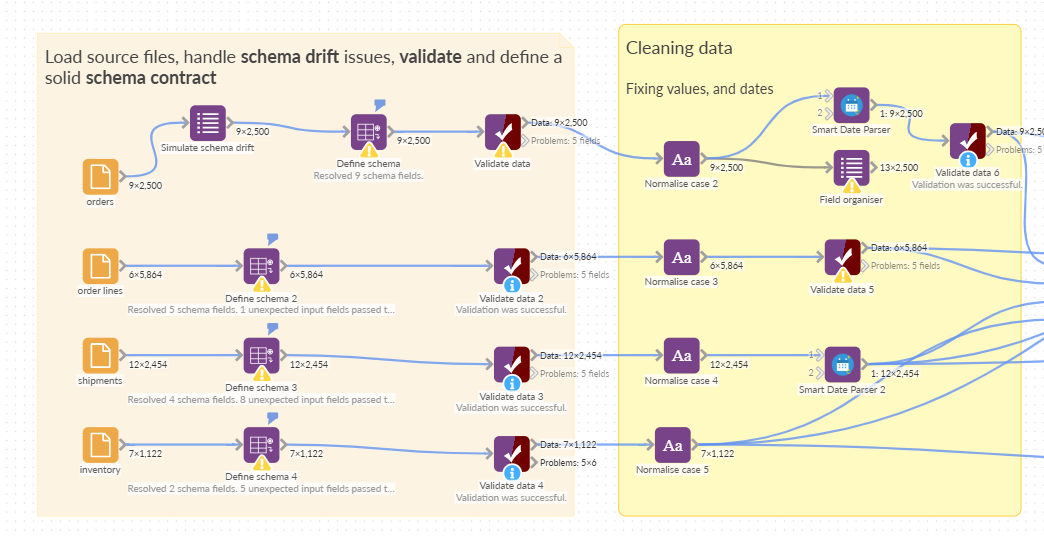
Live demo here: https://public.omniscope.me/Public/Logistics/Schema+Drift+Handling+-+Data+Prep+-+Q%26A+Insights+-+Reporting.iox/
Was this article helpful?
That’s Great!
Thank you for your feedback
Sorry! We couldn't be helpful
Thank you for your feedback
Feedback sent
We appreciate your effort and will try to fix the article