The Omniscope Cloud Zapier connector brings your Omniscope workflows into Zapier, so you can run them on demand from anywhere in your stack. Trigger a workflow the moment a file arrives in your inbox, a deal closes in your CRM, or a form is submitted; update parameters on the fly; upload a data file and process it; and send the results straight to Slack, email, or a spreadsheet. It connects Omniscope to thousands of apps, with no code and no servers.
This guide shows you how to connect your account and build your first automation. For the one-time admin setup that makes the connector available (registering the OAuth integration in Omniscope), see Configure OAuth 2.0 integrations for Omniscope APIs.
Why use it
Omniscope, connected to thousands of apps. Trigger a workflow from email, cloud storage, a CRM, a form, a schedule or a webhook, and send the result onward to Slack, email, a sheet, or any of Zapier's apps.
Connect once, securely. Connect a folder with OAuth2. The connector refreshes the access token automatically in the background, so day-to-day runs just work; you only reconnect if your Omniscope authorization is revoked or expires.
No guessing parameters. Enter a project URL and the connector loads that project's real parameters as proper input fields, showing the current value of each. No JSON, no memorising names.
Official and maintained. Built on Omniscope's public Workflow API by Visokio, with automated checks against the live API spec to catch changes early.
What you can do
The connector gives you 3 actions (which do something) :
Every action waits for the workflow to finish (optional) and returns the outcome, so later Zap steps can react to success or failure.
Before you start
You need two things:
The OAuth integration registered in Omniscope (one-time, by an admin). Follow Configure OAuth 2.0 integrations for Omniscope APIs. This is what lets Zapier connect securely to your Omniscope.
Your Omniscope folder URL, e.g. https://omniscope.visokio.com/u/YourFolder. Each connection is scoped to one folder.
Note: Your Omniscope account must be enabled for Zapier connector access. If it is not already enabled, please contact Visokio Support to have this feature activated.
Connect your Omniscope account in Zapier
In a Zap, add a step and search for Omniscope Cloud.
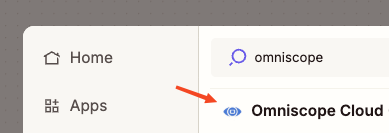 Choose an action or search, then under Account click Sign in to Omniscope Cloud.
Enter your Omniscope folder URL (the part up to and including your folder name).
Log in to Omniscope and approve access.
Zapier stores the token securely and refreshes the access token automatically in the background, so you rarely need to reconnect (only if your authorization is revoked or expires).
Build your first Zap: process an emailed data file automatically
A great first automation: whenever a data file arrives by email, run it through an Omniscope workflow and get notified when the report is ready.
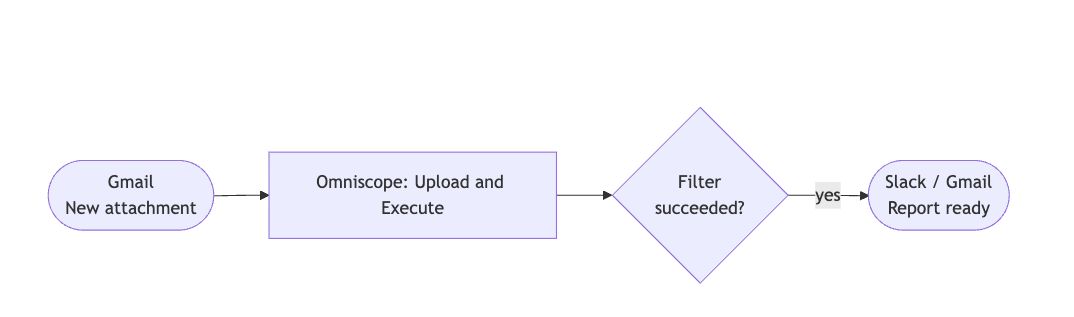
Trigger - Gmail: New Attachment. Point it at a label or search that matches the data emails.
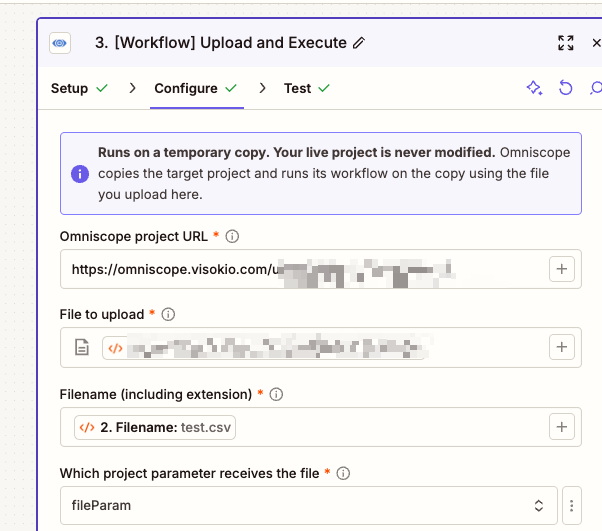
Action - Omniscope Cloud: Upload and Execute.
Omniscope project URL: the project that defines the workflow. A temporary copy is created and run; your live project is never changed.
File to upload: map the Attachment from the Gmail trigger.
Filename (including extension): map the attachment name (the extension tells Omniscope how to read the file).
Which project parameter receives the file: pick from the dropdown (it auto-loads from your project).
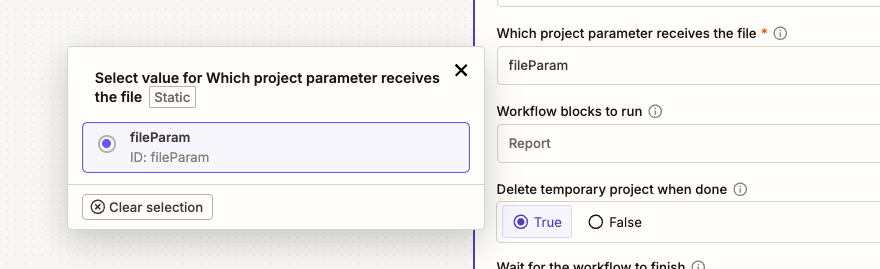
Wait for the workflow to finish: True, so the next step can react.
Filter by Zapier (optional): continue only when Failed is False.
Action - Slack or Gmail: send "Report ready" with the link to the Report.
Turn the Zap on. From now on, every matching email is processed end to end with no manual steps.
More things you can build
Spreadsheet or form driven. A new row in Google Sheets, or a form submission, sets the parameters (region, date range) with Update Parameters, runs Execute Workflow, and emails the report back to the requester.
CRM-triggered reports. When a deal closes in HubSpot, Update Parameters (region, deal ID)
and Execute Workflow for just the report block, then email the account team.Any file source. Swap the Gmail trigger for Dropbox, Google Drive, OneDrive, a webhook, or a form upload - the Upload and Execute step is identical.
Make refreshes visible. Trigger a workflow on any event and post the outcome (succeeded/failed, timing) to Slack or email - turning a silent run into something your team can see and act on.
Good to know
Dynamic parameter fields. Enter the project URL in any action and the form loads that project's real parameters as individual fields, showing the current value of each. Leave a field blank to keep it unchanged. No JSON, no guessing names.
Wait for the workflow to finish. When True (default), the step returns Job State (COMPLETED / FAILED / CANCELLED), Completed, Failed, and Execution Time. Branch on these with a Filter or Paths step.
File formats. Upload and Execute accepts everything Omniscope's import blocks do: CSV, TSV, Excel, JSON, XML and more.
Run specific blocks. Leave Workflow blocks to run blank for the whole workflow, or name blocks (e.g. Report) to run just part of it.
Refresh from source. On Execute Workflow, set this True to discard loaded data and pull fresh from the upstream sources; False (default) reuses existing data and runs only what is needed.
Troubleshooting
Was this article helpful?
That’s Great!
Thank you for your feedback
Sorry! We couldn't be helpful
Thank you for your feedback
Feedback sent
We appreciate your effort and will try to fix the article