Introduction
AI settings are split into AI providers and AI integrations. AI providers are model providers or endpoints Omniscope connects to, such as OpenAI, Azure OpenAI, Anthropic, Gemini or local open-source LLMs and OpenAI-compatible providers. AI integrations are the Omniscope features that use those models, such as Report Ninja, Insight Explorer and the AI Insights block.
A custom prompt gives Omniscope extra guidance to pass to the AI for a particular integration. It augments the instructions Omniscope already gives the AI for that feature. It does not replace how the feature works.
Where available, an initial message controls what happens when a new AI session starts. Depending on the setting, Omniscope can show a starter message, send an opening question to the AI, or send hidden guidance so the AI starts with a response.
This article explains where these options are configured and how to use them with Insight Explorer and Report Ninja.
Configuring these options
To configure the top-level AI settings, go to Admin > AI Settings. Here you can configure AI providers and AI integration options. For integrations that support them, this includes custom prompts and initial message behaviour. Top-level AI settings apply server-wide unless a subfolder overrides them.
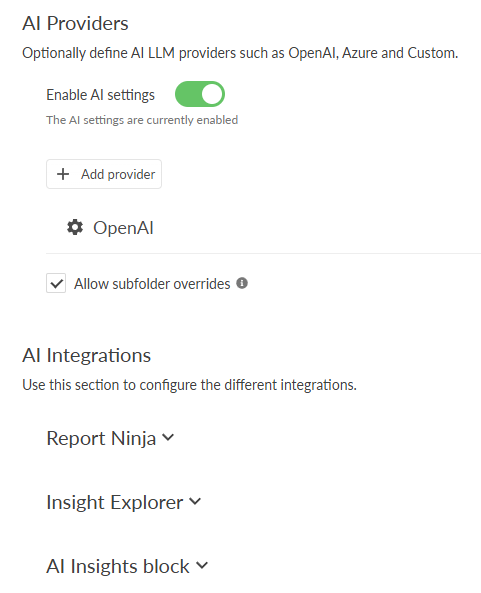
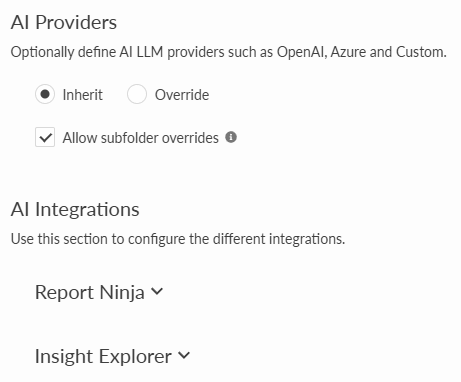
To tailor AI settings for a subfolder, open the folder's Create/Edit Permissions dialog and edit its AI settings. A subfolder can inherit provider settings from the parent folder, or override them. Each AI integration can also inherit or override its settings separately.
For example, you might keep providers configured at the top level, but set a different Insight Explorer custom prompt or initial message for a Finance, HR or Operations folder.
When a subfolder overrides a provider or integration section, it uses the settings defined in that folder for that section. The inherited settings for that section are not merged in. Parent folders can also prevent subfolders from overriding provider or integration settings.
For simplicity, the rest of this article refers to AI Settings, but the same ideas apply to both top-level and folder-level AI settings. Not every AI integration has custom prompt or initial message options. The sections below cover the options available for Insight Explorer and Report Ninja.
After changing a custom prompt or initial message, test it with a few typical questions, datasets or reports before applying it more widely.
Insight Explorer
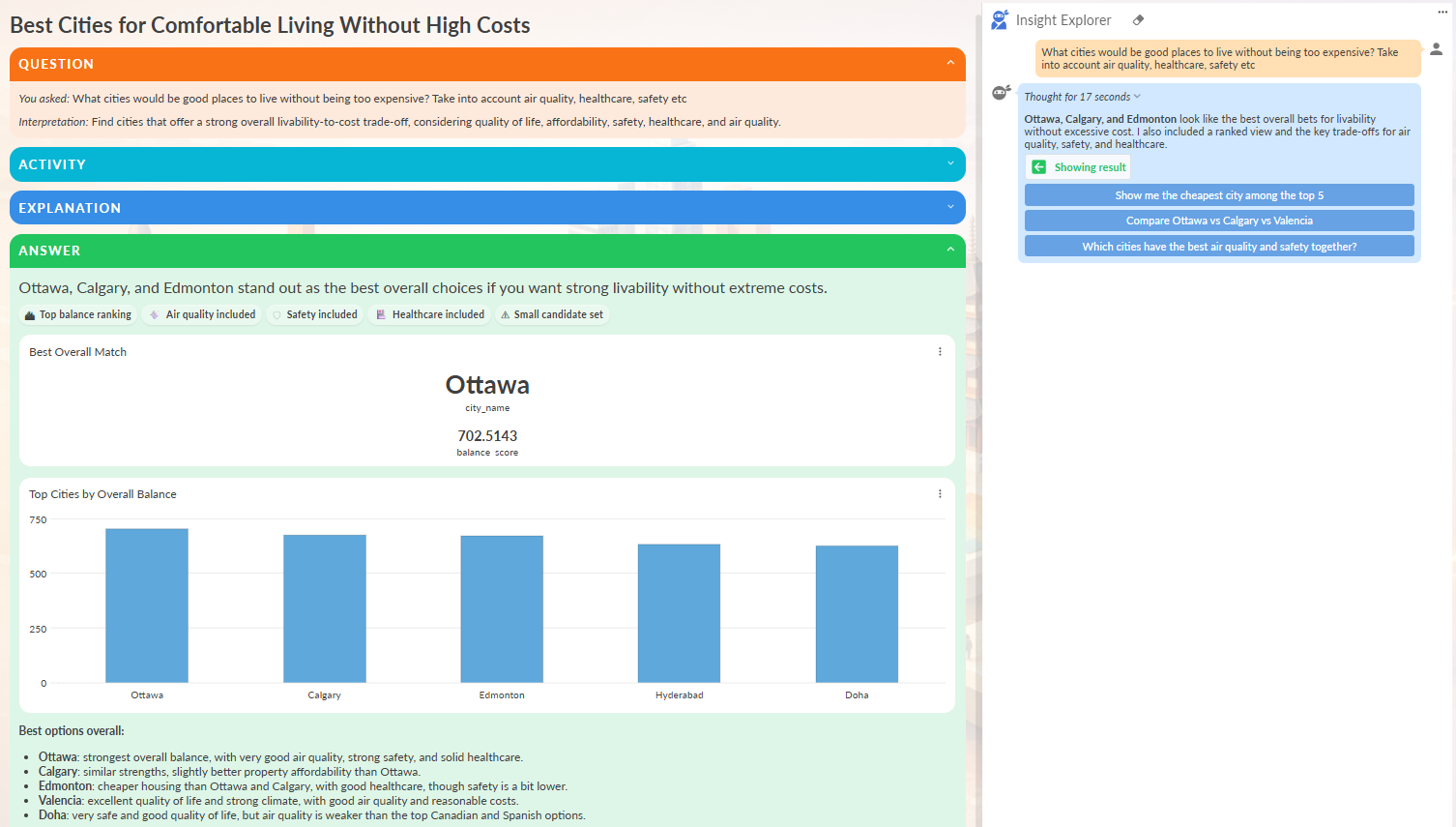
In AI Settings, the Insight Explorer integration has a custom prompt option and initial message options. Insight Explorer views can also have their own custom prompt and initial message settings in the view settings.
Use the AI Settings custom prompt for general Insight Explorer guidance. Use the view custom prompt for guidance that only applies to that view. If both are configured, Omniscope uses both.
Use the custom prompt to guide how Insight Explorer answers natural language questions about connected data. The AI can produce structured answers with text, KPIs, charts, tables, assumptions and explanations, but it will still choose what fits the question and available data.
Example custom prompts:
- Explain answers for store managers, not data analysts. Focus on sales, stock availability, margin and outliers.
- Answer in French. Use European date formatting and euros.
- Use our internal terminology: say "clients" instead of "accounts". Call out missing values or small sample sizes when they affect the answer.
Insight Explorer can automatically show or send an initial message when a new session starts.
The Insight Explorer integration can use these behaviours:
- Hidden message. Omniscope sends a hidden message to the AI immediately. The user does not see this message, only the AI response. Use this when you want the AI to produce an automatic first answer without showing the starter instruction.
- Assistant message. Omniscope shows an assistant message to the user, but does not call the AI yet. The AI is called only when the user asks a question. Use this for a welcome message or suggested starting point.
- User message. Omniscope shows a user-style message and sends it to the AI immediately. The user sees the starter question and the AI response. Use this when you want the session to visibly begin with a default question, such as "Tell me about my data".
In the Insight Explorer view settings there is one extra option:
- Inherit from integration. The view uses the default initial message behaviour configured for the Insight Explorer integration in AI Settings.
Report Ninja
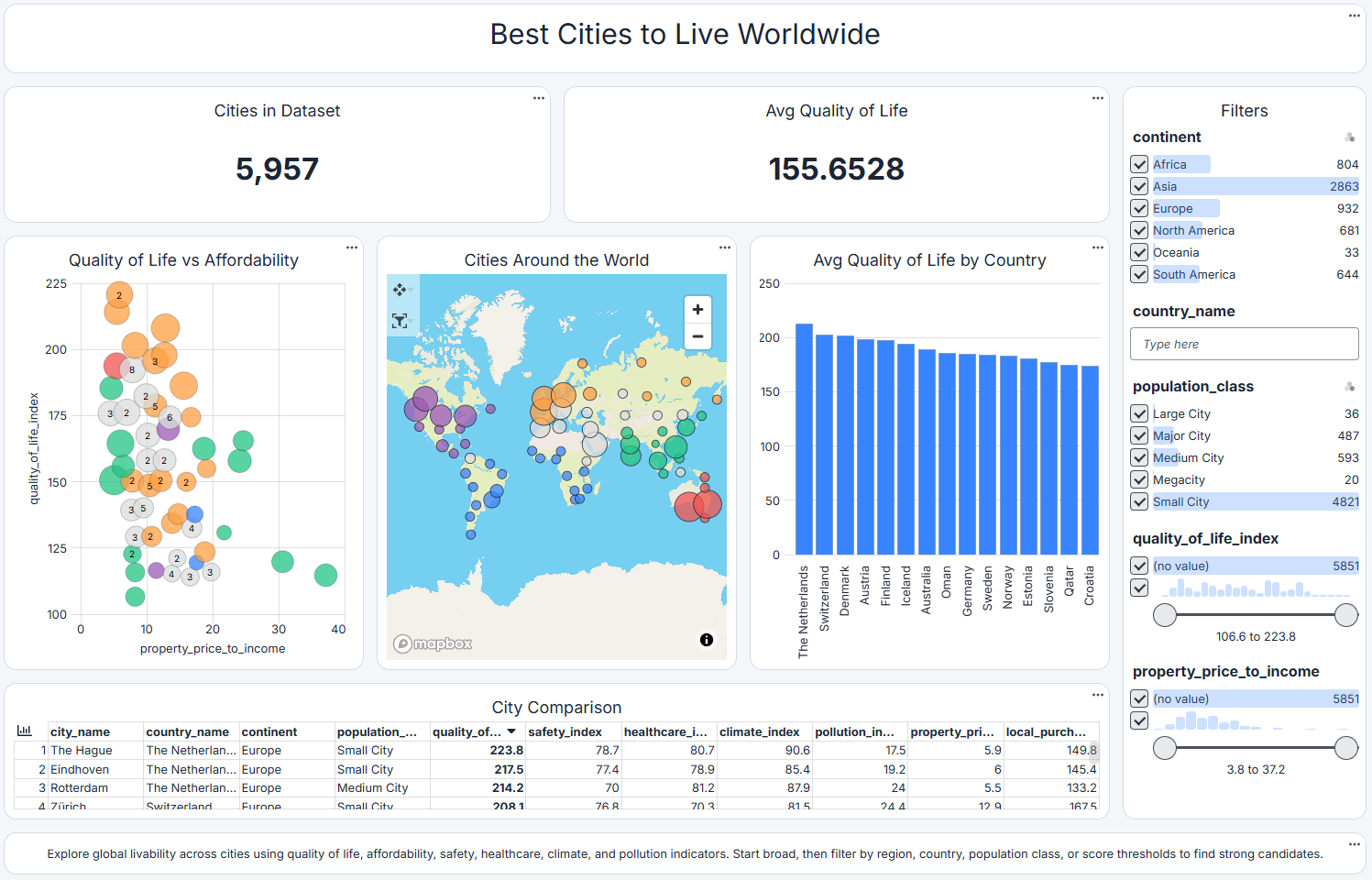
In AI Settings, the Report Ninja integration has a custom prompt option. This applies to Report Ninja in reports and to Instant Dashboard. Use it to tailor the dashboard design guidance Report Ninja receives, such as audience, business priorities, layout, view types, filters, titles, descriptions, terminology and visual style.
Example custom prompts:
- Design dashboards for senior leaders. Prioritise headline KPIs, trends, exceptions and clear titles. Avoid dense tables unless the user asks for detailed records.
- Use our brand style: light background, minimal borders and blue or green accents. For finance reports, focus on revenue, margin, budget variance and forecast risk.
- Do not use personally identifiable fields in dashboards unless the user explicitly asks for them.
Reports can also have their own Report Ninja custom prompt in Report settings > Global. Use the AI Settings custom prompt for general Report Ninja guidance. Use the report custom prompt for guidance that only applies to that report. If both are configured, Omniscope appends the report custom prompt after the AI Settings custom prompt. Report Ninja does not use the initial message behaviour options described for Insight Explorer.
Was this article helpful?
That’s Great!
Thank you for your feedback
Sorry! We couldn't be helpful
Thank you for your feedback
Feedback sent
We appreciate your effort and will try to fix the article