Accessing Logs
In the Admin -> Logs section, you can access, tail, or download all log files available in Omniscope.
On the server, you can also access the log files directly. By default, they are typically stored in:
omniscope-server/logs
unless this location has been customised.
Configuring log rolling and storage
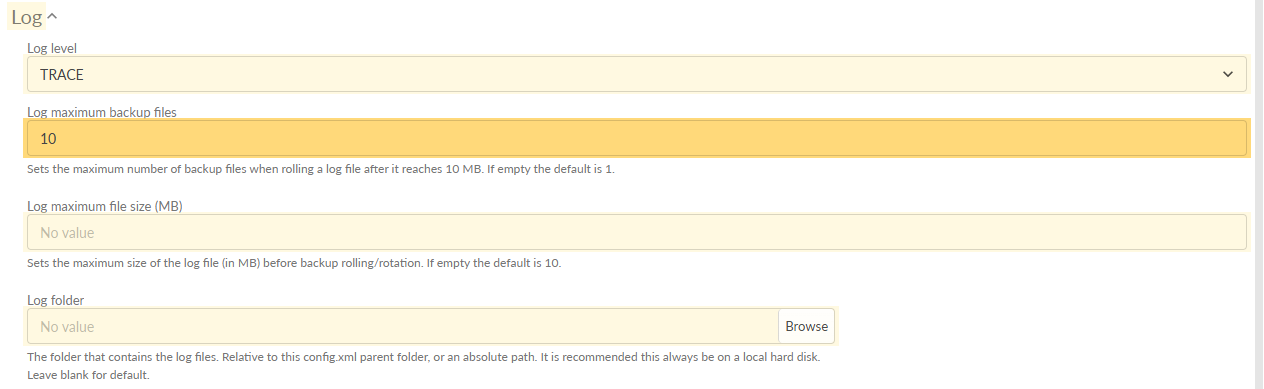
Omniscope can be configured to control how logs are written and retained. Go to Admin -> Advanced -> Logs
- Log level controls how much detail is written to the logs. Use INFO for normal operation, and DEBUG or TRACE only when troubleshooting.
- Log maximum file size (MB) sets the maximum size of a log file before it is rolled over into a backup file. If left empty, the default is 10 MB.
- Log maximum backup files sets how many rolled log files are kept. When the limit is reached, the oldest backup file is deleted. If left empty, the default is 1.
- Log folder sets where logs are stored. If left blank, Omniscope uses the default log folder, typically
omniscope-server/logs.
Log rolling helps prevent single log files from growing indefinitely. Rolled files persist on disk until they are replaced by newer rolled files according to the configured backup count. For example, with a maximum file size of 10 MB and 10 backup files, Omniscope keeps the current log plus up to 10 older rolled copies, giving roughly 110 MB of retained history per log stream.
Log File Reference
Below is a brief description of the main log files and the information they contain.
Omniscope Server log files
main_log.txt
The main log file. It contains errors, stack traces, and important messages logged by Omniscope, for example during workflow execution, report queries, application startup and shutdown, data engine errors, local storage events, data clean-up events, and disk or network I/O errors.
stderr_log.txt
The standard error log.
stdout_log.txt
The standard output log.
Services log files
Admin Web App
service_adminwebapp_log.txt
Errors and messages logged by the Admin app.
Scheduler
service_scheduler_log.txt
Scheduler logs for configuration changes and errors.
service_scheduler_task_event_log.csv
A CSV log of scheduler task events. It records actions and task events, including when they start and end, with fields such as Date, Task name, Event, Action, and Detail.
service_scheduler_task_log.csv
A CSV log of tasks executed by the Scheduler, including fields such as Task name, Trigger, Scheduled time, Start delay (seconds), Start time, Duration (seconds), End time, Outcome, Has warnings, and Log.
Omniscope Web App
service_mobilewebapp_log.txt
Web server logs, including authentication and authorisation messages and errors.
service_mobilewebapp_access_log.csv
Web server access logs in CSV format. These can be consumed in the Omniscope Admin dashboard to analyse traffic directly in Omniscope.
Query API log files
queryapi_log.csv
A CSV verbose log of all queries executed by Omniscope to serve Reports, Views, and Tables.
query_sql_log.txt
Logs the SQL statements executed by Omniscope to serve Reports, Views, and Tables.
Resource monitor log files
resource_monitor.csv
A CSV log of resource usage on the machine where Omniscope runs, including CPU, memory, and disk usage.
These can be visualised in the Omniscope Admin Monitoring dashboard.
Custom Block execution log files
custom_block_executions_log.txt
Logs for Python and R Custom Block execution, including messages and errors.
R/Python package installation log files
r_host_package_installation_log.txt
Messages and errors produced during R package installation on the host. If Docker is configured, messages may instead be redirected to the main, stderr, or other logs.
python_host_package_installation_log.txt
Messages and errors produced during Python package installation on the host. If Docker is configured, messages may instead be redirected to the main, stderr, or other logs.
AI log files
ai_interpreter_log.txt
Messages generated while using the AI Block.
ai_expenses_log.txt
A log used to track token usage for estimating AI consumption.
Workflow execution performance files
workflow_exec_perf.csv
A CSV file used to measure workflow performance, including block execution times, threads, and CPU usage.
This can be visualised in the Omniscope Admin Monitoring dashboard.
Was this article helpful?
That’s Great!
Thank you for your feedback
Sorry! We couldn't be helpful
Thank you for your feedback
Feedback sent
We appreciate your effort and will try to fix the article