Running total rows add a calculated row between top-level categories in the Pivot view. Each row shows the cumulative value up to that point. This is useful for calculations such as Revenue minus costs followed by further adjustments.
A simple financial example
Imagine a services company reviewing its contract values for January and February. Revenue shows the income from its contracts, Costs records the cost of delivering them and Discounts contains a further adjustment. Each category is divided into Types so the company can see the detail as well as the overall result.
In this example dataset, each record represents a contract amount for a particular month:
- Category identifies whether the amount is Revenue, Costs or Discounts.
- Type identified a more specific kind of revenue cost or discount
- Date identifies the month
- Value contains the amount
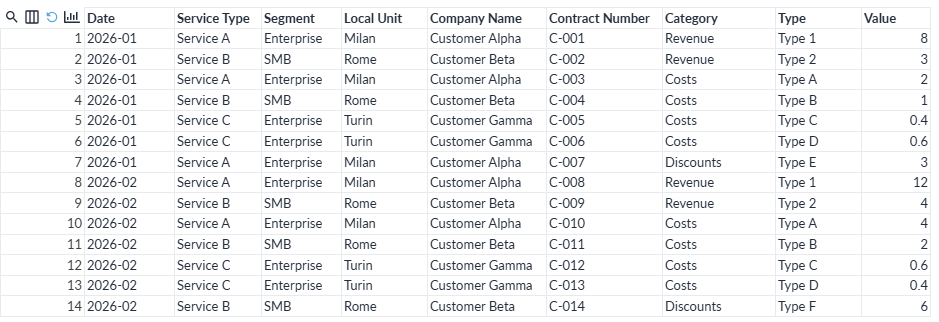
You can download the sample CSV at the end of this article.
Load the CSV and connect it to a new blank report. Add a Pivot view with the following setup:
- Pane Y: Category followed by Type
- Pane X: Date
- Measure: Value (Sum)
In the field settings, make sure the Categories are displayed in this order: Revenue, Costs, Discounts.
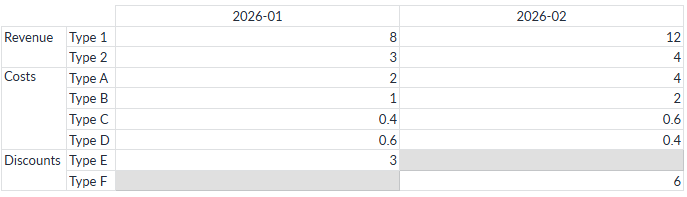
Add and customise running total rows
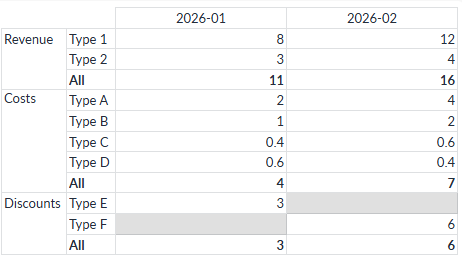
Open the Pivot view options, expand Total and tick Show sub total/rollup rows. This adds a total within each top level group. Here it combines Type 1 and Type 2 to give the Revenue subtotal, and does the same for the Types within Costs and Discounts.
Now tick Show running total rows. Omniscope adds a calculated row after costs and another after discounts. At first, all categories are added, producing Revenue + Costs followed by Revenue + Costs + Discounts.
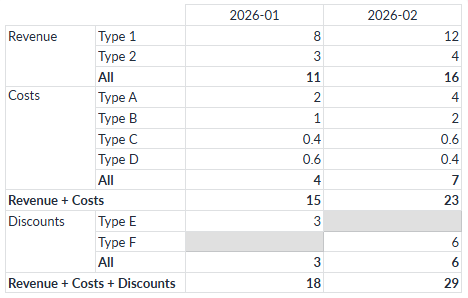
To calculate the margin, Costs need to be deducted from Revenue. In Running total rows: values to subtract enter: Costs.
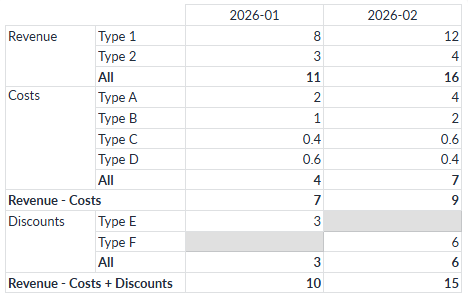
The name must match the displayed top-level category value. The calculated rows now show Revenue - Costs and Revenue - Costs + Discounts.
The generated calculation names can be replaced with clearer labels. In Custom running total header overrides enter:
"Revenue - Costs":"Margin","Revenue - Costs + Discounts":"Adjusted margin"
The generated name must match the label shown in the Pivot exactly, including spaces and plus or minus signs. The replacement changes only the displayed name, not the calculation.
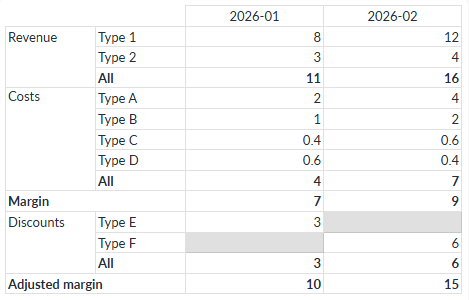
Finally use Total header style and Total cell style to change the styling of the calculated row headers and values. These styles are shared with ordinary total and subtotal rows.
Was this article helpful?
That’s Great!
Thank you for your feedback
Sorry! We couldn't be helpful
Thank you for your feedback
Feedback sent
We appreciate your effort and will try to fix the article