Introduction
A repair request has been marked as resolved, but the customer says the tap is leaking again. Elsewhere, a technician has recorded a completed repair and left a note saying that a replacement part is still needed. Which records need a closer look?
Omniscope supports both generative AI and decision AI to help you prepare data, automate workflow steps and explore the results in your reports. Generative AI creates content, such as a written summary of the day’s workload. Decision AI answers a question you define, returning a choice from supplied labels, a yes/no probability or a score on your chosen scale.
For repeated classification and scoring tasks, specialised decision models can be faster and cheaper than using a generative model to produce the same answers.
In this tutorial we’ll use Jev, a decision AI provider, and explore four ways to use its answers in Omniscope:
- AI Decision block: ask questions about each records and add the answers as new fields. Answers can be categories, yes/no probabilities or scores, ready to use in calculations, filters and reports.
- Record filter: ask a yes/no question about each record and keep or exclude it according to a probability threshold. Combine this with ordinary filter rules to select the records you need.
- Decision formulas: call an AI decision function inside a workflow expression. Combine its answer with ordinary formula logic.
- Control flow: use a decision formula to control how a workflow executes.
The AI supplies the assessment; we decide how the workflow uses it.
Now lets meet Housepital.
About the demo data
Housepital is a fictional home repairs and maintenance company. Customers pay a monthly subscription and report problems when something needs attention, from leaking taps to windows that refuse to close. Housepital arranges for the work to be carried out.
Housepital’s service team handles residents’ repair requests and records their status and the outcome of each visit. Alongside these structured records, they receive free text: emails from residents, notes from phone calls and technicians’ descriptions of what happened during a visit.
We’ll classify requests, identify notes describing unfinished work and find messages reporting that a problem has returned. Along the way, we’ll build a service desk report and prepare a handover for a selected request.
We've created five fictional datasets for this example:
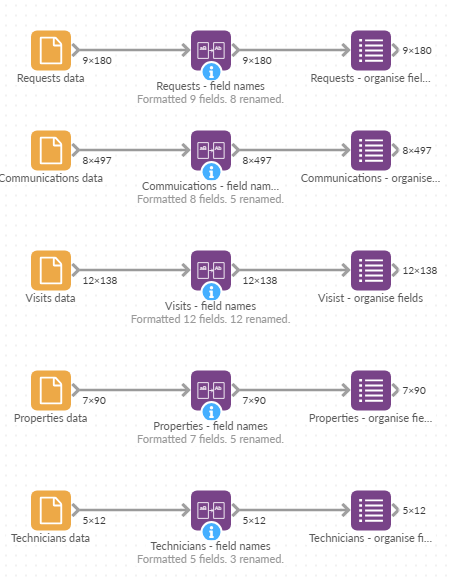
- Requests: 180 repair cases, with the original description, reporting channel, recorded status and response dates.
- Communications: 497 contacts, including initial reports, appointment questions, repair updates and confirmations that work has been completed.
- Visits: 138 appointments, with the technician, recorded outcome, repair notes and costs.
- Properties: 90 member properties, with their service area and fictional map coordinates.
- Technicians: 12 technicians, with their trade and team.
Follow the examples to build the project, or open the finished demo to explore its workflow and report. Both the project and sample files are available to Download at the end of this article.
Set up AI
To run the decision examples, you’ll need an Omniscope licence with the AI Features Pack and a Jev API key.
- Open Admin > AI Settings.
- Under AI Providers, add a Jev provider and enter your API key.
- Under AI Integrations, ensure Workflow AI Decisions is enabled and select your Jev provider as its Default model. This supplies the AI Decision block and the AI decision rule in Record filter.
- Also under AI Integrations, ensure AI Decision Formulas is enabled and select the same provider as its Default model. This supplies the formulas used in Field organiser and Output Router.
- Save the settings.
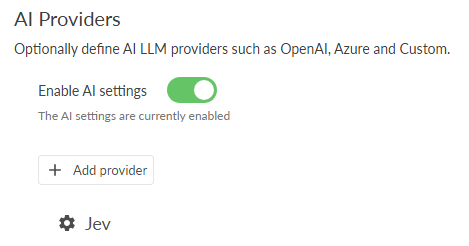
The optional AI Insights and Workflow Ninja examples need a supported generative AI provider, such as OpenAI. In Admin > AI Settings, add your chosen provider and enter its API key. Then enable the AI Insights and Workflow Ninja integrations and select your provider as the default model for each. You can follow all four decision examples using Jev alone.
For more detailed setup instructions, see the AI Decision block article and How to enable AI in Omniscope, linked below.
Set up the project
Create a new Omniscope project and add the five CSV files. Use the Format field names block with Title Case to make the headers readable. Then use a Field organiser to check the field types and set a readable display format for dates.
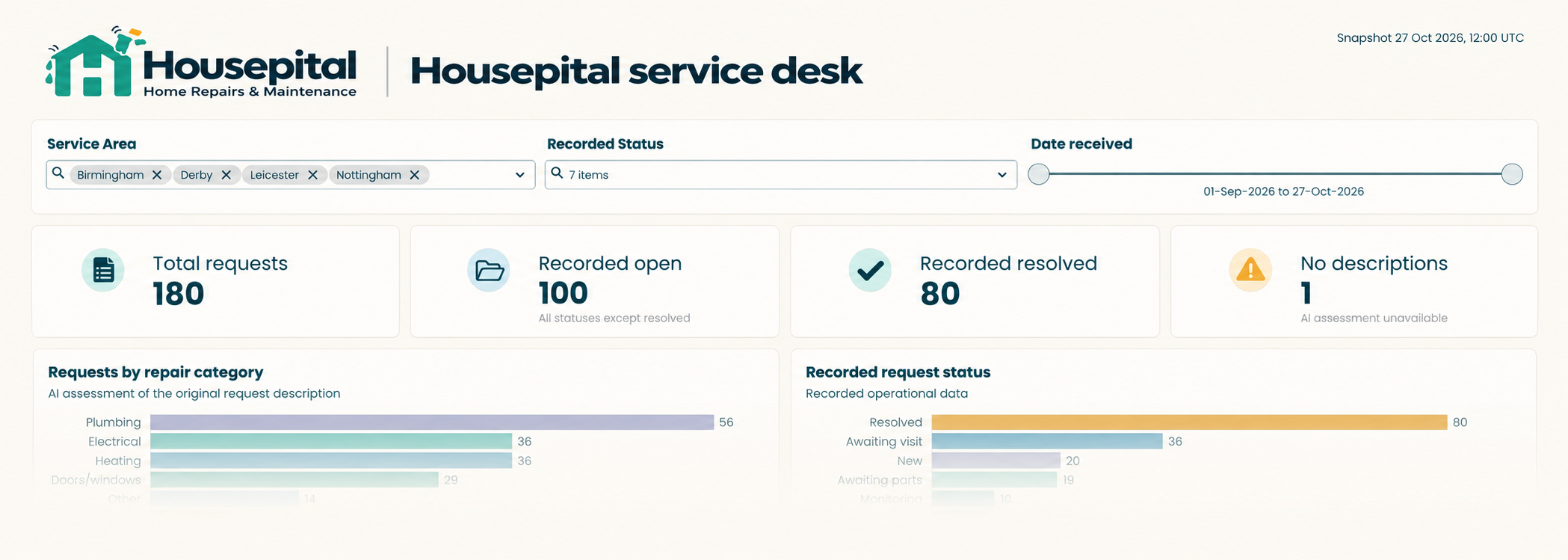
Add a Report named Housepital Service Desk with two tabs: Service overview for the workload summary, and Work queues for inspecting requests and supporting evidence. We'll add views as each decision example produces its results. You can inspect the preparation blocks in the downloadable project.
Understand incoming requests with the AI Decision block
The AI Decision block asks questions about selected input fields and adds the answers alongside each record. Use it to turn descriptions, messages or notes into categories, yes/no probabilities and scores on an ordered scale. These extra fields can feed calculations, filtering and other workflow steps, as well as views in a report. You can ask several questions in the same block.
Let's start with the original request descriptions. We want to know what kind of problem is being reported, whether an essential service has been lost and how much the problem affects use of the home.
Step 1. Connect the prepared requests data directly to an AI Decision block.
Step 2. Leave Model blank to use the Workflow AI Decisions integration's default.
Step 3. Under Data, select Original Description as the Input fields.
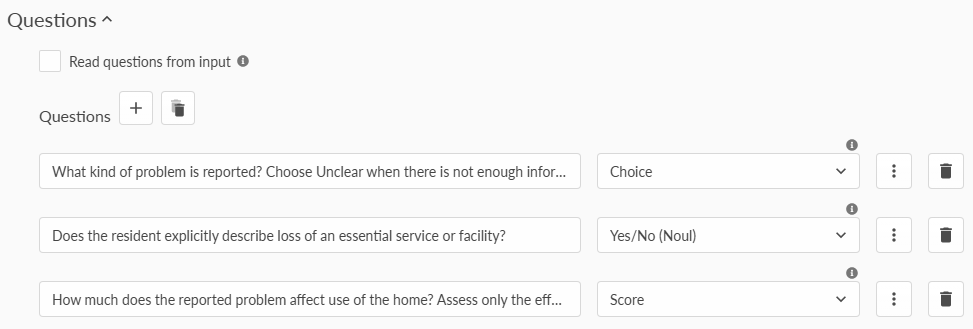
Step 4. Add the following three questions.
Question 1: Repair category
| Setting | Value |
| Question | What kind of problem is reported? Choose Unclear when there is not enough information to identify the affected item or type of work. |
| Answer type | Choice |
| Output field name | Repair Category |
| Choice: Heating | Boilers, radiators, heating controls and loss of heating or hot water |
| Choice: Plumbing | Taps, sinks, toilets, water pipes and drainage, excluding boiler or heating-system faults. |
| Choice: Electrical | Lights, sockets, switches and household electrical supply faults. |
| Choice: Doors/windows | Doors, locks, handles, windows and their fittings. |
| Choice: Other | A clearly described maintenance issue outside these categories. |
| Choice: Unclear | Insufficient detail to identify the kind of repair. |
Question 2: Loss of essential service
| Setting | Value |
| Question | Does the resident explicitly describe loss of an essential service or facility? |
| Answer type | Yes/No |
| Output field name | Essential Service Loss |
| Meaning of yes | The description says heating, hot water, water supply, electricity or the home's only toilet is unusable or unavailable. |
| Meaning of no | No such loss is described, including a fault where the service or facility is still usable. |
Question 3: Reported impact
| Setting | Value |
| Question | How much does the reported problem affect use of the home? Assess only the effect described in the message. |
| Answer type | Score |
| Output field name | Reported Impact |
| Score level 0: Minor inconvenience | The affected item or facility remains usable, with a nuisance such as a small drip or rattle. |
| Score level 1: Restricted use | The problem interferes with normal use, but the message does not describe an essential facility being completely unavailable. |
| Score level 2: Essential facility unusable | The message explicitly describes loss of heating, hot water, water supply, electricity or the home's only usable toilet. |
Step 5. Leave the optional probability columns for every individual choice or score level off.
Step 6. Execute the block and inspect its output.

Find REQ-0001. Its description says the boiler keeps switching off and there is no heating or hot water. The AI Decision block has identified this as a Heating issue in the Repair Category field with a probability of 1. This is the models confidence output, not guaranteed certainty.
The Essential Service Loss field contains a probability of a yes answer, between 0 and 1. Higher values indicate greater confidence that the description reports a loss of essential service. For REQ-0001 the value is 0.99, consistent with the resident reporting no heating or hot water.
The Reported Impact score levels run from 0 to 2, and the result can be fractional. For REQ-0042, the resident reports that the kitchen sockets are not working, including the one for their fridge. This clearly restricts use of the kitchen, but the description doesn't establish whether the fridge is unusable or electricity is unavailable throughout the home. The score of 1.68 falls between Restricted use and Essential facility unusable. Staff can check the assessment against the description and ask for more details if needed.
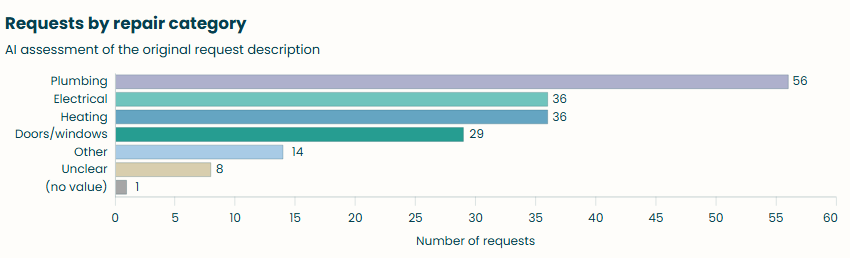
Connect the assessed requests data to the Report. On Service overview, add a Bar view counting requests by Repair Category.
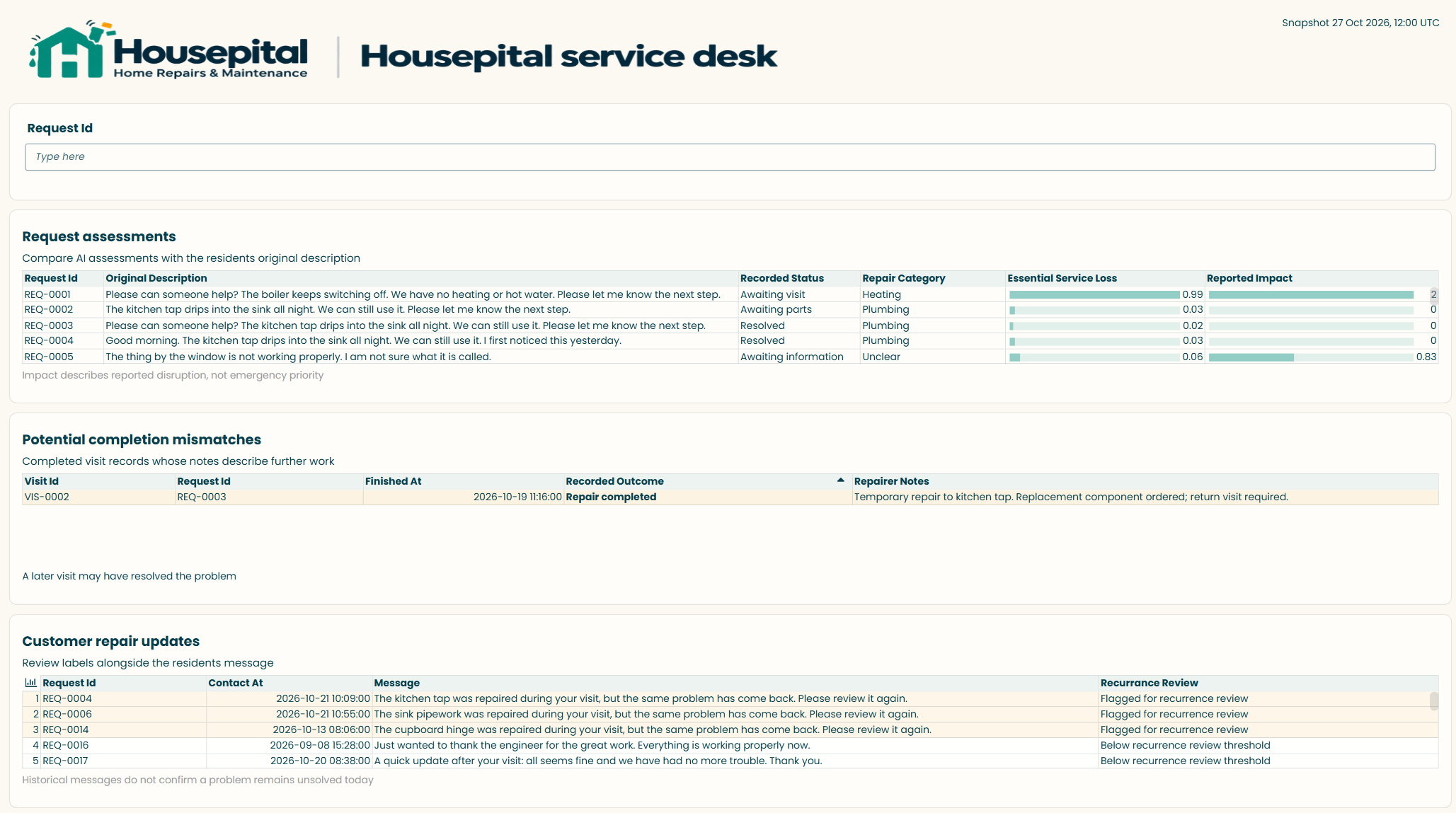
On Work queues, add a Request assessments Table showing Request ID, Original Description, Recorded Status, Repair Category, Essential Service Loss and Reported Impact. Sort by Reported Impact descending to bring descriptions of greater disruption to the top. Optionally display Essential Service Loss and Reported Impact as in-cell bars to make the assessments easier to scan.

Staff can see the mix of problems and check each assessment against the resident's wording. Reported impact describes disruption to use of the home; it is not an emergency-triage assessment.
Find completion mismatches with Record filter
Record filter can use an AI decision rule to select records based on a yes/no question about their text. A record matches when its yes probability meets your chosen threshold. You can combine AI and ordinary rules, requiring all or any of them to match, and accept or reject the matching records.
A visit may be recorded as Repair completed even though the technician's notes describe work that remains to be done. We'll combine an ordinary rule and an AI decision rule in one Record filter to find these potential completion mismatches. We want to select visits for inspection rather than add assessment columns.
Step 1. Connect the prepared visits data to a Record filter.
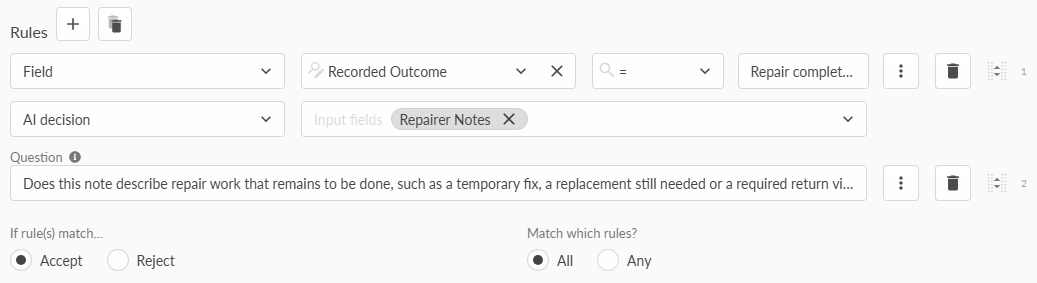
Step 2. Configure it to accept records where all rules match.
Step 3. Add an ordinary rule: Recorded Outcome equals Repair completed.
Step 4. Add an AI decision rule using Repairer Notes as its input field, with this question:
Does this note describe repair work that remains to be done, such as a temporary fix, a replacement still needed or a required return visit? Answer no for a completed repair with no further work required, or advice only to monitor and report any future problem.
Step 5. In the AI rule's More options, leave Model blank to use the integration default and set Threshold to 0.5.
Step 6. Execute the filter and inspect the matching output.

A visit passes when its recorded outcome is Repair completed and the AI rule returns a yes probability of at least 0.5. In this run, one visit matches: VIS-0002. Its recorded outcome says Repair completed, but the technician's notes describe a temporary repair, a replacement component on order and a required return visit. This is the discrepancy we wanted to find.
Connect the matching visit records to the Report. On Work queues, add a Table titled Potential completion mismatches, showing Visit ID, Request ID, Finished At, Recorded Outcome and Repairer Notes. Join in Technician Name if useful. Staff can read the contradiction directly in the table.

A later visit may already have resolved the problem. This table flags the contradictory record for inspection and leaves its status unchanged.
Spot returning problems with a decision formula
Three AI decision formulas let you use an assessment inside a workflow expression:
- AI_DECISION_YESNO: returns the probability of yes, from 0 to 1, rather than a Boolean.
- AI_DECISION_CHOICE: returns one of the text labels you supply.
- AI_DECISION_SCORE: returns a numeric position on an ordered scale of labels. Positions start at 0 and can be fractional; three levels give a score from 0 to 2.
The AI Decision block lets you configure questions and add their answers as fields. A decision formula lets you include an assessment within a larger expression. Here we'll combine a yes/no probability with an IF condition to label messages for review.
The technician's notes provide one perspective. Let's now look for customer messages reporting that a problem continued or returned after a repair.
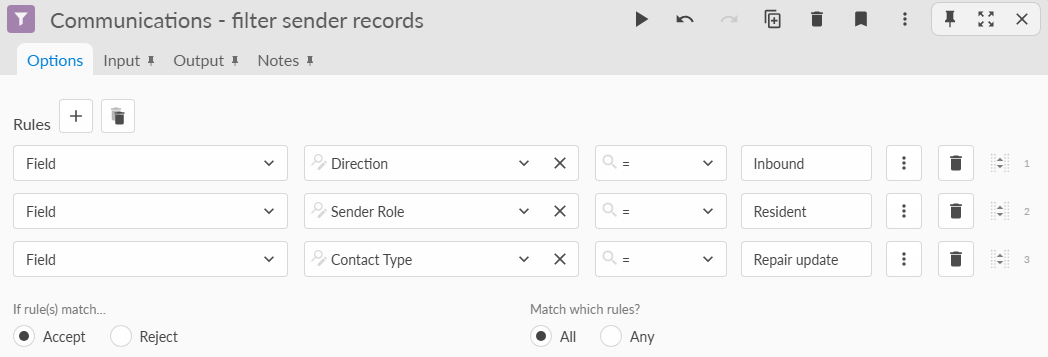
Step 1. Connect the prepared Communications data to a Record filter. Configure it to accept records where all three rules match:
- Direction equals Inbound.
- Sender Role equals Resident.
- Contact Type equals Repair update.
Step 2. Connect the filtered messages to a Field organiser and create a text field named Recurrence Review.
Step 3. Enter this formula:
IF(
    AI_DECISION_YESNO(
        [Message],
        "Does the resident explicitly say that this problem continued or returned after a previous repair or technician visit? Answer no for a first report, an appointment question, or confirmation that the problem is now fixed."
    ) >= 0.7,
    "Flagged for recurrence review",
    "Below recurrence review threshold"
)
The formula labels messages for review when the yes probability is at least 0.7.
Step 4. Execute the block and inspect the results alongside the original messages.

COM-0018 is labelled Flagged for recurrence review. Its message says:
The sink pipework was repaired during your visit, but the same problem has come back. Please review it again.
The resident explicitly reports the problem returning after a repair, supporting the review flag.
Connect the assessed messages to the Report. On Work queues, add a Customer repair updates Table showing Request ID, Contact At, Message and Recurrence Review. Show flagged messages first, with the most recent messages first within each group. Staff can use this view to compare each review label with the resident's message.

Choose a processing path with Control flow
AI decision formulas can also be used in Control flow blocks to choose which part of a workflow runs. If Then Split chooses between two branches, Output Router chooses a numbered output, and Input Router selects an input dataset.
Here we'll use Output Router to decide which team should follow up a repair. For this example, we'll focus on REQ-0010 and assess its two visit notes together. The router makes one decision for the whole input dataset, so both visits will go to the selected output.
Step 1. Connect the prepared Visits data to a Record filter and accept Request ID = REQ-0010.

Execute the block. We should see two records.

Step 2. Connect the filtered visits to the test input of an Output Router. Leave the optional data input disconnected.
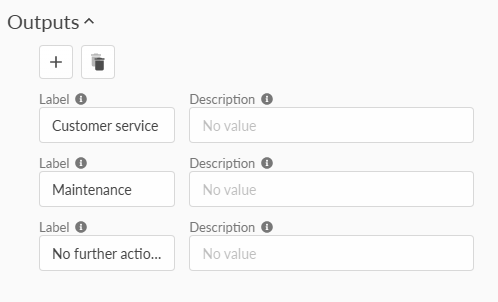
Step 3. Configure three outputs: 1 for Customer service, 2 for Maintenance and 3 for No follow-up needed.
Enter this formula:
VALUE(
    AI_DECISION_CHOICE(
        SUBSET_UNIQUESLIST([Repairer Notes]),
        "Which team should handle the next step for this repair, based on these visit notes? Choose 1 for Customer service when contact with the resident, access or appointment arrangements are needed before repair work can proceed. Choose 2 for Maintenance when technical review, parts or further repair work is needed without a stated access or appointment obstacle. Choose 3 for No follow-up needed only when the notes clearly establish that all required work has been completed. If unclear, choose 1 for clarification.",
        "1", "2", "3"
    )
)
SUBSET_UNIQUESLIST combines the distinct repairer notes into one text value. AI_DECISION_CHOICE selects one of the text labels "1", "2" or "3", and VALUE converts it to the number used to select the output.
Step 4. Execute the router and inspect the selected output.
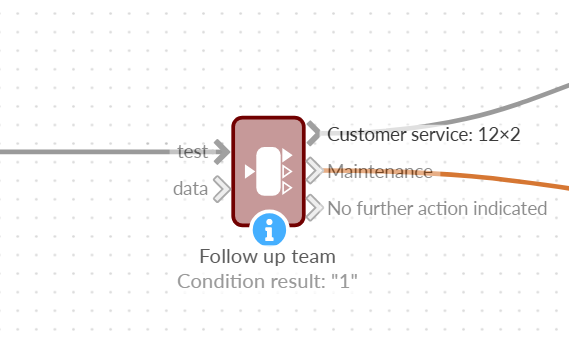
For REQ-0010, the formula selects Customer service. VIS-0008 describes a temporary toilet repair, with a replacement component ordered and a return visit required. VIS-0009 says the technician could not gain access for that return visit. Customer service can contact the resident to arrange access before repair work continues. Both visit records go to output 1, providing the history for that handover.
Connect output 1 to an email output addressed to the customer service team, including Request ID, Visit ID and Repairer Notes. Output 2 can notify the maintenance team; leave output 3 without an email action. Configure email delivery and use a test inbox while building the example. Only the selected branch executes, so the other team's email is not sent.
The same approach could process new visit data for one request at a time. To check several requests, use For Each to supply each Request ID to the filter and repeat the workflow. For longer histories, include visit dates with the notes so the assessment can distinguish earlier problems from later repairs.
Finish the Housepital Service Desk
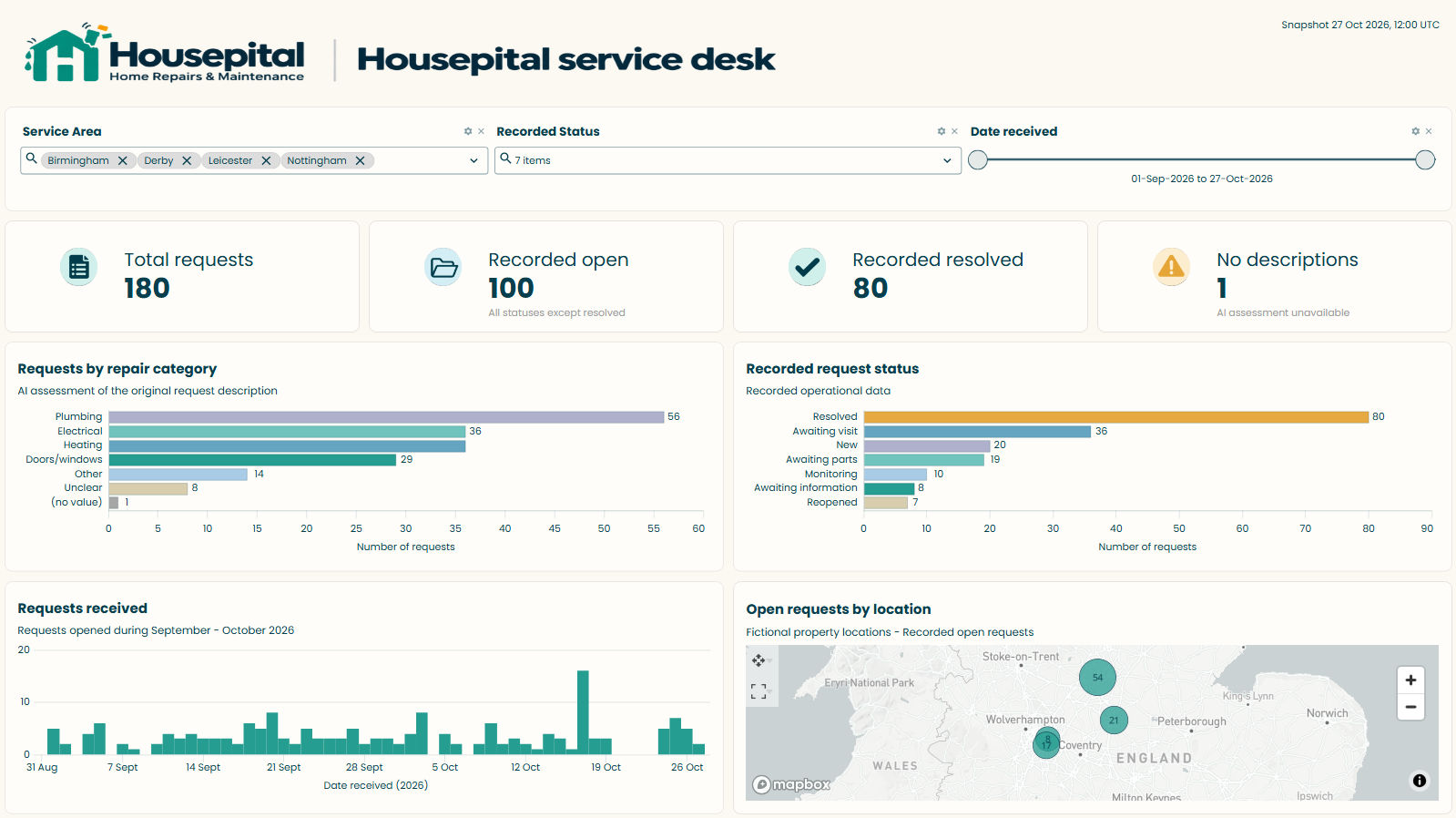
We now have a report showing request assessments, potential completion mismatches and customer repair updates labelled for review. Add a few views from the original fields to give these findings context.
On Service overview, we could add KPI cards for all requests and recorded open requests, a breakdown by Recorded Status, and a date chart of requests received. A map using the property locations is an optional addition alongside the repair-category chart.
On Work queues, arrange the three tables with clear titles and readable descriptions. A shared Request ID filter can let staff look up the same case across the request, visit and message sources. Keep each table's dates visible, and make CSV downloads available for follow-up.
Optional: add a morning briefing
A third tab, Morning briefing, could give the service manager a short written summary before they inspect the tables. Use an AI Insights block to summarise prepared workload totals and a small selection of completion mismatches and customer messages flagged for recurrence review.
Ask it to identify the supplied cases worth inspecting and explain the evidence, using only the input data. Include request IDs so staff can look them up in Work queues. Check its figures and descriptions against the prepared inputs before displaying the text.
Show the briefing in a Content view with the snapshot date and the time it was generated. It is produced when the workflow executes; changing report filters does not regenerate it. The two core tabs remain useful without this optional generative AI setup.
Optional: build with Workflow Ninja
Workflow Ninja can help build the ordinary preparation around the decision examples. For example, use it to add technician names to the filtered visits. This prompt uses the block names in the demo project:
Join the Repairs to check output to the prepared Technicians data on Technician ID. Keep every input visit, retain Visit ID and Request ID, and add Technician Name. Check that the number of visit rows stays the same. Name the output Repairs to check with technician names. Leave the AI decision rules unchanged.
Review the proposed workflow, execute the join and compare its row count with Repairs to check. Confirm that technician names match their IDs and that no visit disappeared. Once checked, use this enriched output for the report's mismatch table.
You can also ask Ninja to explain the blocks it added.
What we've built
Housepital now has a service desk that uses AI decisions to make better use of the information in repair requests, technician notes and customer messages.
We've used four approaches: The AI Decision block to add assessments to records, Record filter to find potential discrepancies, decision formulas to identify messages needing review and Output Router to choose the next processing step.
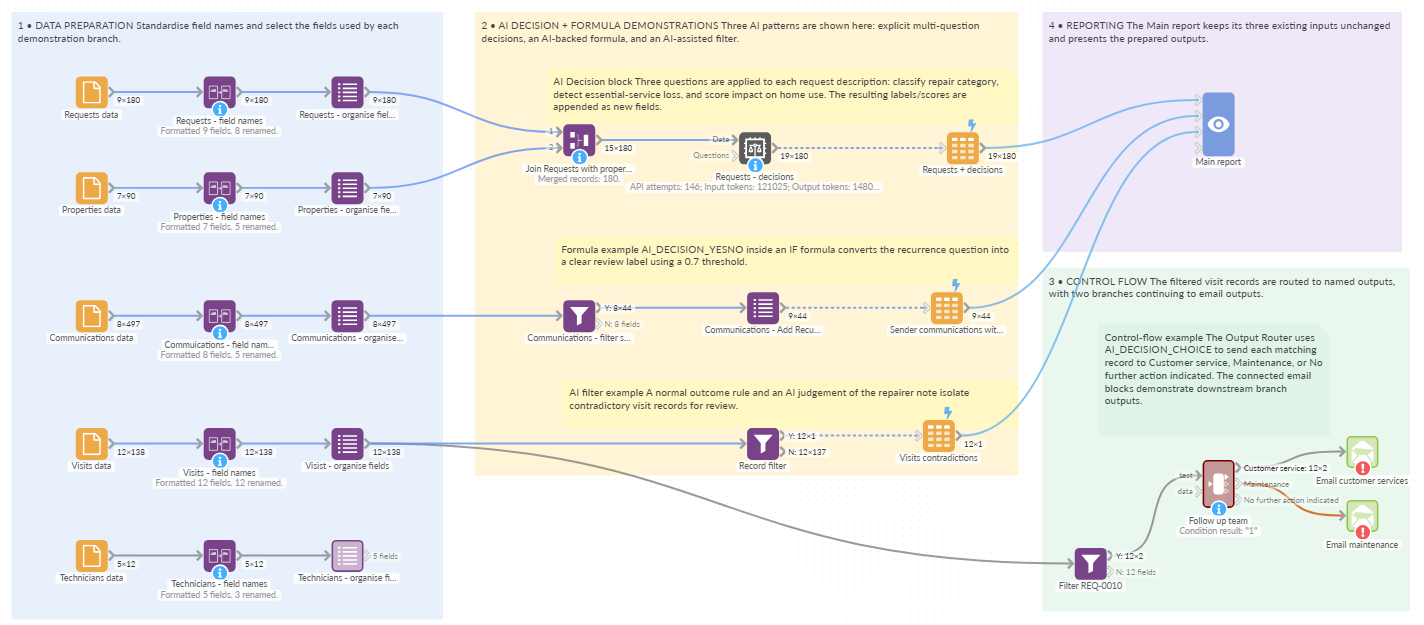
Together these examples show how AI Decisions in Omniscope can do more than classify text. Their answers can be combined with existing data, used in calculations, displayed in reports and used to control which parts of a workflow execute.
The same techniques can be applied to other types of data, from customer feedback and support tickets to inspection reports and operational logs. You can start with a question you'd normally need someone to answer by reading the text, then consider how that assessment could help your workflow.
Downloads
Download the Housepital Service Desk project and sample data to try the workflow yourself.
Housepital service desk.ioz — the core workflow and two-tab report.
Housepital sample data.zip — the five CSV files and a short field guide.
Open the project, check the File blocks point to your sample files, configure the decision integrations and execute the report. To try Control flow, choose one request in the routing branch's Record filter and execute the handover branch. Model answers may differ from the screenshots, so compare the results with the original text.
Further reading
Was this article helpful?
That’s Great!
Thank you for your feedback
Sorry! We couldn't be helpful
Thank you for your feedback
Feedback sent
We appreciate your effort and will try to fix the article