Introduction
Editing data in Omniscope has been supported for some time, and recent improvements make it significantly more powerful.
In addition to free-text editing and simple value lists, edits can now be restricted to values from other data sources. These restrictions can also be linked together using hierarchies, allowing choices in one field to depend on selections made in another.
In this article, we'll walk through a practical, end-to-end example showing how to:
- set up editable data
- apply different types of editing restrictions
- and combine those restrictions in a realistic scenario
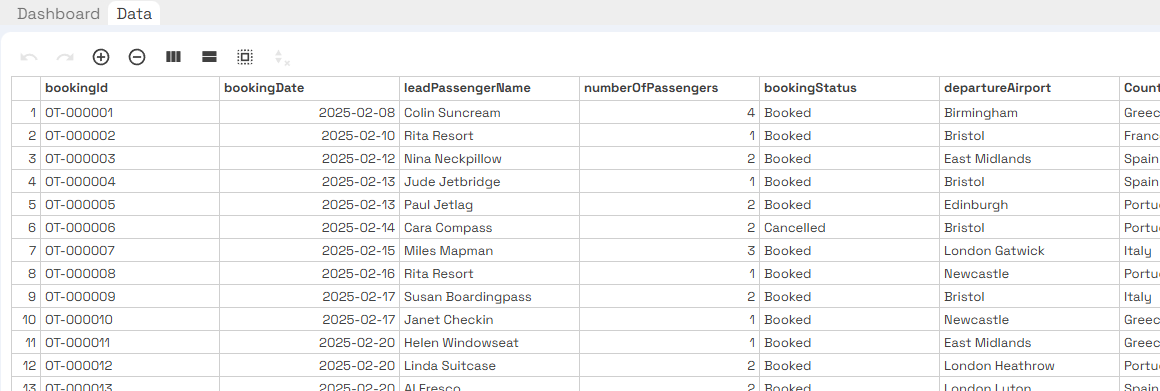
We'll also look at how the same report can support different users - from data editors, to managers, to those maintaining reference data.
Scenario: OmniTrips (a completely made-up travel company)

To demonstrate these features, we'll use a fictional travel company called OmniTrips.
OmniTrips records holiday bookings in Omniscope. Travel agent are responsible for entering booking details, while reference data such as airports and destinations is managed separately.
We'll work with three datasets:
- Bookings - editable booking records entered by travel agents
- Airports - lookup data used to restrict the departure airport selection
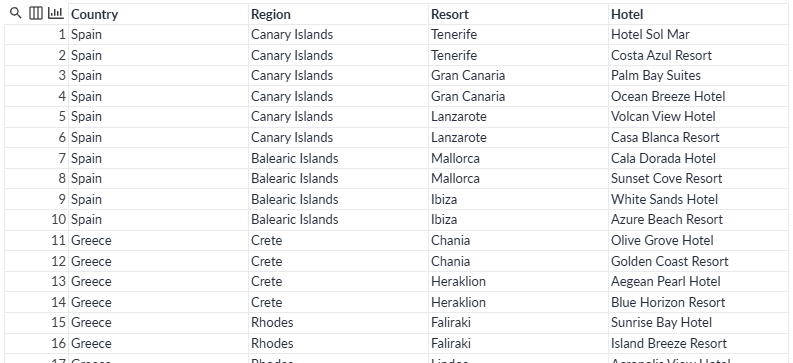
- Destinations - lookup data containing Country/Region/Resort/Hotel combinations
We'll build a simple report that allows agents to enter bookings safely, while managers can view the same data via a dashboard.
Setup: Preparing the data
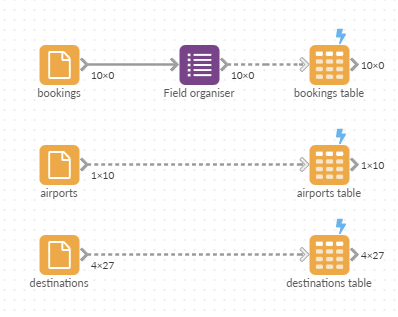
Start by creating a new Omniscope project and import the three CSV files: bookings, airports and destinations.
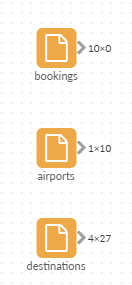
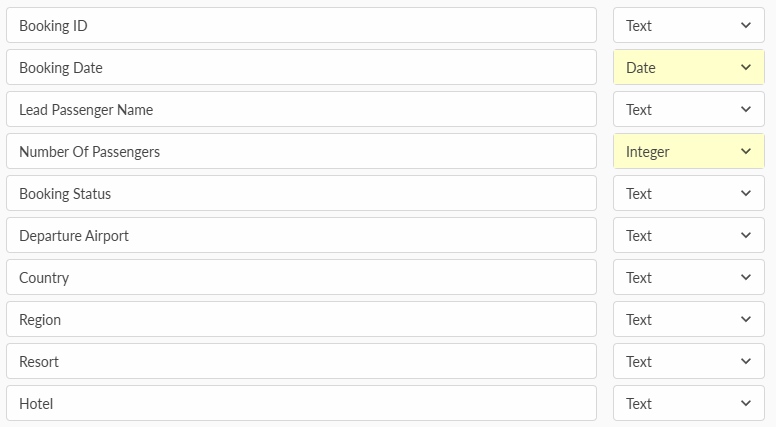
The bookings data is initially empty, so connect it to a Field Organiser block to define the correct data types:
- Text fields (Booking ID, Lead Passenger Name, Booking Status etc.)
- a Date field (Booking Date)
- an Integer field (Number Of Passengers)
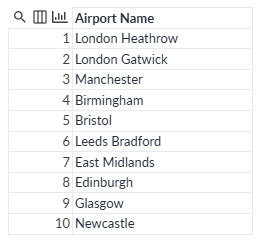
The airports data contains a list of airports OmniTrips holidays depart from.
The destinations data contains all valid combinations of country, region, resort and hotel currently offered by OmniTrips.
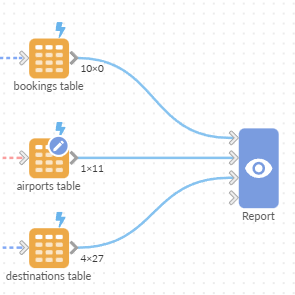
Next, connect each dataset to a Data Table block. This enables editing of the data both in the workflow and inside the report.
After connecting a Data table block, open it and click Refill this data table block with input data.
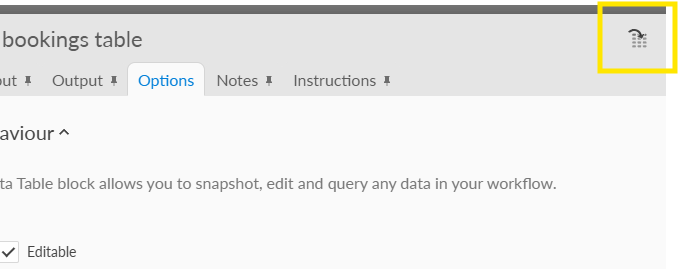
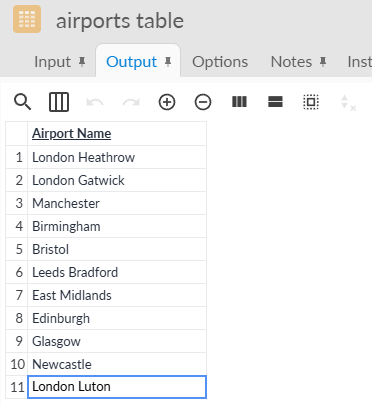
Data can now be edited directly in the workflow. For example to add a new airport:
- open the airports Data Table block
- click the Edit button in the bottom-right
- click the + button in the toolbar and select Insert Row
- Enter a new airport name (for example London Luton)
Finally connect all three Data Table blocks to to a Report block.
Setup: Creating the report structure
Open the report and add two tabs:
- Dashboard - intended for managers, used to show KPIs and charts
- Data - intended for travel agents, used for entering and editing booking data
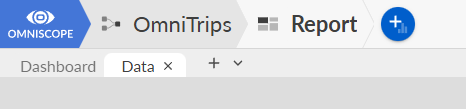
We'll focus on the Data tab first and return to the dashboard later.
Editing data using the Editable Table
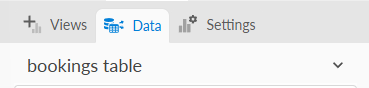
Switch to the Data tab and add an Editable Table view. In the view settings, ensure it's linked to the bookings data source.
At this point:
- text fields are freely editable
- rows and columns can be added or removed
- date fields show a date picker
- numeric fields only accept numeric values
This gives us a baseline editing experience before adding any restrictions.
Try adding a new row and entering values:
- click the + button in the table toolbar
- select Insert row
- double-click on a cell to enter a value

Editing restrictions: Allowed edits
We can control what types of edits are allowed in the Editable table.
Open the view settings and expand Edits > Allowed edits.
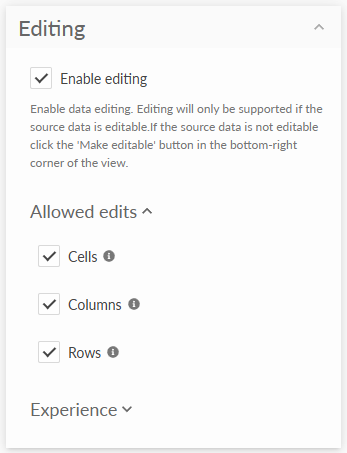
Here we can enable or disable:
- Cells - editing cell values
- Columns - adding, removing and reordering columns
- Rows - adding and removing rows
In this scenario, agents should be able to edit values and add new bookings, but not change the table structure. Disable Columns.
Editing restrictions: Custom lists
Some fields only need a small, fixed set of valid values. A good example is Booking Status.
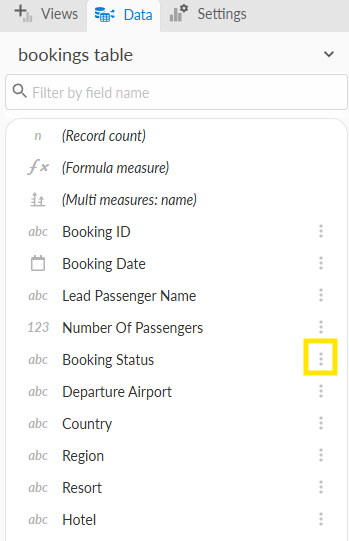
In the settings sidebar, open the Data tab. Locate the Booking Status field and click on the 3-dots menu to the right to open the field settings.
Set Editing restriction to Custom list.
Because the data is currently empty, we need to add values manually. Click Add custom value and add:
- Booked
- Cancelled
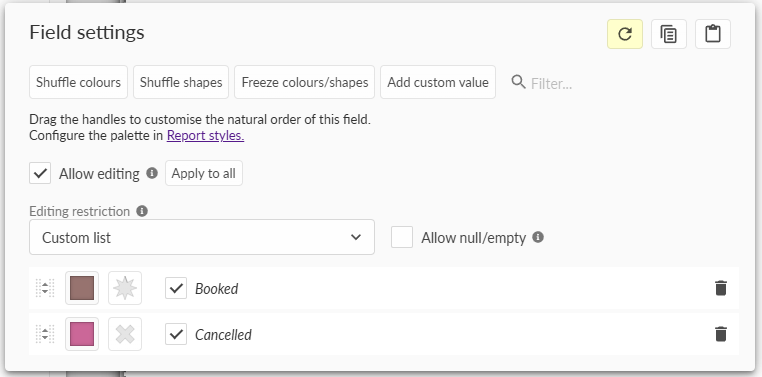
When an editing restriction is set, we can also control whether null or empty values are allowed. The Allow null/empty checkbox determines whether users can clear a value during editing. It does not prevent empty values when a new row is added.
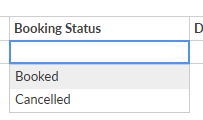
Now in the Editable Table, double-click a cell in the Booking Status column. Instead of a text input, a dropdown appears showing the allowed values.
Editing restrictions: Field values
Next, we'll restrict the Departure Airport field using looking data rather than a custom list.
In the Data tab open the field settings for Departure Airport. Set Editing Restriction to Field values, select the airports data source and choose the Airport Name field.
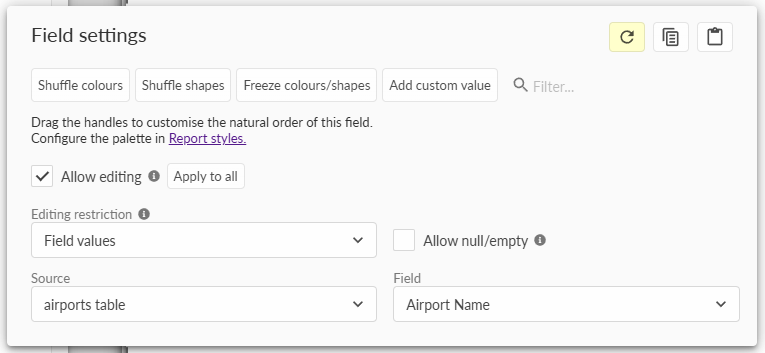
The dropdown values are now driven entirely by the lookup data.
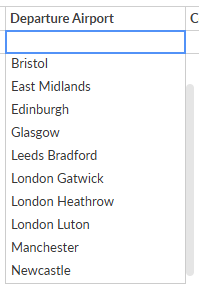
If a new airport is added to the airports dataset, it automatically becomes available for selection. This shows how lookup-driven restrictions stay in sync with reference data.
Editing restrictions; Field values with a hierarchy
Sometimes valid choices depend on other selections.
For OmniTrips:
- regions depend on the selected country
- resorts depend on the selected region
- hotels depend on the selected resort
This is handled using a hierarchy.
Click the 3-dots menu in the main toolbar and select Data model..., then switch to the Hierarchies tab.
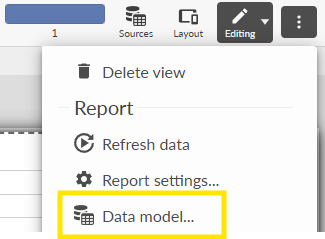
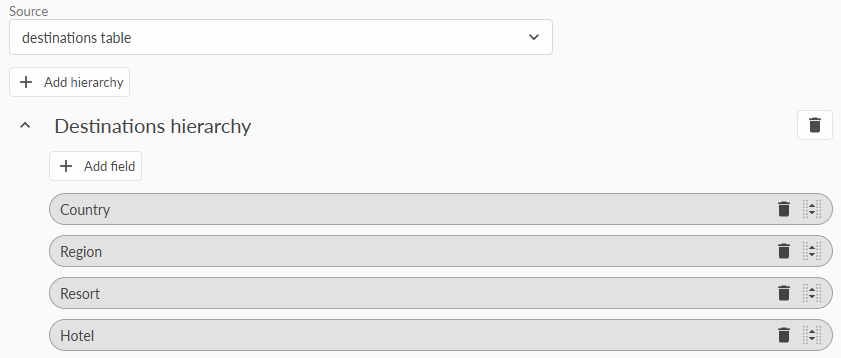
Select the destinations data source and create a hierarchy with the following fields, in order:
- Country
- Region
- Resort
- Hotel
Now apply editing restrictions to the corresponding fields in the bookings data source. For each field, select Field values and point it at the matching field in the destinations table.
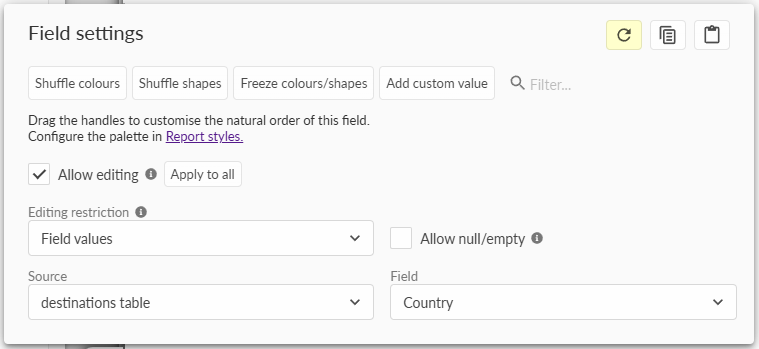
Because a hierarchy exists, Omniscope automatically links the fields together.
Now when editing a booking:
- Selecting a country filters the available regions
- Selecting a region filters the resorts
- Selecting a resort filters the hotels
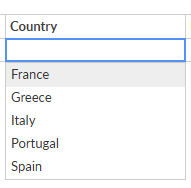
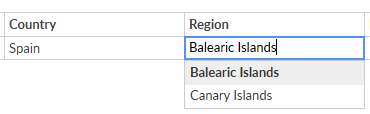

In an upstream value changes, all downstream values are cleared automatically. For example, changing the country clears the region, resort and hotel fields.

If a new destination is added to the lookup data, it becomes available immediately when entering bookings.
Adding a dashboard
With editing in place, we'll add a simple dashboard showing:
- total number of bookings
- total passengers
- bookings by country
- bookings over time
- bookings by airport
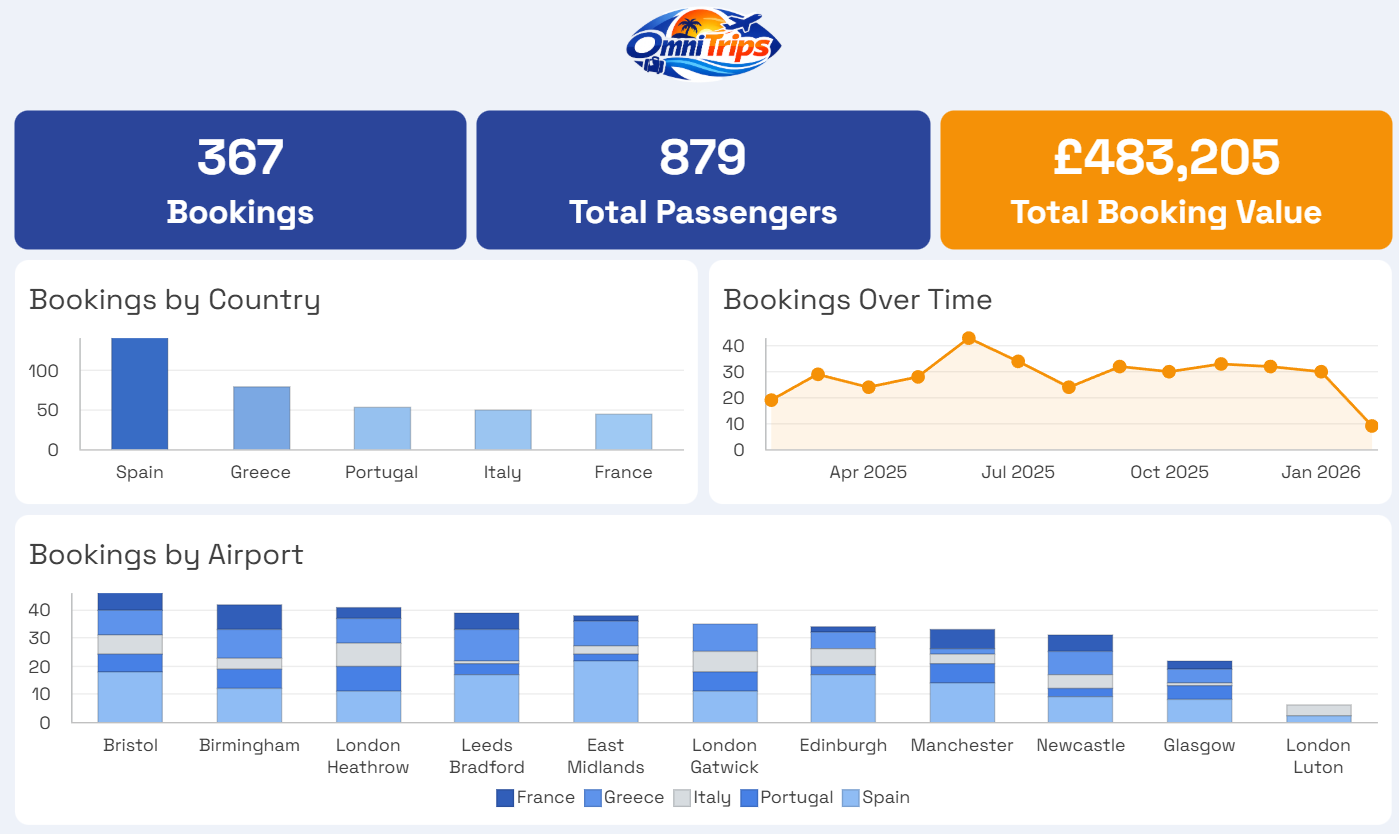
The same report now supports multiple roles:
- agents enter booking data
- managers monitor performance
- administrators maintain reference data
Summary
Editing restrictions make data entry in Omniscope safer, faster and more consistent.
By combining custom lists, and dynamic text choices driven by lookup data and hierarchies, users are guided toward valid values without complex validation rules.
The result is a single system that supports data entry, governance and reporting - all in one place.
Was this article helpful?
That’s Great!
Thank you for your feedback
Sorry! We couldn't be helpful
Thank you for your feedback
Feedback sent
We appreciate your effort and will try to fix the article