Omniscope’s report styling and branding can be customised to match a company’s visual identity, either globally or on a per-folder basis. This is also useful when delivering reports to different clients, where each client may require their own branding, logos, fonts, colours, and default visual behaviour.
It is worth remembering that if a folder does not have its own branding configured, it inherits the branding from the parent folder.
Important: Folder-level branding and white labelling are available with the Enterprise licence. On the Business and Pro plans, report styles can be edited and shared at the individual report level.
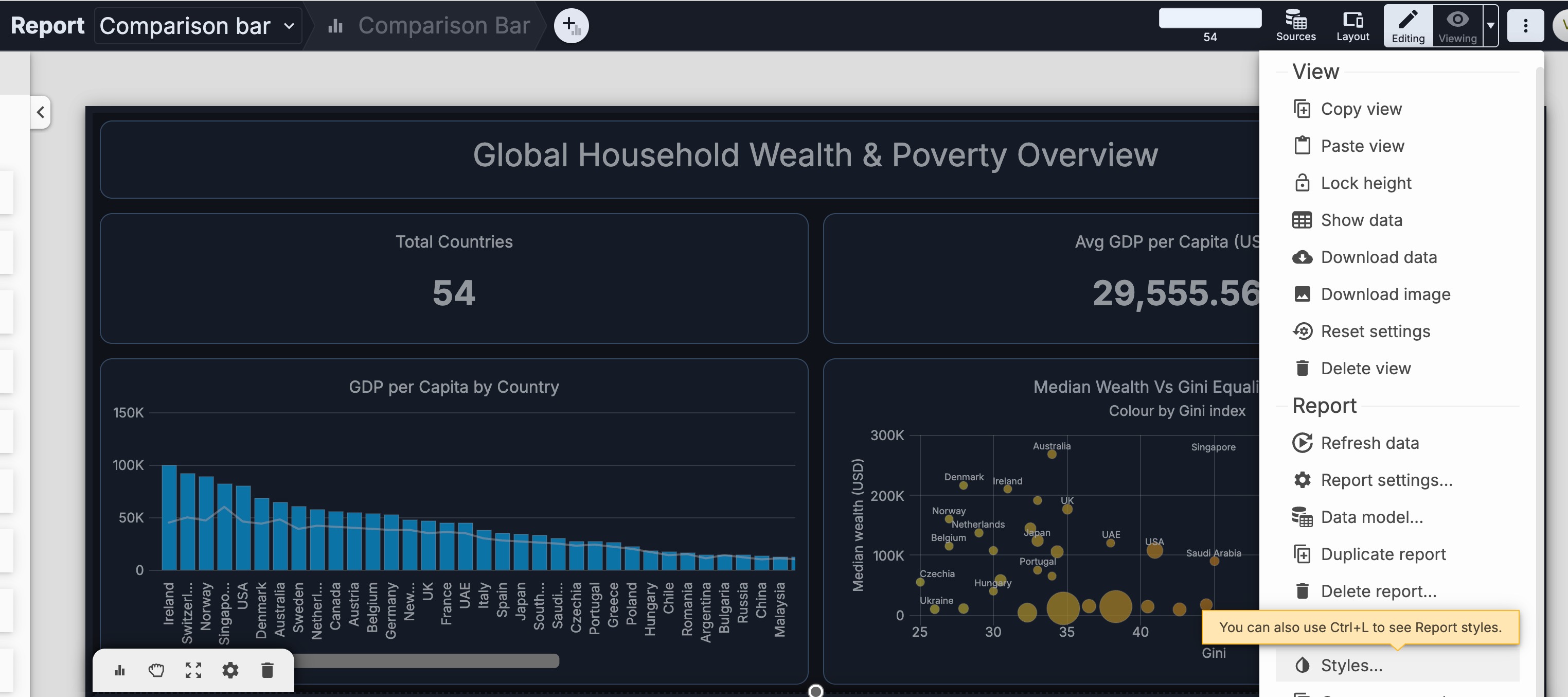
Report Styles configuration allows users to customise report appearance including report page styling, toolbars, buttons, charts, fonts, logos, and colours. (as per images)
Colour pickers throughout Omniscope menus support both manual selection and direct entry of hexadecimal or RGB values, making it easier to match an organisation’s branding guidelines precisely. Google Fonts can also be used for report typography - the user just needs to enter the name of the Google font in the Report font box.
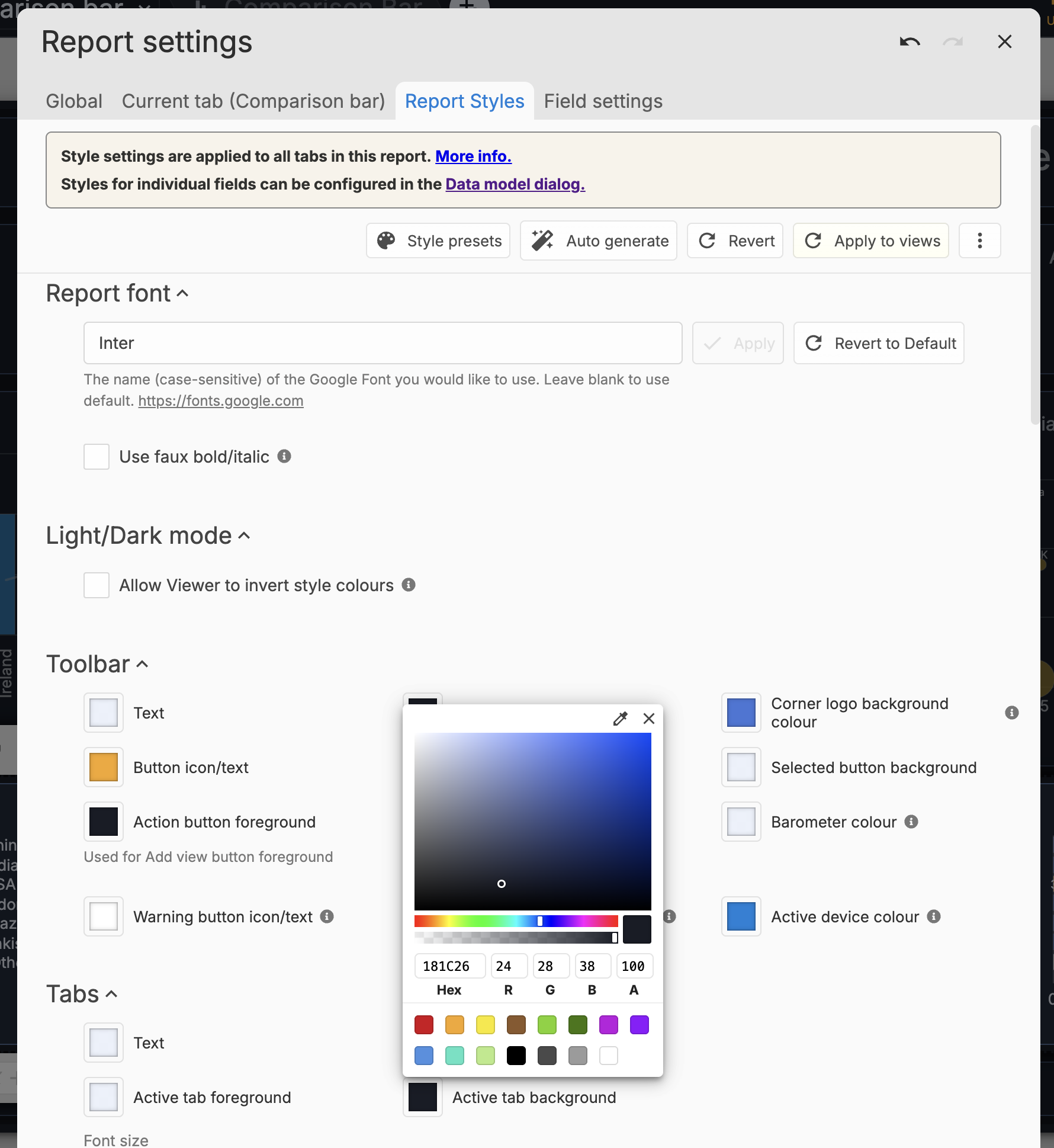
The recommended approach is to first create a dedicated sample project containing example views such as bar charts, line charts, tables, and filters. These views can then be styled exactly as required before being rolled out more widely. In addition to colours and fonts, Omniscope also allows view configurations to be included in exported styles, enabling visualisation settings and report styling to be reused consistently across newly-created reports.
Examples of view configuration customisation can include:
Rounded bar chart edges
Hidden gridlines
Smooth line curves
Custom line widths
Filter defaults and table styling
During the style configuration process, useful options allow users to make changes, apply them to views, or revert them before finalising the design. Once the branding setup is complete, the style configuration can be exported from the report using:
Three-dot menu → Styles → Three-dot menu → Export Style
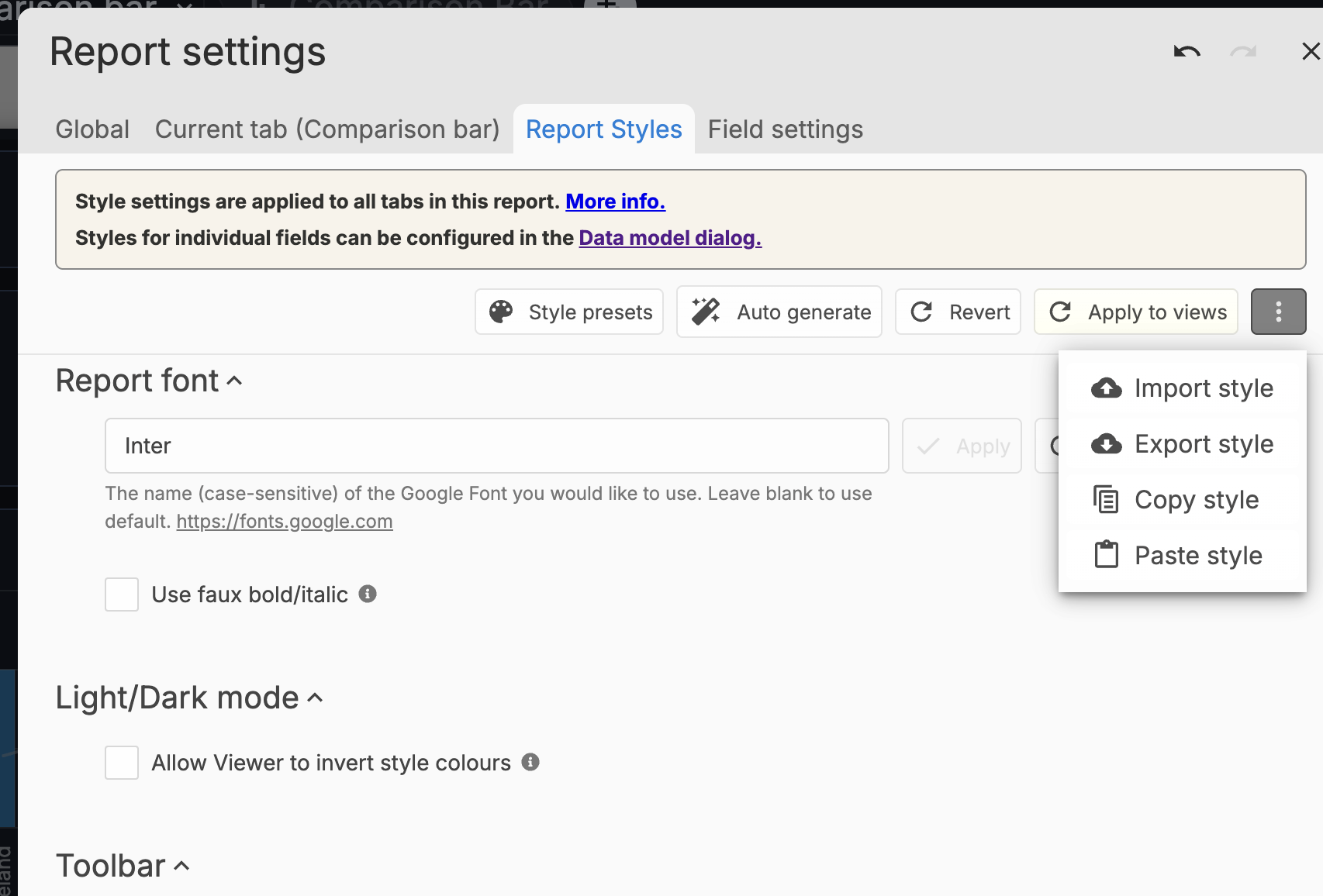
Important: When exporting, users can also enable Include View Configurations, which stores not only colours and themes but also the default configuration of visualisations and report components. The exported style is saved as an XML file.
To apply this branding to a folder or an entire project hierarchy:
Projects Page → Profile → Edit Branding → Edit Report Styles → Three-dot menu → Import Style
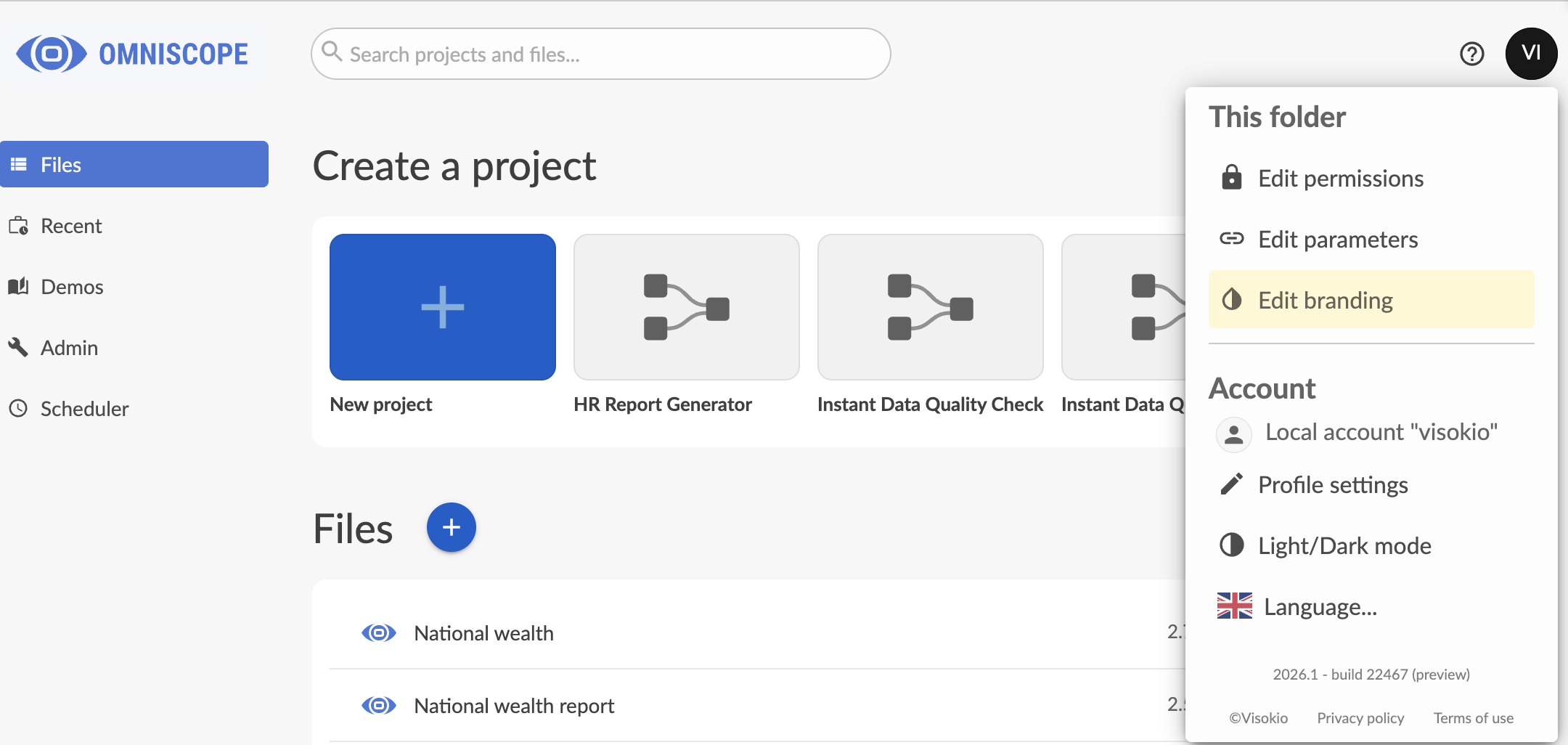 | 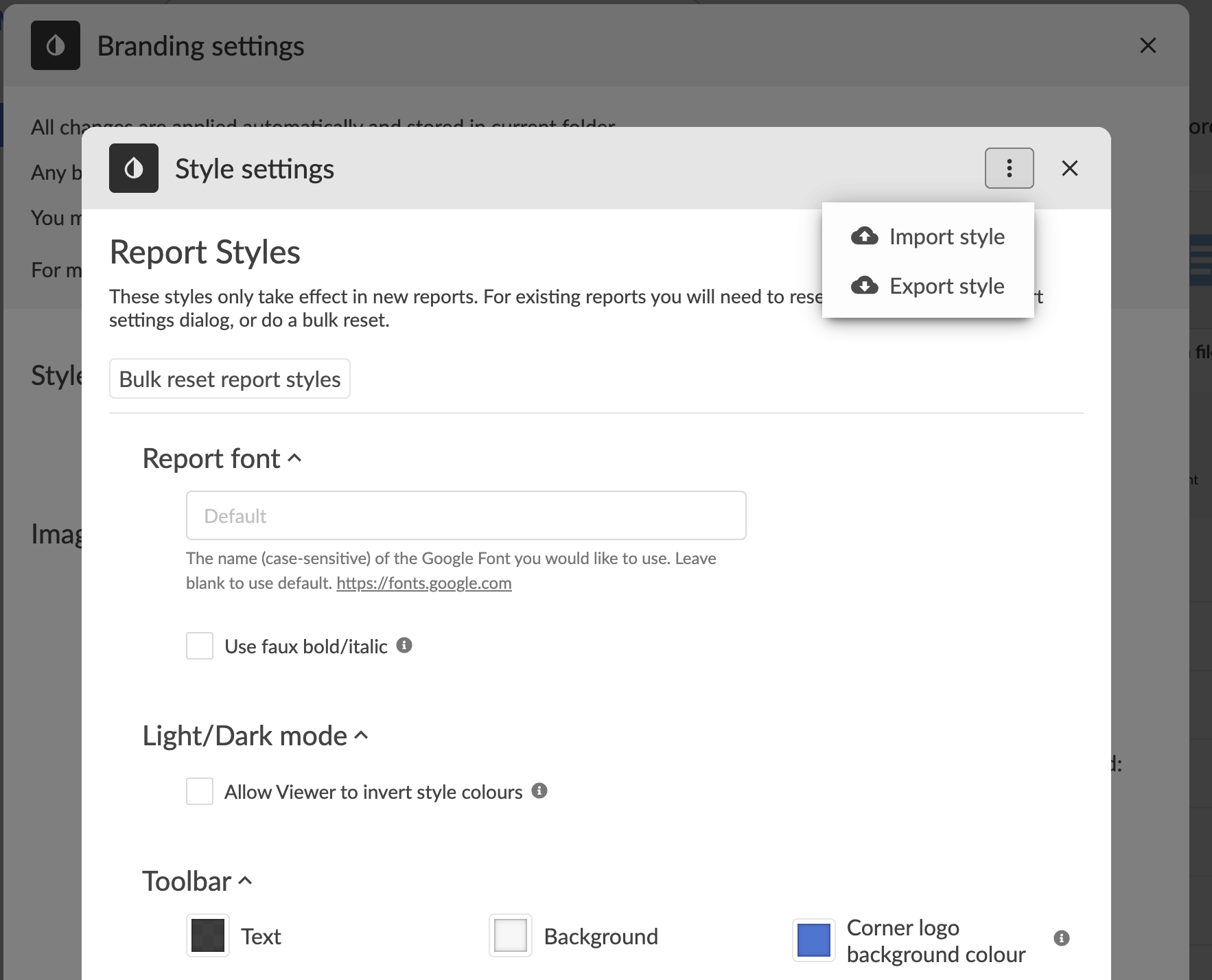 |
Import the exported XML file into the folder branding settings.
All newly-created reports within that folder will automatically inherit the imported branding styles and saved view defaults. Existing reports are not automatically updated, as report branding is applied the first time a report is opened or created.
For Enterprise users, branding can also be extended into full white-labelling, including custom application names, logos, navigation styling, support links, and additional CSS overrides for deeper interface customisation.
Read more:
Branding with View Configurations
White-labelling Omniscope: Building a custom app with own branding
Was this article helpful?
That’s Great!
Thank you for your feedback
Sorry! We couldn't be helpful
Thank you for your feedback
Feedback sent
We appreciate your effort and will try to fix the article