Introduction
Omniscope supports reading Microsoft OneDrive files in the File block and other file-reading blocks, such as Batch append folder. You can browse your OneDrive folders, select a file and configure the read options as usual.
This article explains how to set up the connection and read your files.
Setup
Omniscope uses client-credentials OAuth so imports can run automatically without individual Microsoft sign-in. Ask your
Microsoft 365 administrator to register an application using our guide:
Record the tenant ID, client ID and client secret Value (not the Secret ID). Keep the secret secure and update it in
Omniscope before it expires.
The tested setup uses Microsoft Graph > Application permissions > Files.Read.All, with admin consent. This grants read
access across the organisation, including other users' OneDrives. It may suit a central integration needing broad access, but is excessive for importing a few files. Selecting a user or folder in Omniscope does not narrow the permission. The guide's email permissions are not required.
For a narrower scope, a company could collect files in a dedicated OneDrive import folder shared with the colleagues supplying them. Its Microsoft administrator could assess Files.SelectedOperations.Selected, with admin consent and an explicit read grant for that folder, replacing broad permissions such as Files.Read.All. Sharing the folder with colleagues does not itself grant the app access.
Access and usage are the company's decision, based on its security policies. Restricted setups have not yet been verified with this connector and may affect browsing; discuss the proposed configuration with your Microsoft administrator.
Microsoft's guidance on restricting access:
https://learn.microsoft.com/en-us/graph/permissions-selected-overview
Reading files
Add a File Input block to your workflow and choose OneDrive file as the file location.
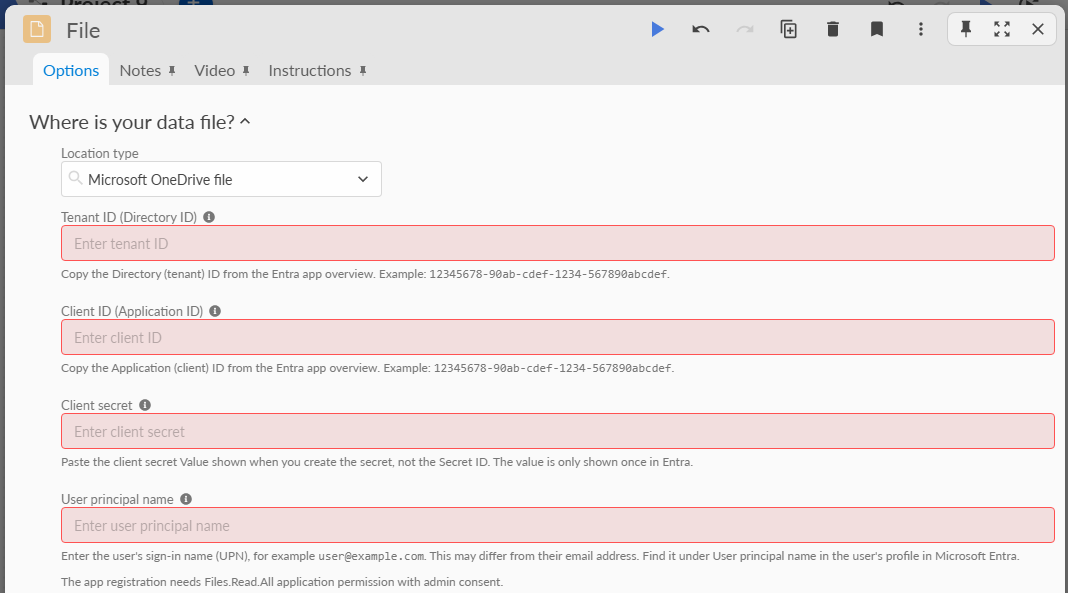
Enter the connection details:
- Tenant ID (Directory ID): the Directory (tenant) ID from the app registration.
- Client ID (Application ID): the Application (client) ID from the app registration.
- Client secret: the secret Value you copied during setup.
- User principal name: the sign-in name of the user whose OneDrive you want to read, for example user@example.com. This may differ from their email address; you can find it in their Microsoft Entra user profile.
Confirm the connection, then use the Path browser to select your file. You can also enter a path such as /Imports/sales.csv.
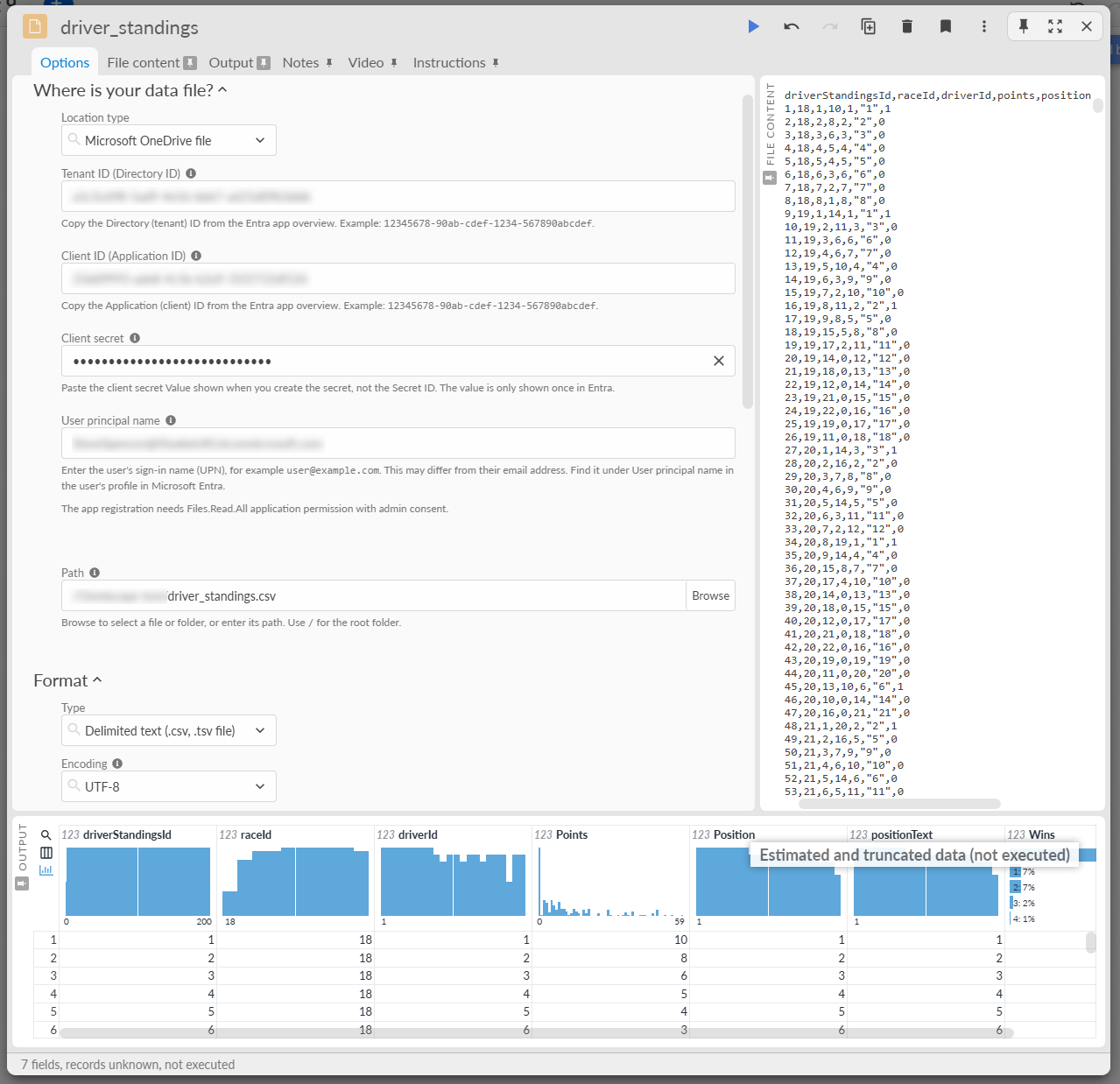
Configure the file's read options as normal then execute the block to load the data.
Was this article helpful?
That’s Great!
Thank you for your feedback
Sorry! We couldn't be helpful
Thank you for your feedback
Feedback sent
We appreciate your effort and will try to fix the article