Introduction
The Microsoft Fabric connector lets you read Warehouse and Lakehouse tables into Omniscope, or query them directly from a report using Live Query.
Keep Fabric as your data platform and use Omniscope to prepare and combine its data with other sources, build workflows and create interactive reports.
Setup
To read your existing Fabric data in Omniscope, ask your Microsoft Entra and Fabric administrators to register an app and grant it access to the Warehouse or Lakehouse you want to use.
Register an application
The connector uses OAuth 2.0 client credentials. Omniscope authenticates as an application, represented in Microsoft Entra ID by a service principal. No individual Microsoft sign-in or user principal name is required, so workflows can run unattended.
In the Microsoft Entra admin centre, register a single-tenant app under App registrations. No redirect URI is needed for this flow. Record its Directory (tenant) ID and Application (client) ID. Under Certificates & secrets, create a client secret and copy its Value immediately; this is different from the Secret ID. Keep it secure and update it in Omniscope before it expires.
Follow the app registration and secret-creation steps in (Microsoft 365 connector prerequisites. The guide's Microsoft Graph email permissions do not apply to Fabric.
Allow access in Fabric
There is no Fabric API permission to add under the app's API permissions in Entra. Microsoft Graph permissions are not used by this connector. Fabric access is controlled by the tenant setting and the app's permissions within Fabric.
Your administrator needs to configure both:
- In Fabric tenant settings, under Developer settings, allow the app's service principal to call Fabric public APIs. Look for "Service principals can call Fabric public APIs" (also called "Service principals can use Fabric APIs" in Microsoft guidance). If access is restricted to security groups, include the service principal in an allowed group.
- In the workspace's Manage access settings, add the app's service principal with the Viewer role. This allows the connector to discover and read Warehouse and Lakehouse data, including through Live Query. Viewer grants SQL read access across the workspace. Contributor is not required for this connector.
For access to specific tables or views, administrators can use item Read permission with SQL SELECT grants, provided the app can also discover the workspace and item through the Fabric APIs. Avoid a workspace-wide Viewer grant when that would exceed the intended scope.
Security note
Fabric queries run as the configured app, not as the person viewing the report. A viewer's own Fabric permissions are not applied. Restrict the app's access to the data needed, and configure Omniscope report access accordingly. Selecting a table in Omniscope does not restrict the app's underlying permissions.
Network access
The machine running Omniscope needs HTTPS access to Microsoft sign-in and Fabric APIs, plus SQL access on TCP port 1433. Ask your administrator to follow Microsoft's firewall guidance, including treating SQL traffic as MSSQL/TDS rather than HTTPS. See Microsoft documentation below.
Add the block and connect
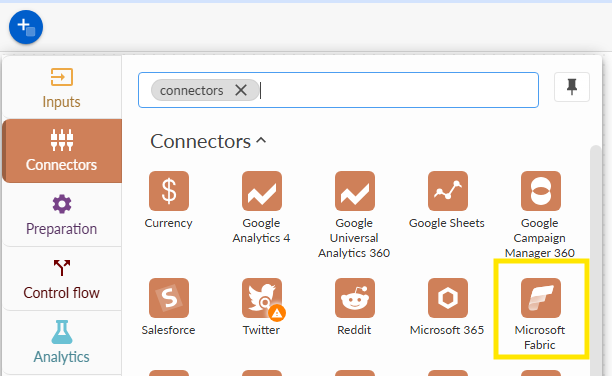
Add a Microsoft Fabric block to your workflow and open its options.
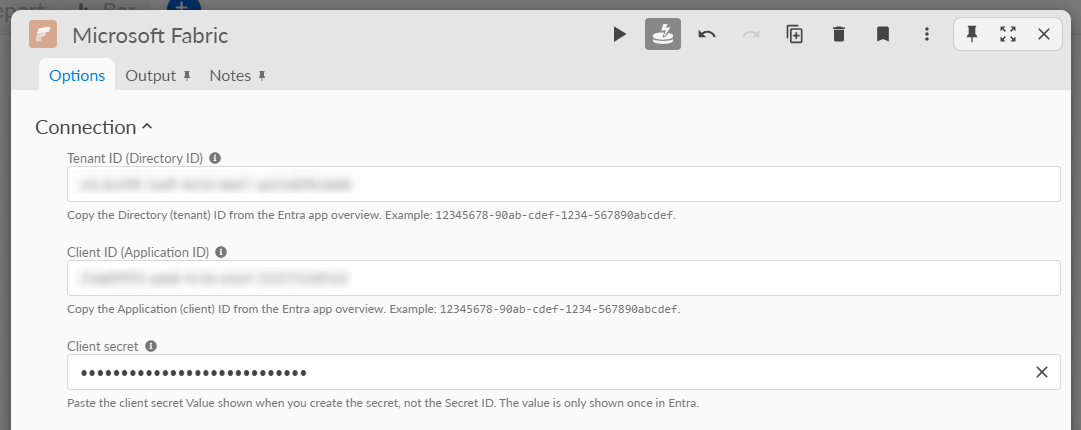
In Connection, enter:
- Tenant ID (Directory ID): the Directory (tenant) ID from the app registration.
- Client ID (Application ID): the Application (client) ID.
- Client secret: the secret Value copied during setup.
Click Connect. Under Fabric data, select a Workspace, then a Warehouse or Lakehouse. Omniscope finds the SQL connection details automatically.

A workspace groups Fabric items and controls access to them. A Warehouse holds structured tables for SQL analysis. A Lakehouse holds files and tables in OneLake, Fabric's shared data lake; this connector reads the tables and views exposed through its SQL analytics endpoint.
Lakehouse files and Power BI semantic models are outside this connector's scope.
Choose the data
The Query section works like the Database block. Choose a Query type:
- Table or view: select an object, then keep All columns selected or untick it and choose the Columns you need.
- Custom SQL: enter a read query using Fabric's T-SQL syntax, then click Confirm SQL. Use this to select, filter, join or aggregate data before returning it to Omniscope.
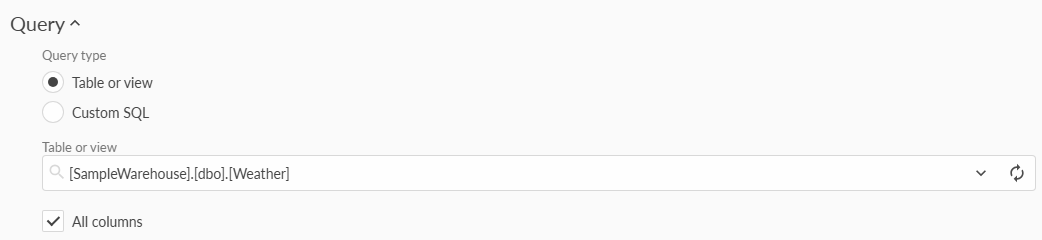
Preview the result to check your selection. In import mode, execute the block to load the data into your workflow, ready for further preparation or connection to a Report block.
Use live query
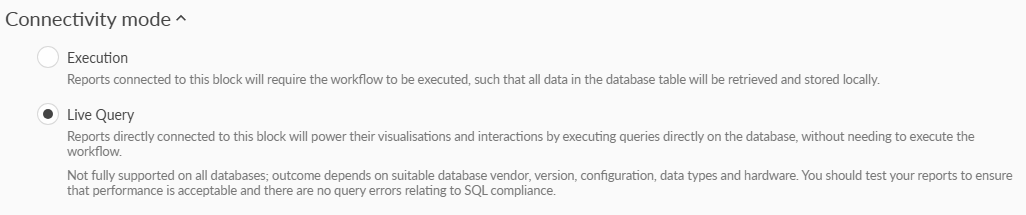
To query Fabric directly from a report, choose Live Query under Connectivity mode and connect the Fabric block to a Report block. Report interactions send queries to Fabric without first importing the full dataset into the Omniscope workflow, which is useful for large datasets.
Live Query also uses the app's identity; it does not sign in to Fabric as each report viewer.
Response times depend on the query, network and available Fabric capacity. Lakehouse changes can take time to appear in the SQL endpoint, so Live Query does not guarantee immediate visibility of newly loaded data.
See Querying database data in Live Query mode.
If data is missing
Imports and Live Query both use your organisation's Fabric capacity. Capacity limits can slow or throttle queries, and paused or unavailable capacity can prevent data access. If queries fail, ask your Fabric administrator to check capacity status and usage.
If a workspace or item is missing, check the app's Fabric access with your administrator and refresh the selection list. A successful Connect confirms discovery access; it does not guarantee permission to read every table.
If the item appears but tables cannot be read, check SQL permissions and network access. For a Lakehouse, confirm that its SQL endpoint has finished provisioning and that the table appears there; an uploaded file is not automatically a SQL table.
Microsoft documentation
Was this article helpful?
That’s Great!
Thank you for your feedback
Sorry! We couldn't be helpful
Thank you for your feedback
Feedback sent
We appreciate your effort and will try to fix the article