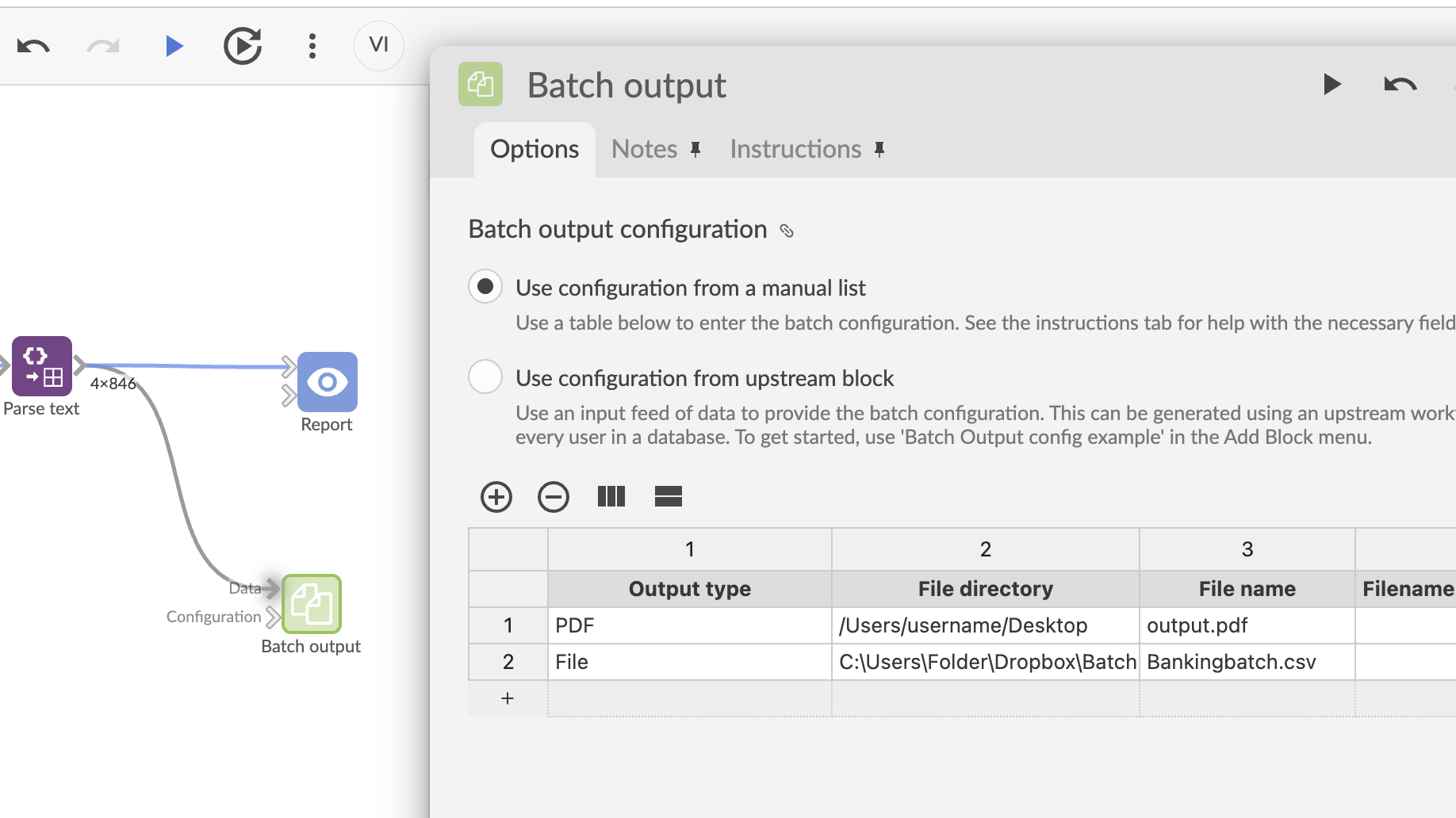
The Batch Output block allows you to publish the results of a data transformation workflow to multiple destinations using a publish configuration defined in a batch control file. It is typically used to output or email data files such as CSV or XLSX, or Omniscope Classic reports (IOK files).
Limitations:
Batch Output does not support publishing Web reports created in Report blocks within IOX project files, nor does it support IOZ or IOR files. For personalised or user-specific Web report distribution, Multi-Tenant reporting should be used instead.
Typical Use Case:
An organisation has built a workflow that produces clean data and wants to automate the export and distribution of the results to multiple recipients. Each recipient may require a different file format, a different subset of the data, and a different delivery method, such as email or specific file locations.
Workflow
We create a workflow that results in some data that we want to publish. The end block is connected to the Batch Output block. The Batch Output block also requires an extra input block which will contain the configuration.
Input Data
The input data contains the data to publish and the configuration.
Options
The next step is configuring the Batch Output block. If we don't connect an input block for the configuration, the options will show a button with the text: "Add default input blocks". This will create a text input block with a configuration table connected to the Batch Output block.
Clicking on the default input block reveals the following columns:
- Output type: The type of output you want to publish (required). Valid values:
Fileto publish as a data file (often an IOK file, or a data format such as IOD, CSV, XLSX).Emailto send an email with data typically embedded or attached. Requires the Email section in Admin to be configured.Screenshotsto save screenshots of the IOK report as images.PDFto print screenshots of the IOK report as a PDF file.PowerPointto print screenshots of the IOK report as a PowerPoint file
File directory: The directory you wish to publish the output file(s) to. Use for
File,ScreenshotsorPDForPowerPointoutput types.File name: The name of the file you wish to generate including the extension, for example:"MyFile.iok". For
Fileoutput type the file extension determines the type of file to be generated. ForPDFandPowerPointoutput types the extension is not required. Leave blank forScreenshotsoutput type.Filename timestamp format: If specified, output files will have a timestamp in the filename. The value should be a date/time pattern such as yyyy-MM-dd-HH-mm-ss. See Help with Date formats for more information. Leave blank for no timestamp.
Keep link/history: Use for Omniscope "iok" files only. Set to
trueto keep the upstream connections as a data source in the published file. Otherwise leave blank.Password: Use for Omniscope "iok" files only. The .iok password, if required by the output file. Otherwise leave blank.
Permissions server: Use for Omniscope "iok" files only. A URL pointing to the server which will be used to authenticate users who try to open the iok file. Otherwise leave blank.
Domain lock: Use for Omniscope "iok" files only. A comma separated list of domains to lock the iok file to. Otherwise leave blank.
Restrict to group: Use for Omniscope "iok" files only. The name of the group (walled garden) you want to restrict the file to. Leave blank to allow all users to access file.
Strongly compressed: Use for Omniscope "iok" files only. Set to
trueto save the data in a strongly compressed format. This will require more time and memory to save the data, but will produce a smaller iok file. Otherwise leave blank.Worksheet: Use for Excel files only. The name of the Excel worksheet you want to export to. Leave blank to use the default name.
Email from: Use for
Emailoutput type only. Optional "From" email address.Email to: Use for
Emailoutput type only. List of "To" email addresses. Separate each address using the,character.Email cc: Use for
Emailoutput type only. List of "CC" email addresses. Separate each address using the,character.Email bcc: Use for
Emailoutput type only. List of "BCC" email addresses. Separate each address using the,character.Email subject: Use for
Emailoutput type only.Email subject timestamp format: Use for
Emailoutput type only. If specified, the email subject will have a timestamp added. The value should be a date/time pattern such asyyyy-MM-dd-HH-mm-ss. More information. Leave blank for no timestamp.Email message: Use for
Emailoutput type only. The message body. Static, plain text.Email dynamic content source: Use for
Emailoutput type only. HTML source for rich text content including formulas, as edited/created by Omniscope Classic.Email add inline data table: Use for
Emailoutput type only. Iftrue, the data will be embedded in the email message in the form of an inline tableEmail inline data table max rows: Use for
Emailoutput type withEmail add inline data tableonly. The maximum number of rows in the inline table. Leave blank to export all rows.Email external attachments: Use for
Emailoutput type only. A list of files (including file path) you want to attach to the email message. Separate each file path using the,character.Template file: Use for Omniscope iok
Fileoutput type when data is to be loaded into an external template iok file (if left blank data will be published in default iok template). Required if data to be published asScreenshots,PDForPowerPointoutput types. The full path to the iok template file to be used with this data. For example:C:\template.iok. File extension must be included in the path.Preserve template formatting and formulas: Optional parameter when a template file has been specified. If
true, the formatting and formulas of any fields that already exist in the template file will be retained. You must ensure the published data has a field of the same name and type. Iffalse, all fields in the template file will be replaced entirely.Tabs: Use for
PDForPowerPointoutput types only. The tabs in the iok template file you want to generate screenshot of. Separate each tab name using the,character.Tab screenshot options: Use for
Screenshots,PDForPowerPointoutput types only. The options for generating the screenshots. Each option should be separated using the,character. You can specify multiple options. Any options that you don't specify will use the default value. Options and their default settings are: Tab bar=false, Sidebars=false, Titles=true, Footers=true, Main toolbar=false, Cycling toolbar=false, View toolbars=false, Tab navigator buttons=false, Change background to white=true.Screenshot pixel density: Use for
Screenshots,PDForPowerPointoutput types only. The image pixel density multiplier. Use1for 1x,2for 2x,4for 4x (default) and8for 8x. Leave blank to use the default setting.Screenshot image type: Use for
Screenshotsoutput type only. The screenshot image file type:png,jpg, orbmp. Otherwise leave blank.Output format: Use for
PDFoutput type only. The output format when publishing data to the PDF document. Enter eitherImage(default) orVector graphics.JPEG image quality: Use for
ScreenshotsorPDFoutput types only. Optional. The JPEG image quality. Enter a value between 0 (low) and 10 (high). Otherwise leave blank.Export text as selectable text: Experimental feature. Optional. Use for
PDFoutput type only. Set totrueto export PDF text as selectable text orfalseto export PDF text as shapes. The default isfalse.Post process command: Use for
PDFoutput type only. Optional. Command to run an external tool to transform/optimise PDF output file.Insert behaviour: Use for
PDForPowerPointoutput types only. Determines how the data is written to the selected file. Enter eitherOverwriteto overwrite the file (default),Beginningto insert at the beginning of the file,Endto insert at the end of the file orAfter:[PAGE NUMBER]to insert at a specific position, where[PAGE NUMBER]specifies the position.Excel publish method: Use for Excel output type only. Determines what action to take when publishing to an existing Excel file. If the Excel file does not exist then a new Workbook will be created. Enter either:
Replace workbookto create a new workbook every time.Replace worksheetto create a new worksheet every time.Replace datato delete all the data in the worksheet and replace the data, preserving any existing formatting.Overwrite datato overwrite the data, preserving formatting and any existing data outside the overwritten data.Excel exclude headers: Use for Excel output type only. Whether to skip outputting a header row. If
falseor empty/missing (default), headers are output. If explicitlytrue, headers are skipped.Excel row insert position: Use for Excel output type only. Determines the row in the Excel worksheet that the data will be inserted. Leave blank to insert the data in the firstrow.
Excel column insert position: Use for Excel output type only. Determines the column in the Excel worksheet that the data will be inserted. Leave blank to insert the data in the firstcolumn.
Delimited file: exclude headers: Whether to skip outputting a header row. If
falseor empty/missing (default), headers are output. If explicitlytrue, headers are skipped.Delimited file: cell separator character: Use for Delimited (e.g. CSV) file output only. Determines the cell separator character, typically comma or semicolon, or \t for tab; empty for default.
Delimited file: cell quote character: Use for Delimited (e.g. CSV) file output only. Determines the cell quote character, typically
"; can be empty for data which does not contain linebreaks nor the cell separator character.Column inclusions: List of the columns you want to include in the output. Please separate each column name with the
,character. Leave blank to include all columns. Use either column inclusions or column exclusions but not both.Column exclusions: List of the columns you want to exclude from the output. Please separate each column name with the
,character. Leave blank to include all columns. Use either column inclusions or column exclusions but not both.Filter condition: Either
Accept(default if left blank) to accept all records matching the filter rules orRejectto reject all records.Filter match: Either
all(default if left blank) to match on all filter rules oranyto match on any filter rule.Filter rules: List of filter rules. Please separate each rule with the
,character. Rules should be structured as follows:[COLUMN_NAME]OPERATOR[VALUE]For example:[SEX]=[MALE], [NAME]CONTAINS[CHRIS], [AGE]>[35]Valid operators for String columns:has no value,has any value,=,≠,contains,does not contain,starts with,ends with,Soundex (Fuzzy match),Levenshtein (Fuzzy match). Valid operators for numeric and date columns:has no value,has any value,=,≠,>,>=,<,<=,=,Soundex (Fuzzy match),Levenshtein (Fuzzy match).Delete empty fields: Set to
trueto delete empty fields in the data. The default isfalse.Delete empty rows: Set to
trueto delete empty rows in the data. The default isfalse.
Was this article helpful?
That’s Great!
Thank you for your feedback
Sorry! We couldn't be helpful
Thank you for your feedback
Feedback sent
We appreciate your effort and will try to fix the article