Project Automations allow an Omniscope project to run by itself on a schedule.
Instead of opening a project manually each day, the server can do it for you: refreshing reports, updating data, or triggering processing blocks automatically.
Typical uses:
Refresh dashboards every morning before users arrive
Update data after nightly database loads
Send scheduled reports to stakeholders
Run preparation or calculation blocks at off-peak hours
Temporarily block executions during maintenance windows
Everything is configured as an automation directly inside the Project Workflow , so you don't need to configure a Scheduler app task.
Licence requirement
- Scheduler Basic for Auto-refresh Reports.
- Scheduler Pro for Auto-refresh Reports and Blocks execution.
Enterprise plan already include Scheduler Pro, so all automation features are available.
Server settings (admin)
Project automations are governed by global settings in Scheduler → Settings.
Enable project automation: Turns project automation on or off for the entire server. When disabled, projects will not be able to create or run automations.
Minimum project automation interval: the shortest frequency users are allowed to pick (e.g., Hourly). Any schedule shorter than this (e.g., Minutes/Seconds) is blocked.
These settings apply to all projects on the server and are enforced in the project’s Automation dialog
How do I set up a Project Automation?
Open the project you want to automate.
Click the three-dots (…) menu in the top-right corner.
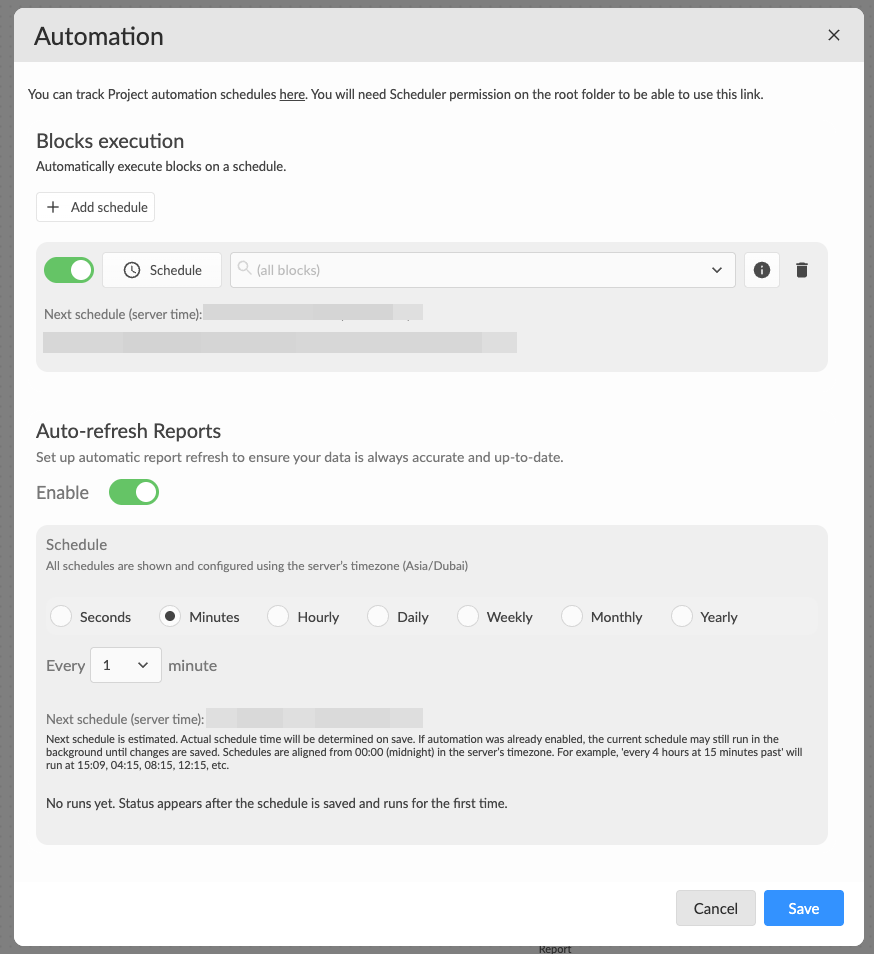
Select Automation.
Enable Project Automation.
Configure Auto-refresh Reports or Blocks execution.
A) Auto-refresh Reports: refreshes all reports data automatically.
Use this when dashboards must always show up-to-date data without a user opening them.
B) Block execution: to run selected Workflow blocks automatically. This is typically used for data preparation, imports/exports, calculations, scheduled email outputs
Choose the frequency
Frequencies include seconds, minutes, hourly, daily, weekly, monthly, and yearly.
Note: Available frequencies may be limited by your server’s Minimum project automation interval setting (set by an administrator in Scheduler → Settings).
For example, if the server’s minimum is Hourly, you won’t be able to choose Seconds or Minutes.Set the interval (e.g. every 30 minutes, daily at 08:00).
Optionally pick which block(s) to execute
Note: All project automation schedules run in the server’s timezone.
Where can I see my automations?
Once a project automation is enabled and configured:
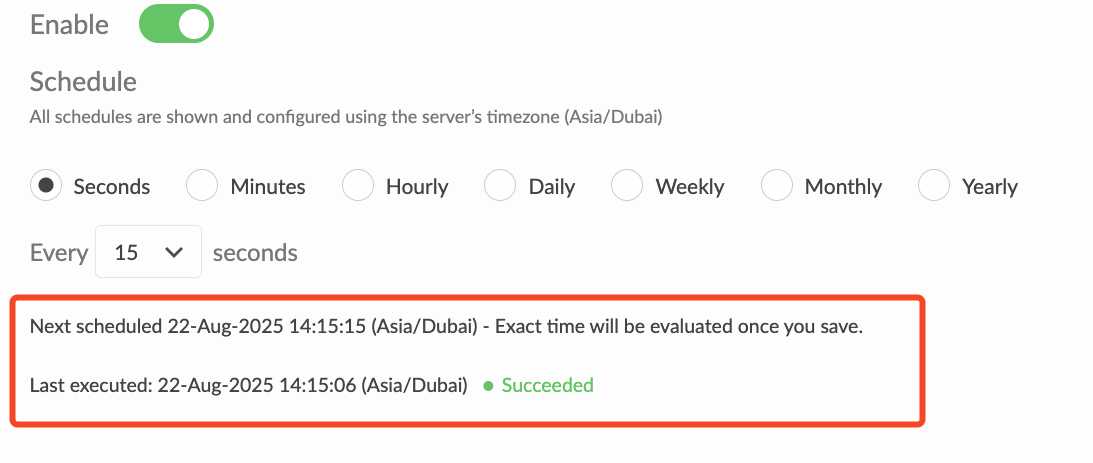
It appears in the Scheduler app → Project schedules page (which will show automations for all the projects).

It also appears in the Project automation dialog from the three-dots (…) menu > Automation for a given project.
Why can’t I select certain intervals?
If you can’t choose a shorter interval (e.g., Minutes), your server admin has set a Minimum project automation interval in Scheduler → Settings.
Ask your admin to lower that minimum if your use case requires more frequent runs.
If an existing automation becomes shorter than the new minimum, you’ll see an in-app message and will need to adjust the schedule to a permitted frequency.
How do I check what happened?
If a scheduled run fails or behaves unexpectedly:
Open the Scheduler logs
Search for your project name
Review the execution details and error messages
The logs will show:
when the project ran
whether it succeeded
any errors during data refresh or block execution
Was this article helpful?
That’s Great!
Thank you for your feedback
Sorry! We couldn't be helpful
Thank you for your feedback
Feedback sent
We appreciate your effort and will try to fix the article